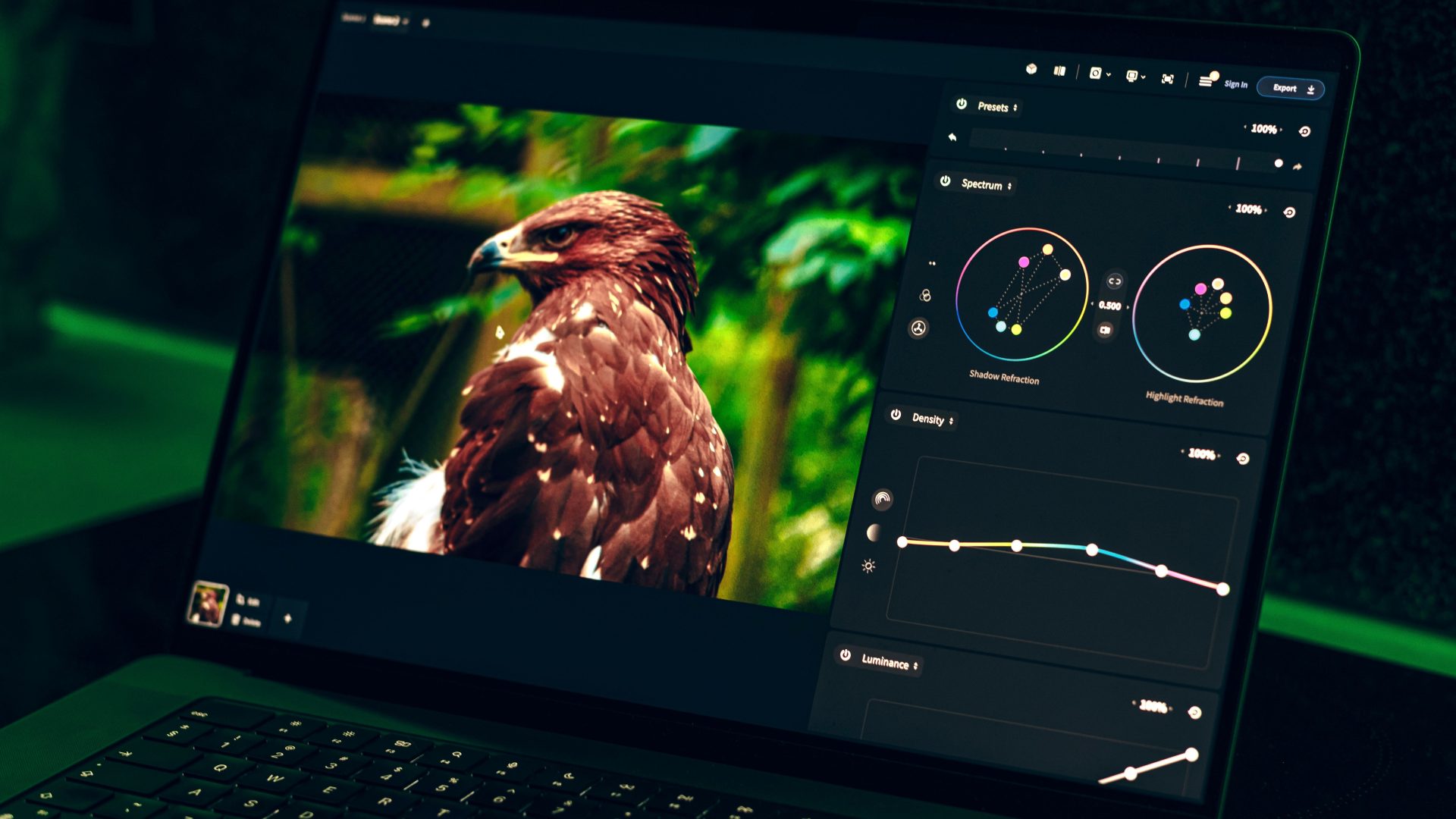
Keyboard shortcuts can reduce repeated menu trips when you edit in Lightroom Classic. Their usefulness depends on the tasks you repeat, the version you use and whether a command fits your workflow. Learn a small group on test images before using it on an important job.
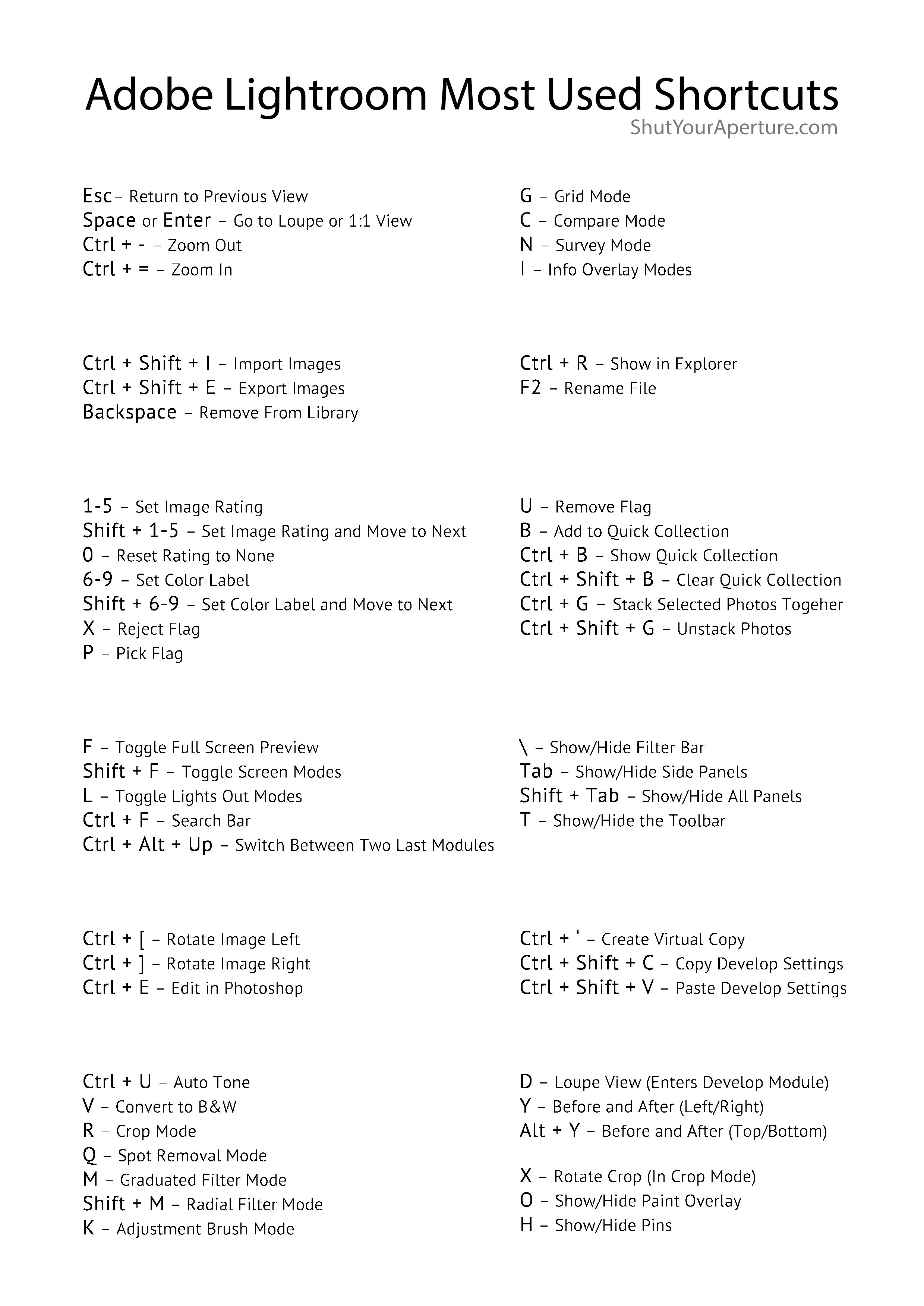
This guide groups useful Adobe Lightroom Classic shortcuts by the job they do. The original article also includes a printable cheat sheet: Adobe Lightroom Most Used Shortcuts PDF download. If you are new to the software, see our Lightroom editing course, then come back here.
Original date March 17, 2016. Updated October 2026.
Before the list
Two quick notes so the list makes sense.
First, everything below is for Lightroom Classic, the catalog-based desktop application. The cloud-based Lightroom app is a different program with its own shortcut set, so do not expect every one of these keys to do the same thing there.
Second, Windows and Mac keys differ slightly. Where they do, I show both: Ctrl on Windows is Command on Mac, and Alt on Windows is Option on Mac. The listed letter keys are the same on both. Keyboard layout, the active tool and an open text field can change what a key does; leave text entry before using a command.
 Save
SaveMoving around the catalog
Start with these navigation keys. They move you between the views where the actual work happens.
- G – Library Grid view. Your home base for looking at a whole shoot at once.
- E – Library Loupe view. One photo, big. From Grid, the spacebar also takes you here.
- D – Open the selected photo in the Develop module. Use it after choosing a frame in the Library.
- C – Compare view. Two photos side by side, which is how you pick between near-duplicates.
- N – Survey view. A handful of candidates on screen at once. Good for narrowing a sequence down to a winner.
- F – Cycle the screen modes, including full screen.
- L – Lights Out. Press once to dim the interface, twice to black it out completely so nothing competes with the photo. Shift + L steps back.
- I – Cycle the info overlay in Loupe view. Shows file name and exposure details over the image, then hides them again.
- Tab – Hide or show the side panels. Shift + Tab hides every panel at once. When you want to judge a crop with fresh eyes, clear the chrome away first.
- T – Show or hide the toolbar under the image.
- Z – Toggle the zoom view. Ctrl + = and Ctrl + – (Command on Mac) zoom in and out in finer steps, and Page Up and Page Down scroll a zoomed photo.
Start with G, E and D if moving between those views is a repeated task. Add other commands only when they fit the work.
Culling at speed
During culling, flags and ratings can help record decisions. Use the mouse whenever it helps inspect a frame; avoiding it is not the goal.
- P – Flag a photo as a pick. Shift + P does it and moves to the next photo automatically.
- U – Remove a flag. Shift + U unflags and advances.
- X – Flag as a reject. Shift + X rejects and advances. Ctrl + Backspace (Command + Delete on Mac) starts the rejected-photo deletion command. Review the selection and dialog carefully: removing a photo from the catalog is different from deleting its file from disk. Keep backups and never use deletion as a casual auto-advance step.
- 1 through 5 – Set a star rating. Shift + 1-5 rates and moves to the next photo.
- 0 – Remove the star rating.
- ] and [ – Raise or lower the rating by one star without typing a number.
- 6, 7, 8, 9 – Assign color labels: red, yellow, green, blue. Shift + 6-9 labels and advances. Color labels are handy for marking things like “edit this first” or “client selects” without inventing a folder system.
One useful first pass is P and X with the Shift variants. Pick or reject, then inspect uncertain frames at a useful zoom rather than making a permanent decision from a small preview. Stars and labels can come in a second pass after the obvious rejects are separated. A reject flag is a label until you deliberately run a removal or deletion command.
 Save
SaveDevelop module tools
Once you are actually editing, the tool keys matter most, because the local adjustment tools hide behind small icons that all look alike.
- R – The Crop tool, from any module. You do not have to be in Develop.
- A – While cropping, constrain the aspect ratio.
- O – Cycle the crop grid overlays (thirds, golden ratio, and the rest). Shift + O rotates the orientation of the overlay, which matters for the diagonal and spiral guides.
- Q – Open the retouching tool. Adobe’s shortcut table still calls it Spot Removal; current Lightroom Classic documentation calls the expanded tool Remove. Choose Remove, Heal or Clone for the job, and inspect the result. Older Clone/Heal-only instructions do not describe every current mode.
- K – Create a Brush mask for a local adjustment. Older documentation calls this the Adjustment Brush. Paint the area, then adjust only what the photo needs.
- M – Create a Linear Gradient mask, called Graduated Filter in older documentation. It gives a gradual transition for a local adjustment. Shift + W opens or closes the Masking panel without needing to start a particular mask.
- / – Switch between the A and B adjustment brushes, so you can keep two different brush settings loaded at once.
- J – Show the clipping warnings. Red means blown highlights, blue means crushed blacks. Use the warnings as a check, then judge whether the clipping is intentional.
- Y – Before and after, side by side. Alt + Y (Option on Mac) stacks them top and bottom instead.
- H – Show or hide local adjustment pins. The effect depends on the active tool and overlay setting; it is not a permanent ban on showing pins.
If you edit with presets as a starting point, these keys still matter, because the preset only gets you to the starting line. The local work after it is where a frame becomes yours. Our guide to mastering Lightroom photo editing covers that full adjustment workflow, and the landscape preset roundup is a good place to see what a starting point looks like.
Fixing mistakes fast
Editing quickly means being willing to undo quickly.
- Ctrl + Z (Command + Z on Mac) – Undo. Works nearly everywhere.
- Double-click a slider’s name – Reset just that slider to its default.
- Alt-click a panel group name (Option-click on Mac) – Reset that whole group of sliders at once.
- Ctrl + Shift + R (Command + Shift + R on Mac) – Reset every adjustment on the photo.
- Ctrl + Alt + R (Command + Option + R on Mac) – Reset just the crop.
The double-click reset is the one people are most surprised by. It is not strictly a keyboard shortcut, but once you know it you stop dragging sliders back to the middle by hand.
 Save
SaveHow to actually learn them
Nobody memorizes a list like this in one sitting, and trying to will just frustrate you. What works is smaller and more boring.
Pick three keys and use only those for a week. G, E, and D are the right first three for almost everyone, because moving between Grid, Loupe, and Develop is the motion you repeat most. The next week add the culling keys, P and X with the Shift variants. The week after that, R and Q. In a month you will have a dozen shortcuts in muscle memory without ever sitting down to study.
It also helps to keep the list where you can see it. The linked PDF and poster are the original 2016 downloads, preserved for reference, not newly updated 2026 shortcut charts. They may show old tool names. Use this article and Adobe’s current documentation for current behavior. Print the original cheat sheet PDF and tape it next to your monitor, or keep the poster version open on a second screen while you edit. Glancing at a printed page is faster than opening a menu to look for the thing you forgot.
One last tip: watch your own hands for a day. Every time you reach for the mouse, ask whether a key would have done it. That little habit shows you which shortcuts are worth learning next for the way you personally work, which is more useful than any generic list, including this one.
A few more worth knowing
These solve specific navigation and comparison tasks.
- Ctrl + ‘ (Command + ‘ on Mac) – Create a virtual copy. The fastest way to try a second edit of the same frame without duplicating the file.
- Ctrl + R (Command + R on Mac) – Show the photo in Explorer or Finder. Useful when you need the actual file, not the catalog entry. Note that this only works in the Library and Develop modules.
- Down Arrow / Up Arrow – In Compare view, swap or advance the select and candidate photos. This is what makes Compare a genuine culling tool instead of just a viewer.
- = and – – Grow or shrink the Grid thumbnails. Small thumbnails for the first pass, big ones for the final check.
- Shift + G, Shift + E, Shift + C, Shift + N – Open Grid, Loupe, Compare, or Survey on a second display, if you edit with two monitors.
- Ctrl + Shift + X (Command + Shift + X on Mac) – Cycle the Grid view styles, controlling how much metadata shows under each thumbnail.
- Ctrl + Alt + Shift + Left Arrow (Command + Option + Shift + Left Arrow on Mac) – Copy the current After settings to the Before state, so the before/after view compares against the edit you just made instead of the raw file.
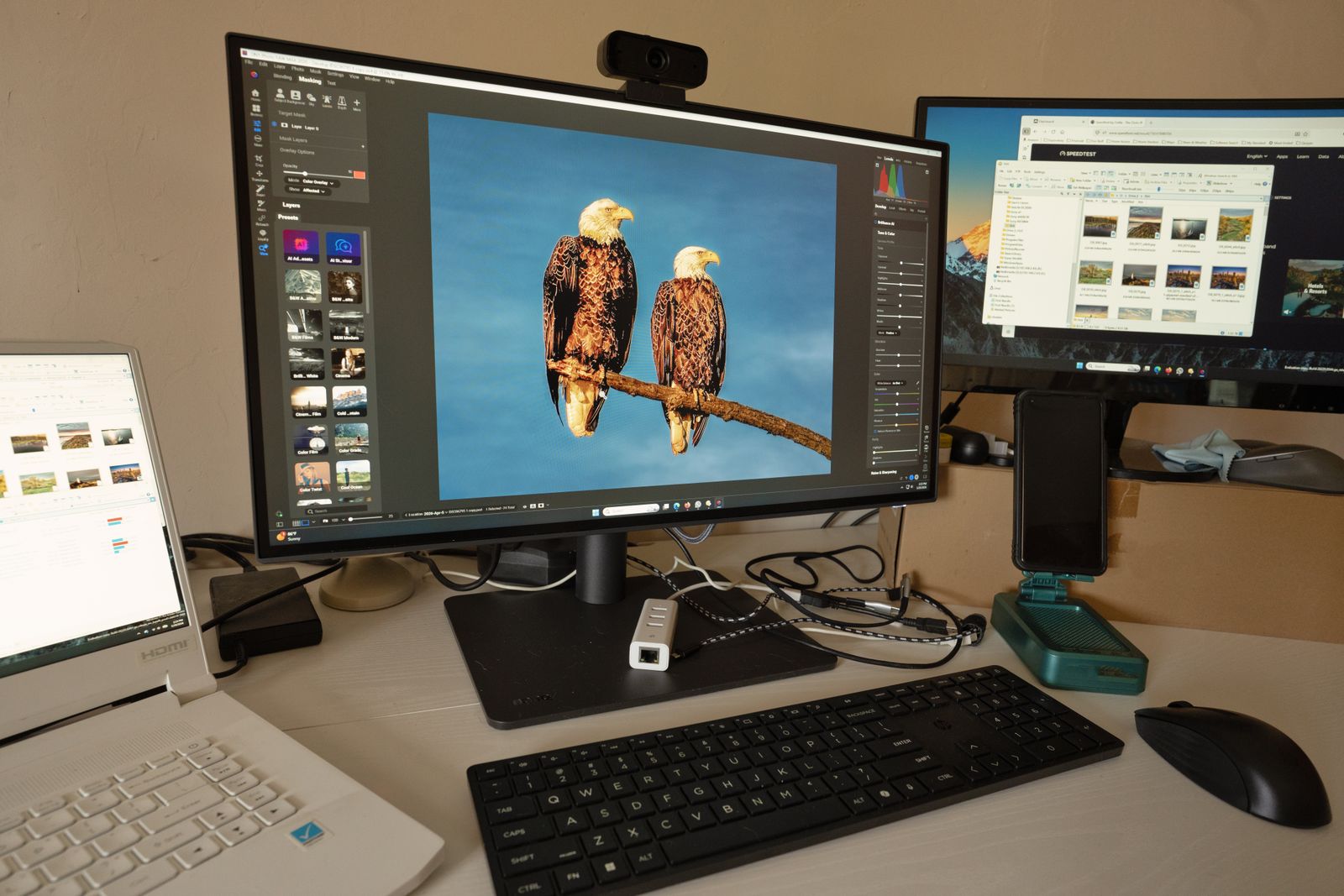
Two-monitor editing deserves a sentence of its own. If you have a second display, putting Loupe view on it while Grid stays on the main screen is one of the few setups that feels like a hardware upgrade for free, and the Shift versions of the view keys are what make it practical.
Gear that pairs with a shortcut habit
You do not need any special hardware to use keyboard shortcuts. But if you edit long sessions, two kinds of tools come up again and again in conversations with other photographers: a pen tablet for local work, and a tactile console for the sliders you touch most.
Neither replaces the keyboard. Think of them as complements: the keyboard for navigation and flags, the pen for painting, the dials for the few sliders you ride on every frame.
 Save
SaveFrequently asked questions
Do these shortcuts work in the cloud-based Lightroom app?
Do not assume these commands apply to the cloud-based Lightroom app. This list is for Lightroom Classic on the desktop. The cloud-based Lightroom app is a separate program with its own set of keyboard shortcuts, and some of the keys here do different things or nothing there.
Do Lightroom Classic shortcuts change between versions?
Many navigation and flag keys remain familiar, but tool names and behavior can change. Brush and Linear Gradient masks replaced the older Adjustment Brush and Graduated Filter interface, and Remove now has more options than older Spot Removal tools. Check Adobe’s current documentation and the shortcut hints in your installed version.
Can I customize or remap the keyboard shortcuts?
Lightroom Classic does not offer full keyboard remapping the way some other editors do. If you want a layout built around your own habits, a hardware console or tablet with its own mapping software is the usual workaround.
Are the shortcuts the same on Mac and Windows?
Almost. The letter keys are identical. The modifier keys map across: Ctrl on Windows is Command on Mac, and Alt is Option. A few screen-mode and function-key combinations are Mac-only or behave slightly differently, which Adobe’s documentation notes case by case.
What is the fastest way to memorize shortcuts?
Try a small group at a time on test images before applying it to important work. Start with the keys for your most repeated actions, usually Grid, Loupe, and Develop. Use them until they are automatic. Then add the next small batch. A printed cheat sheet next to the monitor covers the gap while you learn.
Do I need a tablet or console to edit faster?
No special tablet or console is required to use these keyboard commands. Optional input devices may suit particular tasks or comfort preferences; they do not guarantee faster editing.
 Save
SaveSources
- Adobe: Masking in Lightroom Classic
- Adobe: Remove tool
- Adobe: Keyboard shortcuts for Lightroom Classic, checked October 2026. Some legacy tool names remain in Adobe’s table; the Masking and Remove guides below explain the current interface.
- Shut Your Aperture, Adobe Lightroom Most Used Shortcuts PDF – the original printable cheat sheet from this article.
Shortcuts themselves cost nothing; these are desk tools that come up when editing sessions get long. Three options worth comparing – this is a comparison list, not a record of gear used for the photographs above:
- Wacom Intuos Bluetooth Creative Pen Tablet (Small, Black): pen pressure for brush, spot, and mask work, far closer to drawing than mousing. Check the linked page for current details.
- TourBox Elite Bluetooth Editing Console (Classic Black): a desk console with dials and buttons you can map to Lightroom controls, for people who prefer turning a knob to dragging a slider. Check the linked page for current details.
- Logitech MX Keys S Wireless Keyboard (Black): a low-profile backlit keyboard with a full-size layout, a comfortable home base for a shortcut-driven workflow. Check the linked page for current details.
Links are affiliate links: if you buy through them, we may earn a commission at no extra cost to you.