
Updated October 2026
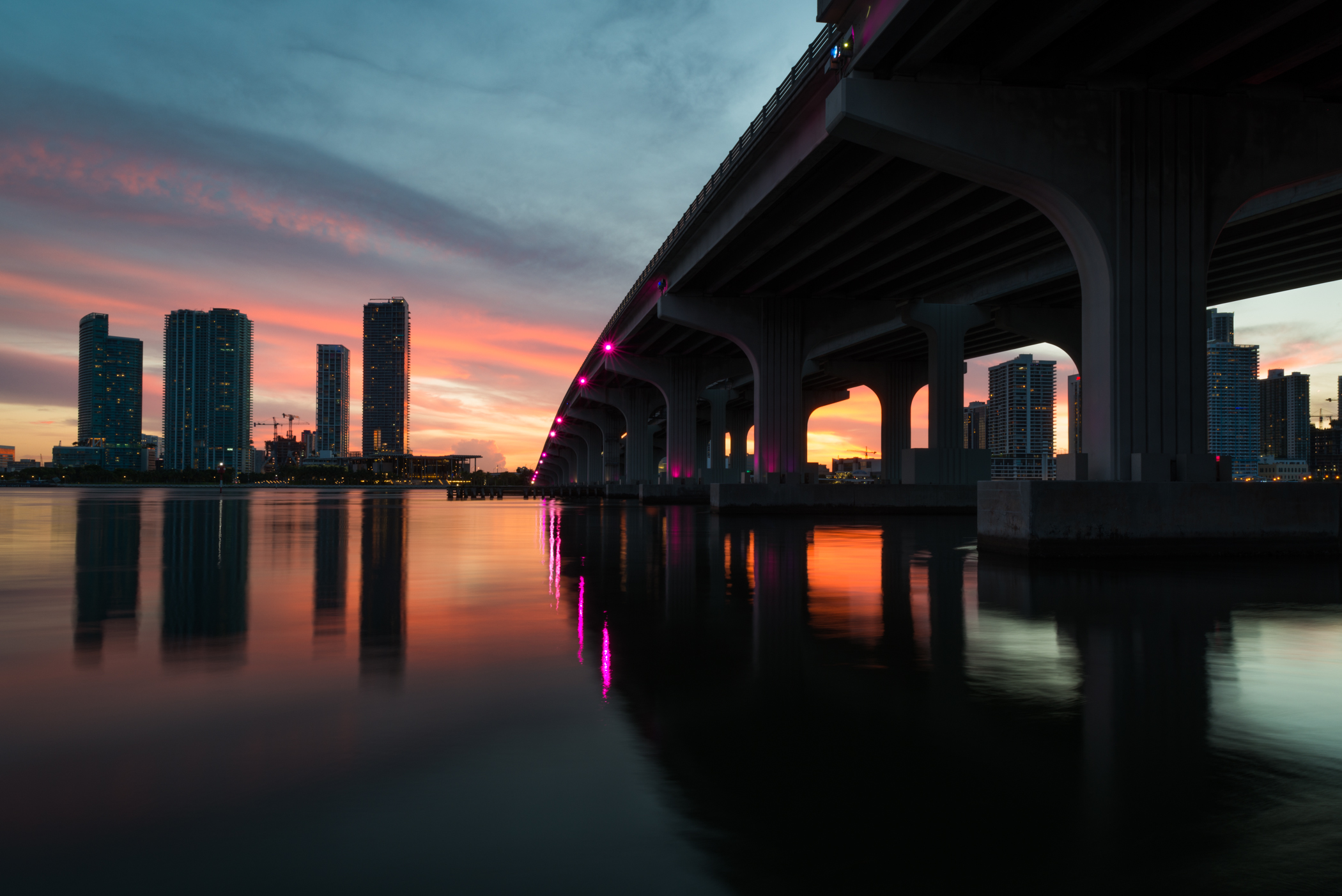
Here is an incredible Miami sunset. This awesome evening the photography gods came together. My goal in the edit was to keep the photo looking realistic: make it pop and balance the colors without cooking it. Here is the full Lightroom workflow I use on a sunset like this, step by step, so you can bring out the color in your own sunset photos without turning them into candy.
What makes a sunset hard to edit
A sunset is one of the toughest scenes for a camera. The sky is far brighter than the ground, the colors change by the minute and the light fades quickly. A single exposure often leaves the sky too bright or the foreground too dark. The RAW file holds the range you need, but you have to coax it out without making the picture look fake.
The biggest mistake is going too far. Sunset color is already strong, so a heavy hand with saturation turns it into an oversaturated mess. The trick is to work in small steps and check each one against the original.
Before you edit: a few capture habits
- Shoot RAW. You need the extra range for the sky and the shadows.
- Expose for the sky. Protect the brightest part of the clouds. You can lift shadows later, but not blown highlights.
- Use a tripod. Light fades fast, and a tripod lets you keep ISO low in the last minutes.
- Stay after the sun drops. The best color often comes 10 to 20 minutes after sunset.
- Look for reflections. Water doubles the color and fills the lower half of the frame.
1. Start with the white balance
Cameras tend to cool off sunset scenes. Nudge the temperature slider toward warm until the sky matches what you remember, then check the tint so the clouds do not go green or magenta. Small moves here; you are correcting, not restyling.
Look at the whole frame, not just the sky. If the buildings or the water start to look orange, back off. Sometimes the best approach is to leave the temperature a little cool and let the sky color do the work.
Save2. Set the base exposure
Bring the exposure to where the midtones sit naturally, then recover the sky with the highlights slider and open the shadows just enough to see detail in the dark buildings and water. If the shot was exposed for the sky in camera, leave the highlights alone and only lift the shadows.
Hold Alt (Option on Mac) while dragging Whites and Blacks to see where the file clips. Set Whites so only the brightest glints go white, and Blacks so the darkest shadows stay just above pure black. Then check the histogram. A sunset usually has a lot of tone on the left and a few bright peaks on the right.
3. Balance the sky with a mask
Use a graduated mask over the sky and pull the exposure down a fraction of a stop. This brings back the gradient and the color near the horizon without touching the city below. Keep the transition soft so there is no visible line.
Current Lightroom can also select the sky for you. Check the edge where the buildings meet the sky, and clean up any halo with a brush. Inside the mask, a little extra contrast makes the clouds stand out, and a slight drop in highlights keeps the brightest cloud edges from clipping.
Save4. Color: work the HSL, not the saturation slider
Global saturation is how sunsets turn into candy. Instead, go to HSL and lift the orange and red saturation slightly, then shift the blue luminance down a touch so the upper sky has depth. A small bump in vibrance ties it together.
Look at each color on its own. Orange and red carry the glow, purple and magenta carry the cloud color, and blue carries the depth above. Move each one a few points and look at the result. If you notice banding in the sky or a patchy look, you have gone too far.
Save5. Texture and dehaze, gently
A little texture crisps the buildings and clouds. Dehaze is tempting on a sunset and it ruins them fast: more than about +10 and the sky goes crunchy. If the horizon looks hazy, use a touch of dehaze inside the sky mask only.
Keep the soft light soft. Sunset light is gentle, and heavy clarity or texture takes that away. Use masks to add detail only where it helps, such as the edges of the buildings.
6. Straighten, crop, and sharpen
Level the horizon first. Then crop for the strongest composition; with reflections like these, giving the water room to breathe usually beats centering the skyline. Finish with standard output sharpening for web.
Zoom in to 100 percent and look for dust spots in the sky. Smooth sunset skies show every speck, and Visualize Spots makes them easy to find.
Save7. The restraint check
Before you export, toggle the before view. The edit should look like the best version of that evening, not another planet. If the clouds look crunchy or the colors look neon, pull every slider back by a third.
A useful habit is to walk away for ten minutes and look again. Your eyes get used to strong color fast, and a fresh look tells you quickly if you overdid it.
Reading the sky before you touch a slider
Every sunset file is different, so spend a minute looking before you edit. Where is the brightest part? Which colors are already strong, and which are weak? A sky with deep orange near the horizon and a blue top needs a different approach than a sky full of pink cloud.
Zoom out and ask what the picture is about. If the sky is the star, give it most of your attention and keep the foreground simple. If a reflection or a skyline is the star, balance the sky so it does not pull the eye away. Deciding this first saves you from adjusting everything at once.
Handling a sunset with a strong reflection
Water that mirrors the sky doubles the color and gives the picture a second half. The reflection is usually darker than the sky, because it comes from a lower angle, so it needs its own care. Add a linear gradient from the bottom of the frame with a small lift in exposure, and match its warmth to the sky.
Check that the reflection and the sky agree in color. If the sky is warm and the water is cold green, the picture feels broken. A small shift in Temperature inside the gradient fixes most of it. Keep ripples and detail natural. Heavy clarity on water looks gritty.
Working with lights in the frame
A sunset in a city often includes artificial lights, such as bridge lamps, window light and streetlights. They add color and interest, but they can also clip or glow too much. Pull Highlights down a little and watch the brightest lamps at 100 percent. If a light bleeds into a blob, lower its exposure with a small radial mask.
Mixed light also changes the color balance. Warm tungsten lamps next to a cool sky can look wonderful, and they give a good reason not to over-correct the white balance. Leave the contrast between the two light sources.
Using profiles and presets as a starting point
A Lightroom profile or preset can give you a base look quickly. It is not a finished edit. Start with a profile such as Adobe Color or Adobe Landscape, then run through the steps above and adjust to the scene. If you use presets, apply one and then check the white balance, the highlights and the saturation, because a preset built on a different sunset will not match yours.
Save your own sunset settings as a preset once you have a look you like. It will not fit every frame, but it is a faster place to start next time.
Exporting a sunset for the web
Export in sRGB, at the long edge your site needs, with a quality around 80 to 90 and sharpening set for screen. Gradients in the sky can show banding on some screens, especially after heavy compression, so check the export at full size. A tiny amount of grain or noise added in Lightroom can hide banding if it shows up.
For prints, keep a full-size file and export it with sharpening for the paper type. Prints often show more detail in the shadows than a screen, so check them if you can.
A quick workflow to repeat on every sunset
Once you have done this a few times, the whole thing fits into a routine. Set white balance, set the base exposure, mask the sky, tune the colors in HSL, add a touch of texture, then straighten and sharpen. Keep the before and after views close, and stop as soon as the picture matches what you remember. Practice on a few old sunset files and compare your results. You will quickly learn which sliders matter most for your own style.
Common sunset editing mistakes
- Too much saturation. Use HSL for targeted color instead.
- Crushed shadows. If the foreground goes black, lift it a little.
- Halos around buildings. Check the mask edges at 100 percent.
- Too much dehaze. It makes clouds look gritty.
- A crooked horizon. On water, even a small tilt shows.
The full editing toolkit, from profiles to masking to export settings, is in our complete Lightroom guide.
Learn the whole workflow in the Academy
If you want every slider explained from the start, the Lightroom editing course in the Shut Your Aperture Academy is a beginner-friendly post-processing course taught by Edin Chavez. It has 10 modules and 42+ parts you can finish at your own pace, with lifetime access. Browse the rest of the Academy courses too.
Questions about this edit? Drop them in the comments below.
Frequently asked questions
How do I edit a sunset in Lightroom?
Warm the white balance slightly, recover the sky with highlights, lift shadows for the foreground, use a sky mask to bring back the gradient, then fine-tune colors in HSL with small moves.
How do I keep a sunset from looking over-saturated?
Skip the global saturation slider. Use HSL to raise only orange and red a little, and compare against the before view to make sure it still looks natural.
How much dehaze should I use on a sunset?
Usually +10 or less, and only inside a sky mask. More than that makes clouds look crunchy.
What if my sunset photo has a dark foreground?
Lift the shadows, and add a soft gradient from the bottom with a small exposure boost. Keep it gentle so the evening mood stays.
What is the best time to shoot a sunset?
Arrive before sunset and stay through the minutes after. The color often peaks 10 to 20 minutes after the sun is below the horizon.
Gear box: sunset photography
These are starting points, not rankings. Check current specs, reviews and prices before you buy.
- Peak Design Travel Tripod: a compact tripod for low-ISO sunset shots. Check the head and load rating against your camera and lens. See it at B&H or on Amazon.
- Breakthrough Photography X4 6-Stop ND Filter: a screw-in ND filter for smoothing water at sunset. Match the thread size to your lens and expect to adjust white balance in the edit. See it at B&H or on Amazon.
- Calibrite ColorChecker Display: a monitor calibrator so sunset colors look the same on other screens. It will not fix a bad edit, but it keeps your colors honest. See it at B&H or on Amazon.
Affiliate disclosure: some links above are affiliate links. If you buy through them, Shut Your Aperture may earn a small commission at no extra cost to you.