
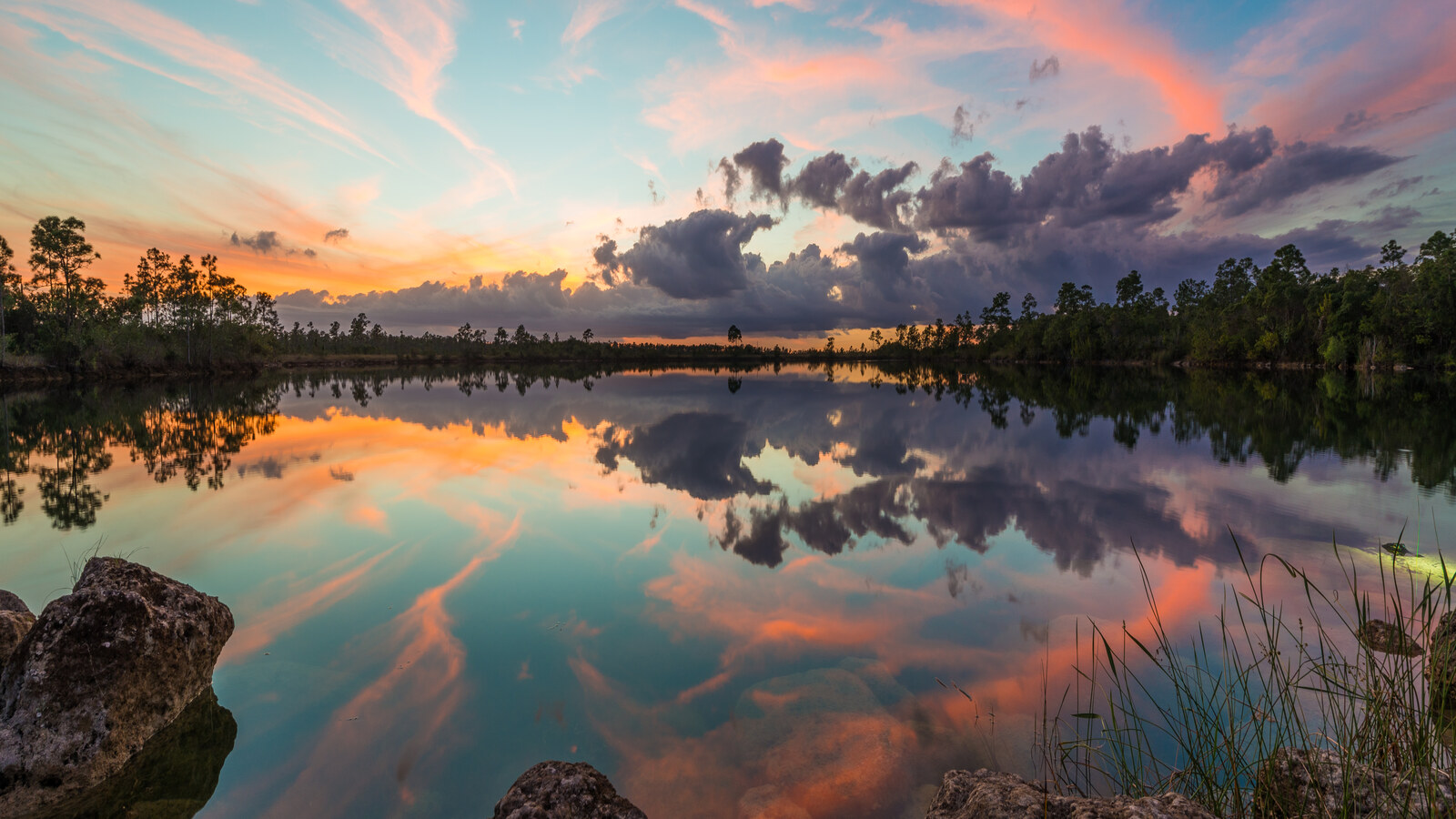
Original date August 18, 2016. Updated October 2026.
A landscape edit often has to deal with a wide brightness range, with a bright sky above a darker foreground. This guide walks through a practical way to edit a landscape in Lightroom Classic: decide what the photo is about, fix the basics, balance the sky and ground, shape the colour, and finish with detail. Slider names and behaviour come from Adobe’s documentation, linked where they are used.
Every value is a starting point. Light, camera and taste all differ, so judge by eye and by the histogram, not by a number copied from a guide. If you want a related walkthrough, see editing a sunrise photo in Lightroom.
 Save
SaveStart with a plan for the photo
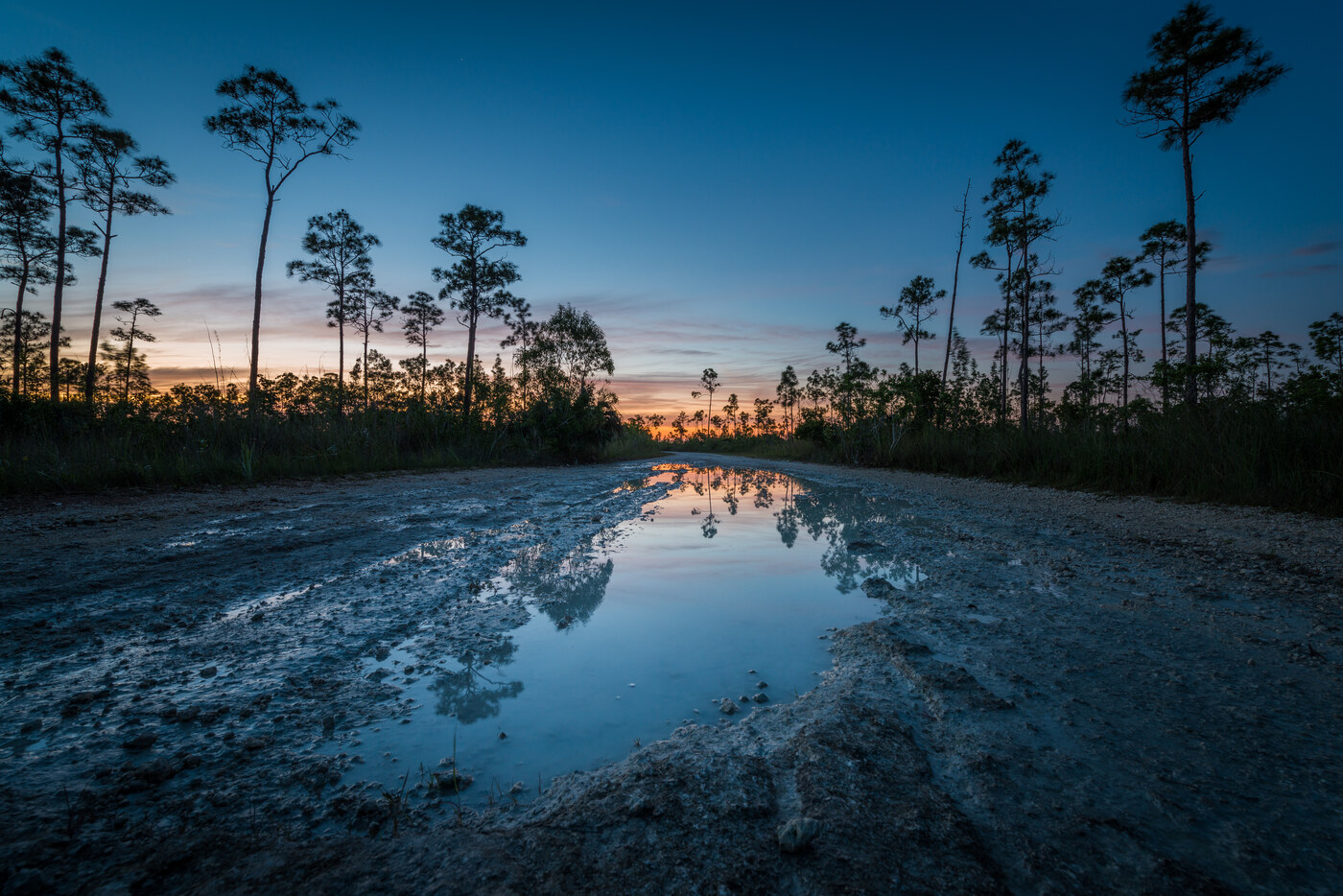
Before you touch a slider, decide what the picture is about. A landscape can be built around many things, for example a dramatic sky, a reflection or a path that leads the eye through the frame. Knowing what yours is about tells you where to spend your edits. If the clouds are the subject, you might protect their detail. If a reflection is the subject, you might protect its symmetry and colour. If a path is the subject, you might keep it readable.
Look at the photo at full screen for a few seconds, then ask what the eye goes to first. That is the part to protect, and everything else in the edit should support it.
Step 1: Check the file and the histogram
Landscapes shot into the light have a wide brightness range. Open the Develop module and check the histogram. Adobe describes clipping indicators that show where shadows or highlights are lost. Switch them on and see whether the sky is clipped before you decide how hard to pull the highlights down.
Shooting raw gives the most room. Adobe’s help notes that recovering highlight detail works best on raw files, because they keep more data than a JPEG.
Step 2: Straighten and crop
A tilted horizon is the quickest way to make a landscape look careless. Use the Crop tool, rotate until the horizon is level and check it against the grid overlay. Settle the crop early, because it decides the final composition and what is left in the frame before you spend time on local adjustments. Crop only as much as the composition needs. Keep in mind that cropping away a lot reduces the pixels you have for large prints.
 Save
SaveStep 3: Set white balance
Adobe describes two ways to set white balance. You can use the White Balance Selector (press W) and click an area that should be neutral grey, avoiding specular highlights or areas that are 100% white. Or you can use the Temp and Tint sliders. Temp sets how warm or cool the photo looks, with the left cooler and the right warmer, and Tint sets how green or magenta it is. Landscapes often have no true neutral patch, so by-eye adjustment with Temp and Tint is common.
White balance is also a creative choice. Some editors keep a sunset warm to preserve the feel of the light, and some keep a dusk scene cool, while others prefer a neutral result. Decide what you want the photo to say and judge it by eye.
Step 4: Set the overall tone
In the Basic panel, work from top to bottom. Adobe says Exposure sets overall brightness in steps equal to f-stops, so +1.00 is similar to opening the aperture by one stop. Contrast mainly affects midtones. Highlights adjusts bright areas, and dragging left darkens them and can recover bright detail that the file still holds. It cannot rebuild pixels that were truly blown out at capture. Shadows adjusts dark areas, and dragging right brightens them. Whites and Blacks set where clipping begins at each end.
- Exposure: set it for the part of the picture you care about most, often the sky, and brighten the ground later with a mask.
- Highlights down, Shadows up: this compresses the range so clouds and ground both hold detail. Use small steps, because large moves can look flat or artificial.
- Whites and Blacks: set the ends of the range while watching the clipping indicators. A silhouette can sit in deep shadow on purpose.
- Contrast: add it gently, last, to restore some punch.
Step 5: Balance the sky and the ground with masks
Global sliders cannot treat the sky and the ground differently. Adobe’s Lightroom Classic Masking tool offers Select Sky, which analyses the photo and creates the sky mask automatically, and Linear Gradient for gradual changes across a large area, as well as Brush, Radial Gradient and Range masks (Adobe: Lightroom Classic Masking tool). Check any automatic mask on its overlay, because masks can miss fine edges such as tree lines and tops of grass.
- Sky mask: lower the exposure a little, add contrast and, if it suits the photo, a touch of Dehaze to give clouds more definition.
- Linear Gradient from the horizon down: brighten the ground slightly so the frame feels balanced.
- Linear Gradient from the top: darken the upper sky a little to hold the eye inside the frame.
- Radial Gradient: a soft lift around a rock, a path or another point of interest draws attention to it.
Keep masks soft. A sky that is darker than the light in the scene could justify is a common sign of heavy-handed editing.
 Save
SaveStep 6: Work with colour
Adobe describes Saturation as adjusting all colours equally, from -100 (monochrome) to +100 (double the saturation). Vibrance minimises clipping as colours approach full saturation, affecting lower-saturated colours more than higher-saturated ones. For many landscapes, Vibrance is the gentler first move because it lifts muted colours without pushing strong colours too far. For specific colours, Adobe’s Color Mixer panel lets you adjust individual colour ranges. It is a global tool, so a change to the blues affects every blue in the photo, including water and sky together. Adobe’s example: if a red object appears too bright or distracting, lower the Saturation slider for Red, bearing in mind it affects all similar reds in the photo. For colour changes in one part of the frame, use a mask.
- Blues: a small change to blue Saturation or Luminance affects all blues, including the sky and any water, so use a Sky mask if you want to change the sky alone.
- Oranges and yellows: these carry the warmth of sunset light. Lower Saturation a little if they glow too hot.
- Greens: trees and grass can turn neon quickly. Adjust gently and compare with the original.
Compare against the original now and then. If the colours feel more like a poster than a place, take the saturation back down.
 Save
SaveStep 7: Texture, Clarity and Dehaze
Adobe describes Texture as smoothing or accentuating textured details without changing colour or tonality, and Clarity as adding depth by increasing local contrast, best judged at 100% or more, until halos appear and then backing off slightly. Dehaze, in Adobe’s words, controls the amount of haze: right removes it, left adds it. A small amount of Texture can bring out the grain of wood and the surface of rock, and a little Clarity can help clouds. Too much of either makes a scene look gritty and creates halos along the horizon and tree lines.
Step 8: Sharpen
Zoom to 100% before judging sharpening. Adobe lists four controls in the Detail panel: Amount sets edge definition, Radius sets the size of details sharpened, Detail sets how much high-frequency information is sharpened, and Masking limits sharpening to areas near strong edges. Holding Alt (Windows) or Option (Mac) while dragging the Masking slider shows the sharpening mask, white sharpened and black masked out (Adobe: retouch photos). A landscape often has large smooth areas such as sky and still water, so use Masking to keep sharpening on edges and off smooth areas where it only adds noise.
Step 9: Check noise, and use Denoise early if you need it
Make a final noise check at 100% after you lift shadows or sharpen. Adobe describes noise as extraneous visible artifacts, with luminance noise making an image look grainy and chroma noise showing as coloured artifacts, and says photos shot at high ISO speeds can show it (Adobe: retouch photos). The manual controls in the Noise Reduction area of the Detail panel cover luminance and color noise, with detail controls to balance smoothing against texture. Heavy noise reduction can smooth real detail, so zoom in and judge the balance.
Denoise is a specific option in the Detail panel. Adobe’s Lightroom Classic help says it uses artificial intelligence to reduce noise without losing fine details, with a slider for intensity (Adobe: Improve image quality using Enhance in Lightroom Classic). The same page recommends running Denoise before other tools, including AI masks and Remove, because using Enhance might change their results. So if a photo needs Denoise, do it early, before the mask work in Step 5, and review your masks afterwards. Adobe also notes that Denoise is GPU-intensive and lists the supported file formats on that page.
A worked sequence
- Open the photo, check the histogram and turn on the clipping indicators.
- Straighten and crop.
- Set white balance with the selector or Temp and Tint, then adjust to taste.
- Set Exposure, then Highlights, Shadows, Whites, Blacks and Contrast in small steps.
- If the photo needs Denoise, run it now (Step 9), before mask work.
- Add a Sky mask and Linear Gradients to balance sky and ground.
- Lift Vibrance, then fine-tune specific colours in the Color Mixer, or with masks for local colour.
- Add modest Texture, Clarity and Dehaze where they help.
- Sharpen at 100% with Masking raised.
- Check noise at 100% with the manual Noise Reduction controls.
- Compare with the original and back off anything that looks heavy.
 Save
SaveCommon mistakes
- Too much Highlights and Shadows. Pulling both too far flattens the light. Leave some contrast between sky and ground.
- Heavy Dehaze or Clarity. These can create halos and a crunchy look. Check at 100%.
- Over-saturated greens and blues. Natural colour usually survives better than a loud one.
- Skipping the crop. A tidy edge and a level horizon improve a photo before any slider does.
- Editing on one screen only. Check the result at a different brightness setting if you can.
When you have a look you like, the Lightroom presets for landscape photography and the Lightroom photo editing guide explain how to reuse a set of adjustments across photos.
Gear
Disclosure: this link is an affiliate link. If you buy through it, ShutYourAperture may earn a small commission at no extra cost to you.
This guide uses Lightroom Classic. If you need the software, B&H lists the Adobe Creative Cloud Photography Plan with 1TB Cloud Storage (1-Year Subscription, Download), which Adobe and B&H describe as including Photoshop and Lightroom Classic. Check the current plan details on the product page before you buy.
Frequently asked questions
What should I edit first in a landscape photo?
Check the histogram and white balance, straighten the horizon, then set overall tone. Adobe’s Lightroom Classic help describes the Basic panel controls and the clipping indicators.
How do I balance a bright sky and a dark foreground?
Lower Highlights and raise Shadows a little, then use a Sky mask or a Linear Gradient to adjust the sky and the ground separately. Keep masks soft.
Should I use Vibrance or Saturation on a landscape?
Vibrance is usually the gentler choice. Adobe says it minimises clipping as colours approach full saturation, while Saturation changes all colours equally.
Can Highlights recover a blown-out sky?
It can darken bright areas and recover detail that the file still holds, especially in raw files. It cannot rebuild pixels that were completely clipped at capture.
How do I stop sharpening from adding noise to a smooth sky?
Use the Masking slider in the Detail panel, with Alt or Option held to preview the mask, so sharpening stays on edges and off smooth areas.
Sources and credits
Slider and tool behaviour: Adobe, How to adjust image tone and color in Lightroom Classic, Adobe, Lightroom Classic Masking tool, Adobe, How to retouch photos in Lightroom Classic and Adobe, Improve image quality using Enhance in Lightroom Classic. All photos are original photographs from the site’s own library.