Updated October 2026
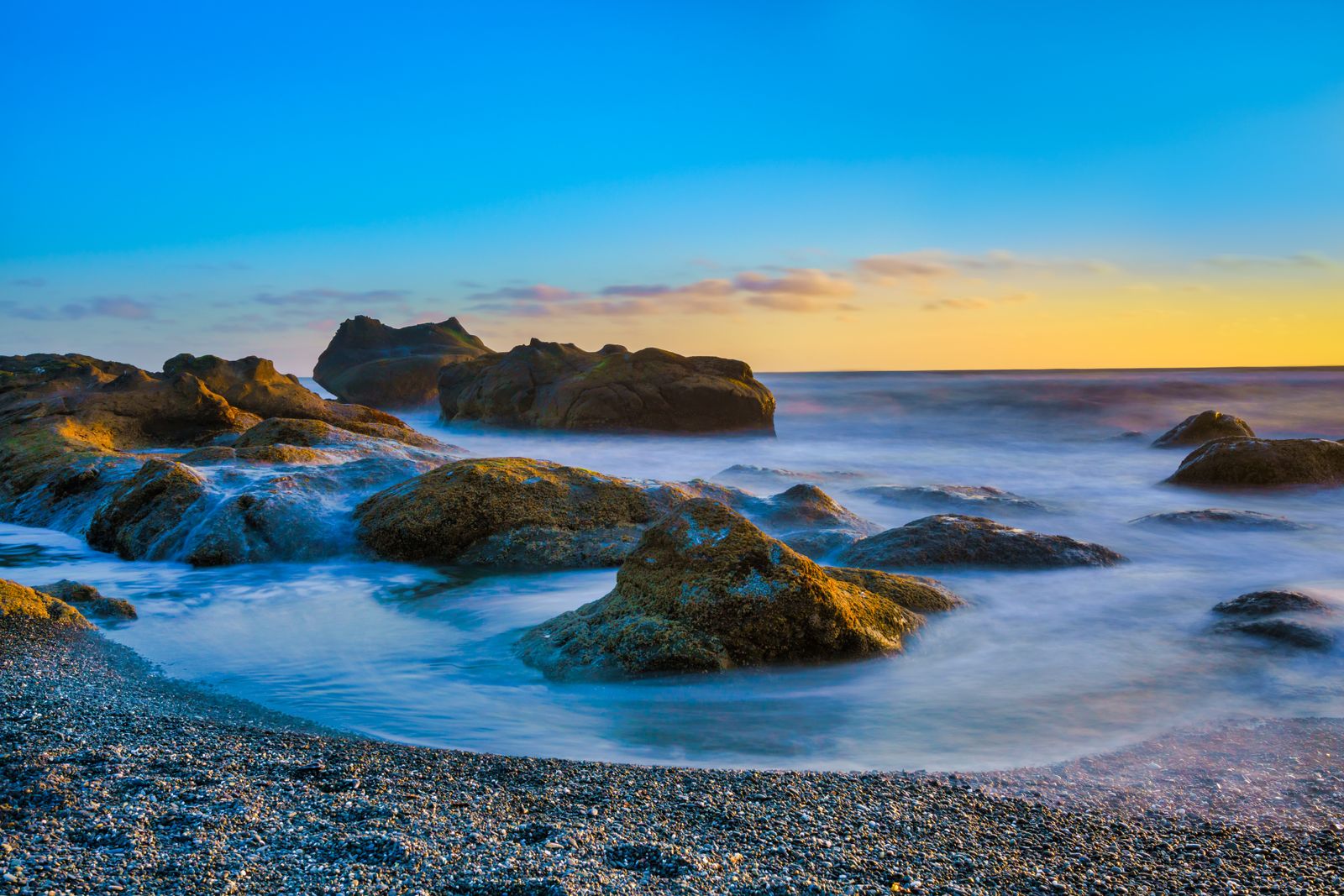
A 10-stop ND filter turns a thirty-second exposure into a completely different photograph: silk water, streaked clouds, empty plazas where the crowd melts away. The capture is only half the job. A long exposure shot through a dark filter comes out flat, a little off-color and full of tiny dust spots. This guide walks through the edit in writing, step by step, so you can take a dull file and make it hang on a wall.
What a 10-stop filter actually does
A 10-stop neutral density filter cuts the light by about a thousand times. In bright daylight that stretches a fraction of a second into 30 seconds or more, which is why moving water goes smooth and clouds drag across the sky. Because the filter is so dark, you usually compose and focus before you put it on, then add it and set your exposure.
The filter also changes the file you bring into Lightroom. Cheaper filters often leave a color cast, and even good ones are rarely perfectly neutral. Long exposures also pile up noise and expose every speck of dust on the sensor. The edit below deals with each of those problems in order.
Before the edit: get a file worth editing
- Shoot RAW. It gives you room to fix color and recover the sky.
- Lock the camera down. Use a sturdy tripod, a remote or timer, and cover the viewfinder on cameras where stray light can leak in.
- Compose and focus first. Autofocus will not work through a 10-stop filter, so focus before you attach it and then switch to manual.
- Check the histogram, not the screen. Long exposure previews look dark and misleading.
- Take one frame without the filter at the same settings. It gives you a clean white balance reference and a safety shot if the long exposure picked up motion you did not want.
Step 1: Fix white balance first
Long exposures through a 10-stop filter almost always pick up a color cast, usually blue or magenta depending on the filter. Neutralize it before touching anything else, or every later adjustment fights the cast.
Use the White Balance selector on something that should be neutral, like a gray rock, a concrete wall or a patch of overcast sky. If your clean frame without the filter is available, copy its white balance across to the long exposure. Then fine-tune the Temperature and Tint sliders by eye until the shot feels natural.
Keep in mind that warm light at sunrise and sunset is supposed to look warm. You are removing the filter’s cast, not the sun’s.
Step 2: Expose for the sky, recover the foreground
Bring Highlights down until the cloud streaks hold detail, then lift Shadows on the foreground. Long-exposure files shot in RAW have plenty of room for this. Pull Whites down a little too if the sky looks hot, and check the histogram so nothing slams into the right edge.
Look at the horizon. Long exposure skies often glow brightest right along it, and a Graduated Filter dragged from the top of the frame down to the horizon, with Exposure pulled down and a touch of Dehaze, balances the whole scene quickly.
 Save
SaveStep 3: Add contrast back deliberately
ND light is flat light. All that smooth water and soft sky needs structure, and you have to put it back on purpose. Use a gentle S-curve in the Tone Curve panel or small amounts of Contrast, Clarity and Dehaze. Go in small doses, because the dreamy look collapses fast if you push it.
Try adding contrast with a mask instead of the whole image. Use a Linear Gradient for the sky and a Brush or an object mask for the rocks, then give each area its own contrast. The water should stay soft while the rocks get texture.
Step 4: Control the color
Once the cast is gone, add color back with taste. Raise Vibrance before Saturation so you do not over-cook colors that are already strong. In the HSL panel, nudge Orange and Yellow for warm skies and Blue and Aqua for cool water. A little goes a long way.
Watch the water in particular. Smooth water takes on the color of the sky above it, so if the sky is pink the water should lean pink. If the water looks muddy green or gray, try a small Temperature move on the water using a mask.
Step 5: Clean up the sensor spots
Stopped-down apertures and long exposures make every dust spot visible against smooth sky and water. Do a dedicated spot pass at 100 percent. Turn on Visualize Spots in the Spot Removal tool, which turns the image into a high-contrast map where dust shows up as small dark dots, and click through them one at a time.
While you are in there, look for hot pixels, birds and boat trails. Long exposures can record a bright dot where a satellite or plane passed, and the Healing tool removes it in seconds.
Step 6: Noise reduction and sharpening
Long exposures run the sensor hot for a long time, and noise rises with it, especially in the shadows. Open the Detail panel and raise Luminance noise reduction until the grain in the dark areas calms down. Check the result at 100 percent.
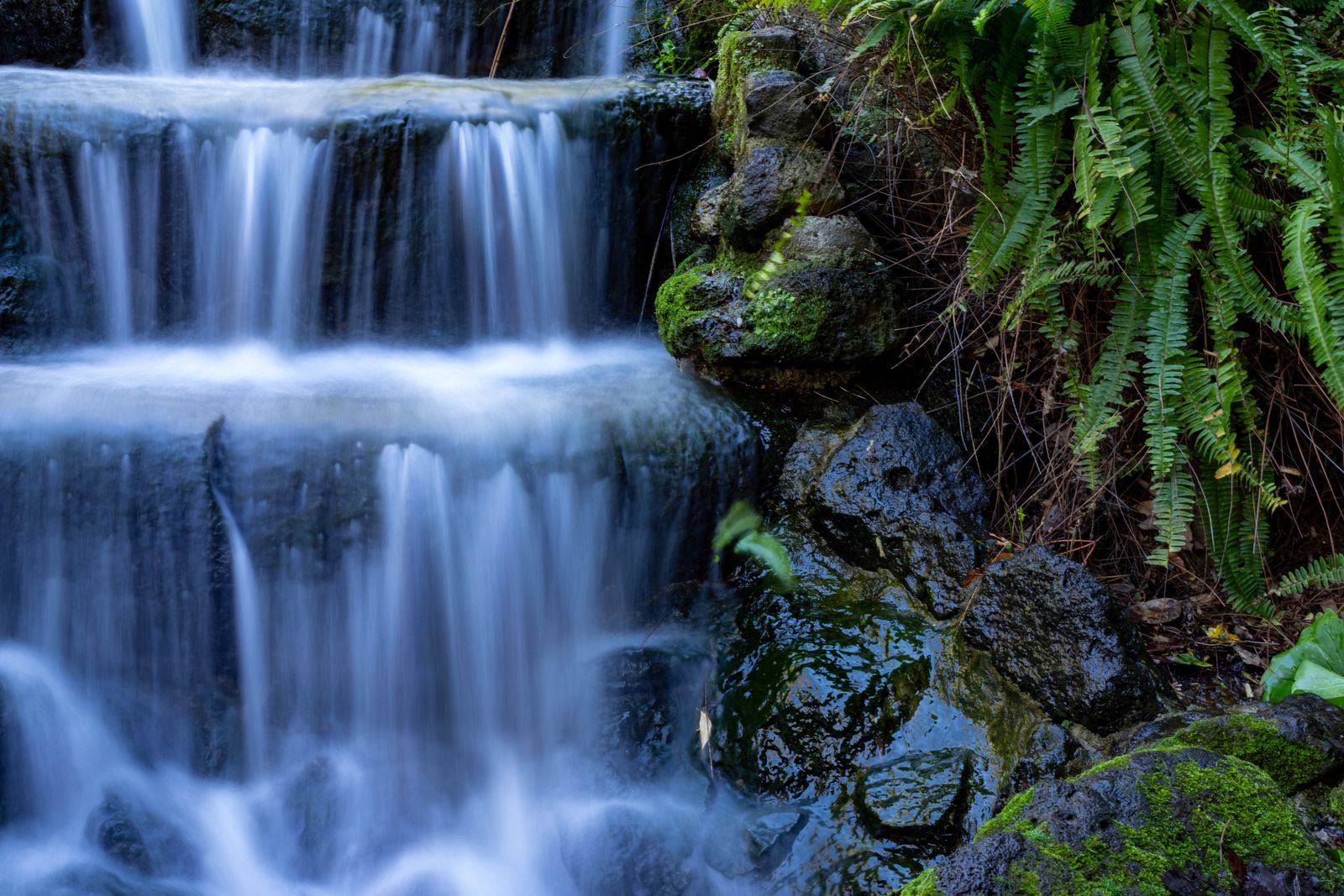
Sharpen only where it counts. Use the Masking slider in the Sharpening section so rocks, pier posts and shoreline edges sharpen while the smooth water stays smooth. Oversharpening is easy to spot on a long exposure because the flat areas show every halo.
 Save
SaveStep 7: Try the black-and-white version
Long exposure and monochrome belong together. Smooth water and streaked clouds already feel minimal, and without color the shapes and tones carry the picture. If the color cast will not fully tame, a strong black-and-white conversion often makes the frame.
In Lightroom, switch to Black and White in the Basic panel or the profile browser, then use the Black and White Mix sliders. Darken the blue channel to deepen the sky and bring out cloud streaks, and brighten the yellow or orange channels to lift sunlit rocks. Add contrast with a curve and a graduated filter over the sky.
Picking subjects that suit a long exposure
Not every scene rewards a 10-stop filter. The best ones have a mix of motion and stillness: moving water against solid rock, drifting clouds over a lighthouse or a pier, a busy plaza with a fixed building in the middle. The still parts give the eye something to land on, and the moving parts supply the mood. A scene where everything moves tends to turn into mush.
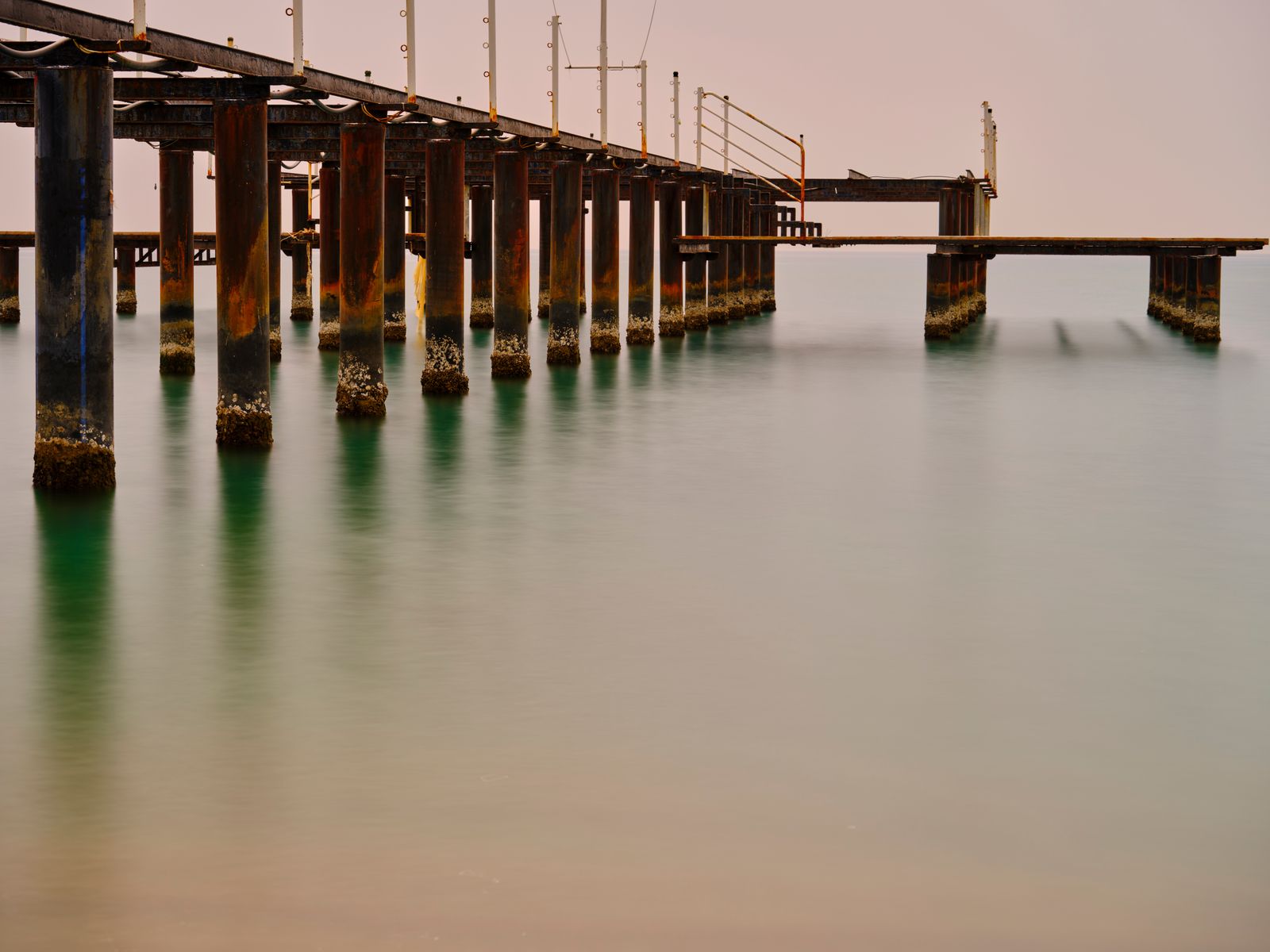
Look for strong leading lines and clean shapes. Piers, groynes, bridges and posts make wonderful anchors, because a long exposure leaves them sharp while everything around them dissolves. Overcast days are fine, too. In flat light the filter lets you stretch the exposure and still produce a soft, moody frame.
How long should the exposure be?
There is no magic number, because it depends on how fast the water or clouds move and how bright the light is. As a rough guide, a few seconds softens small ripples, 15 to 30 seconds smooths a choppy sea into a gentle haze, and a minute or more turns the water to glass and drags clouds into long streaks. Cloud speed matters most for the sky. Fast clouds streak in 30 seconds. Slow clouds need much longer.
Take a test frame, look at the result, and adjust. If you are not sure, bracket your exposure times. Having a 20 second frame and a 90 second frame of the same scene gives you options in the edit, and it costs you nothing but a few minutes.
Watch out for light leaks
A 10-stop filter is so dark that stray light can slip in through the viewfinder on a DSLR and add a warm haze across the frame. Close the viewfinder shutter if your camera has one, or cover the eyepiece with a cap or a piece of cloth. Mirrorless cameras do not have this problem. If you see an odd orange glow in the corners of a long exposure, a light leak is the likely cause, and a Graduated Filter can tone it down in the edit.
Common long exposure editing mistakes
- Skipping the white balance fix and then fighting the color for twenty minutes.
- Pushing Clarity and Dehaze across the whole image until the water looks crunchy.
- Leaving the dust spots in. Every single one shows on smooth sky and water.
- Crushing the shadows, which kills the soft feel that makes a long exposure special.
- Over-saturating warm skies until they look fake.
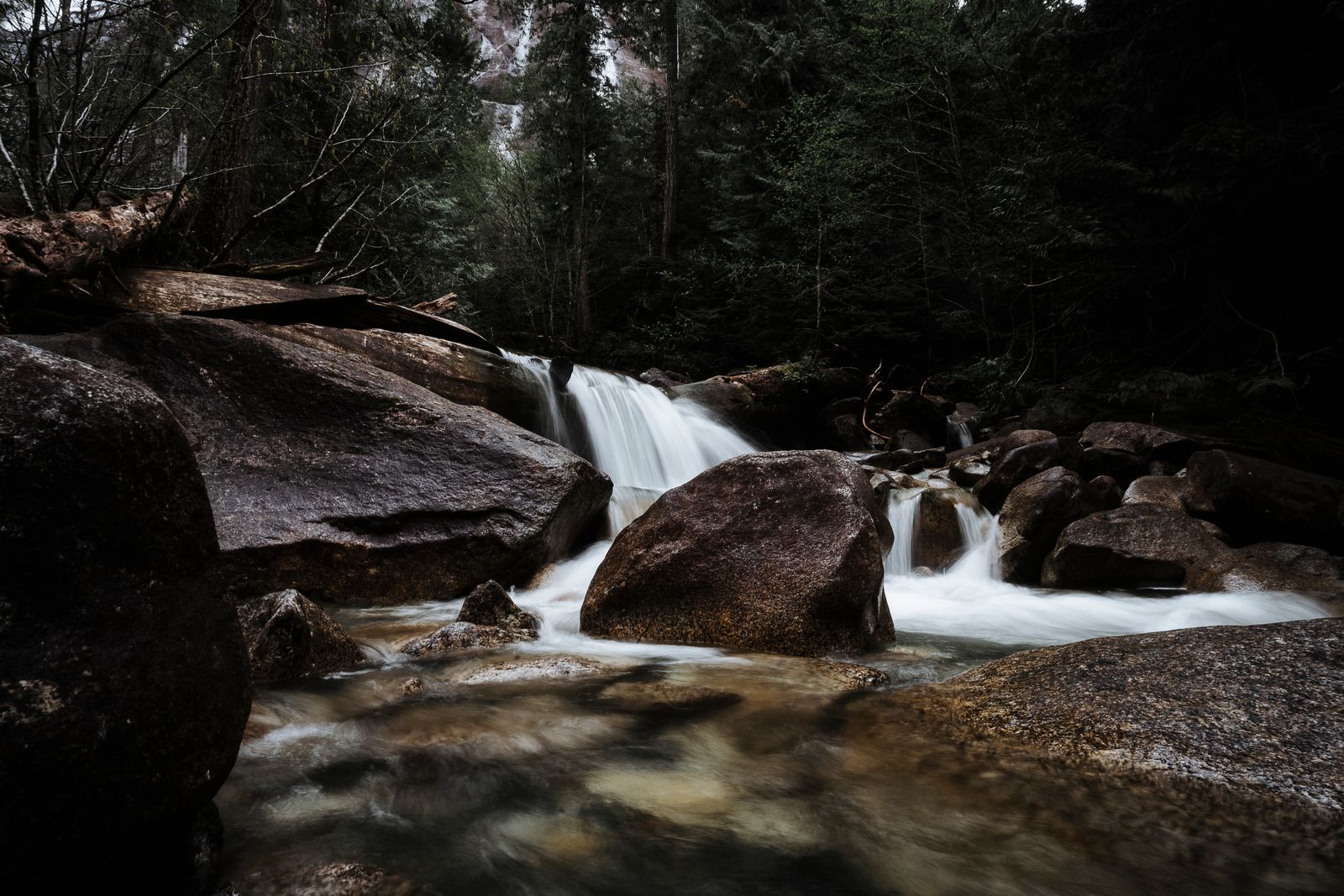
- Cropping away the strong lines, like a pier or a shoreline, that give a smooth frame something to hold on to.
 Save
SaveA simple workflow you can repeat
- Import and apply lens corrections.
- Fix white balance and remove the filter’s color cast.
- Set exposure, recover highlights and lift shadows.
- Add contrast with a curve and masks.
- Adjust color with Vibrance and HSL.
- Run the Visualize Spots pass.
- Reduce noise, sharpen with masking, and crop.
- Check a black-and-white version before you export.
Run through the same eight steps on every long exposure for a month. The edits get faster and your files get more consistent, and you will start to see which steps matter most for your own camera and filter.
Keep learning
If you want every slider explained from the start, take the Lightroom editing course in the Shut Your Aperture Academy. It is a beginner-friendly post-processing course taught by Edin Chavez, with 10 modules and 42+ parts you can finish at your own pace, with lifetime access. Browse the rest of the Academy courses too. For another editing workflow in the same family, see our sunrise editing tutorial.
Frequently asked questions
How do I edit a long exposure photo in Lightroom?
Fix the white balance and remove the filter’s color cast first, recover the sky and lift the foreground, add contrast back with a curve and masks, clean up dust spots, reduce noise and sharpen with masking.
Why does my 10-stop ND photo have a color cast?
Many ND filters are not perfectly neutral and tend to tint blue or magenta. Shooting RAW and correcting white balance in Lightroom removes it. A frame without the filter helps as a reference.
How do I remove dust spots from a long exposure?
Use the Spot Removal tool with Visualize Spots turned on. It shows dust as dark dots on smooth areas so you can click through and remove them one by one.
Do I need to edit long exposures in black and white?
No, but it is a good option. If color is messy or the scene is simple, black and white often gives the strongest result.
How do I keep long exposure water smooth when I sharpen?
Use the Masking slider in the Sharpening section so only edges get sharpened. Flat water stays smooth.
Should I shoot RAW for long exposure photography?
Yes. RAW gives you far more room to fix white balance, recover highlights and lift shadows, which long exposure files need.
Gear box: long exposure with a 10-stop ND filter
These are starting points, not rankings. Check current specs, reviews and prices before you buy.
- Breakthrough Photography X4 10-Stop ND Filter: a screw-in filter with a stated focus on neutral color. Match the thread size to your lens and buy a step-up ring if you shoot with more than one lens. See it at B&H or on Amazon.
- Lee Filters 100mm Big Stopper: a 10-stop filter that fits a 100mm filter holder system. It needs the holder and an adapter ring, so the total cost runs higher than a screw-in filter. See it at B&H or on Amazon.
- Peak Design Travel Tripod: a compact tripod that stays steady for 30 second exposures. Check the head and load rating against your camera and lens. See it at B&H or on Amazon.
Affiliate disclosure: some links above are affiliate links. If you buy through them, Shut Your Aperture may earn a small commission at no extra cost to you.