A preset download is supposed to make editing simpler. Then you open the ZIP, find three folders and a pile of unfamiliar files, and wonder whether you bought the wrong thing. Before dragging anything into Lightroom, slow down long enough to check which app you are using and what the download actually contains.
Installing Lightroom presets is straightforward once those two details are clear. The cloud-based Lightroom desktop app and Lightroom Classic have different import routes. A develop preset is not the same thing as an export preset, a camera profile or a DNG photograph carrying settings. This guide helps you choose the right route, check that the import worked and fix common problems without throwing random files into system folders.
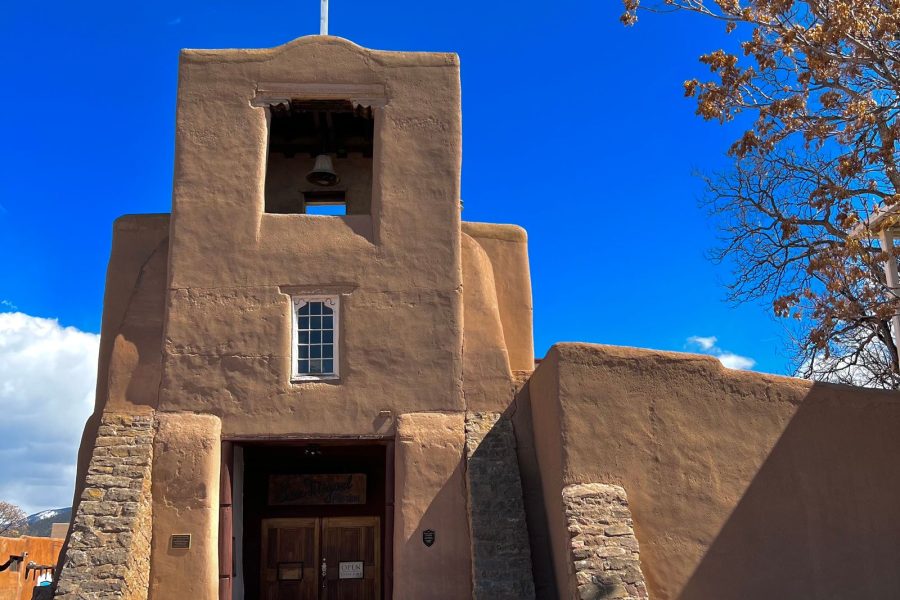
Updated October 2026. Adobe’s current documentation is linked below. The old name Lightroom CC remains in this page’s URL, but the instructions distinguish Lightroom desktop from Lightroom Classic. Photographs illustrate subjects you might edit; they are not preset before-and-after tests or software screenshots.
First check whether you are using Lightroom or Lightroom Classic
Look at the application name, not just the familiar Lightroom logo. Lightroom and Lightroom Classic are separate apps. A tutorial written for one can send you looking for panels or menu commands that belong to the other.
If you use Lightroom Classic, the Develop module and its Presets panel are part of the workflow described here. If you use the cloud-based Lightroom desktop app, start with the File menu’s Import Profiles & Presets command. Do not assume that a preset installed in Classic has automatically become available on every device.
Mobile installation is another route. If your package is meant specifically for mobile and contains DNG files, follow the maker’s supported instructions and Adobe’s mobile guidance. Do not rename a DNG to XMP or try to force a photograph through a desktop preset importer.
Write down the app name and version before troubleshooting. That small detail makes a support request much more useful than saying that a preset will not work in Lightroom. Keep the package’s original instructions with its files so you can check compatibility later.
Inspect the download before importing anything
Save the original download somewhere you can find it again. Open the package and read its documentation before selecting every file. A bundle can contain presets, profiles, sample photographs, previews, license information and separate folders for different applications.
XMP files: these can be preset or profile files in an editing package. Use the supplied folder names and instructions to identify their purpose. An XMP extension alone does not mean every file on your computer is a creative preset.
ZIP archives: these are containers. Lightroom Classic’s documented import workflow accepts preset files or a ZIP containing supported assets, but Adobe specifically says older .lrtemplate presets cannot be imported as part of a ZIP. Do not assume every bundle uses the same packaging.
DNG files: a DNG is an image file. Some mobile preset packages distribute images carrying edit settings. Adobe’s current mobile guide supports direct import of individual DNG, XMP and .lrtemplate files, with ZIP archives extracted first. A DNG is not simply another name for a desktop XMP preset.
Older .lrtemplate files: treat these as a compatibility check rather than a reason to guess. Read the package’s supported app versions and Adobe’s Classic guidance. If the seller offers a current XMP version, use the version intended for your app instead of trying to repair an obsolete package by changing extensions.
How to install presets in Lightroom desktop
Adobe’s desktop preset and profile installation guide gives this import route:
- Open the Lightroom desktop app.
- Choose File > Import Profiles & Presets.
- Browse to the package location and select the profiles or presets intended for this app.
- Click Import.
- Open a photograph and check the Presets panel for the imported material.
Start with one small package rather than importing your entire download folder. That makes it easier to confirm the group name and spot a problem. A successful import message is useful, but the real check is whether you can find the preset and use it on a suitable photograph.
If the package includes a required profile, install that profile too through the supported import route. Do not assume the preset can reproduce its intended look when a component is missing. Read the documentation before deciding which files are optional.
Once the preset is visible, test it on a photograph whose original edit you can return to. Inspect the result, undo it and compare. Installation is complete when the preset is available and behaves as expected, not when a file has merely been moved somewhere on disk.
How to install presets in Lightroom Classic
The current Adobe Classic preset guide describes importing through the Develop module:
- Open Lightroom Classic and go to the Develop module.
- Find the Presets panel and select its Add control.
- Choose Import Presets.
- Select the preset files or a supported ZIP containing presets.
- Select Import, then check the imported presets in the panel.
Adobe’s guide says imported presets are added to the User Presets group. Check that location, then inspect the group names used by the package if the organization is not what you expected. Clear a name filter before concluding that the files are missing.
Adobe also documents ZIP imports containing XMP presets and profiles, DCP profiles and LCP profiles. That does not make every ZIP compatible. Older .lrtemplate presets are specifically excluded from ZIP import in this workflow. If you have a mixed archive, identify the supported files before trying again.
Use the import command before trying a manual installation. Old blog posts often list folders that depend on operating system, application version and storage preferences. A wrong folder can make the installation look successful while leaving the preset unavailable to the app you actually use.
Do desktop presets sync to Lightroom mobile?
Adobe says presets and profiles installed in Lightroom desktop can sync with Lightroom on mobile. Use the same intended Adobe account and current app versions, and allow the apps to complete their normal sync process.
That is not the same claim as saying all Classic presets automatically sync. Adobe provides a separate migration or import path for moving Classic presets into Lightroom desktop. Installing a package in Classic alone should not be your only step when your goal is to use it in the cloud-based mobile workflow.
If a preset is missing on a phone, first confirm that it exists in Lightroom desktop, that the account matches and that you are looking in the relevant preset group. Then check the current Adobe mobile import and export guidance for your device. Do not make repeated duplicate imports while an account or sync issue remains unresolved.
What to check when an imported preset is missing
Wrong app: confirm whether you imported into Lightroom or Lightroom Classic. Return to the correct route rather than repeating the same command in a different app and expecting the libraries to match.
Wrong file type: check the package contents and the import instructions. A preview JPEG, license document or DNG sample is not automatically a desktop develop preset. Import only the files intended for that route.
Hidden groups: Classic’s Manage Presets option lets you show or hide groups. Open it from the Presets panel’s Add menu and check whether the relevant group is selected. Adobe also documents resetting hidden presets from a preset group’s context menu.
Compatibility: some presets depend on a camera profile or apply only to certain image types. Test with a supported image and check the required profile before deciding that the installation failed.
Search filters: clear any preset-name filter. A group can be installed correctly and still be absent from the filtered view. Check the package’s names rather than assuming the group will match the download’s filename.
Duplicate material: compare the names and package versions already installed. Keep a note of what you imported. Repeatedly adding the same bundle makes diagnosis harder and can leave you with a library you no longer trust.
Partially compatible presets are not always broken
Adobe explains that presets may be unavailable or appear faded when their settings are not fully compatible with the selected photograph. Examples include camera profiles that do not apply to the current image and presets meant only for raw files.
In Lightroom Classic, Adobe documents the Show Partially Compatible Develop Presets option under the Presets tab in Preferences. Turning visibility on can help you see what is installed, but visibility does not make an incompatible profile suitable for every photograph.
Use this as a diagnostic clue. If a preset appears with one file but not another, compare the file types, camera support and required profiles. Check the Classic presets FAQ and the package documentation. Do not delete your working library simply because one preset is unavailable on a particular image.
Test the preset on different photographs
A preset is a starting point, not a promise of the same result on every frame. A daylight portrait, a blue-hour landscape and a night cityscape have different exposure, color and contrast needs. The package’s sample image may be nothing like your source photograph.
Try a small set that represents your real work. Include an image with bright highlights, one with important shadow detail and one with colors you need to keep believable. Compare each result with the original edit and look closely at skin, skies, water and edges when those subjects are present.
Adjust exposure and white balance for the photograph in front of you. Check whether the preset changed settings you wanted to keep, such as a crop or local adjustments. If the look is too strong, use the available amount control only when that preset supports it; Adobe notes that not every preset supports the Amount slider.
View the image at a useful magnification and check an actual export. A dramatic preview can hide noise, clipped colors or rough transitions. Do not judge a whole package from one small screen view, and do not assume a preset has repaired missed focus or a badly exposed capture.
Organize the presets you actually use
Keep a short working collection rather than hundreds of nearly identical options. Name your own presets by purpose, such as a restrained color starting point or a specific repeatable workflow, instead of vague labels that make you click through everything again.
Keep the original package, its license and a note of the app version used for your successful import. Back up custom presets along with the rest of your editing work. Lightroom Classic’s documented export command can export custom presets, but not its built-in presets.
When removing a custom preset in Classic, use the preset’s context menu and its Delete command. Adobe warns against pressing the keyboard Delete key for this task because it deletes the selected photograph. Read the confirmation and make sure you are removing the intended item.
Before buying another preset package
Check supported apps, file types, required profiles and the seller’s current license terms. Look for examples that resemble the photographs you make. A package designed around a very different subject may need enough adjustment that it saves little time.
Ask whether the purchase solves a real problem. You may need a better exposure, a more consistent white balance routine or a cleaner editing sequence rather than another set of looks. Learn what the sliders do so you can recognize why a preset helps or hurts.
For a broader approach, read our Lightroom presets guide. This page does not recommend the old DJI aerial bundle that originally appeared here. Its current availability and compatibility have not been verified.
Frequently asked questions
How do I install presets in Lightroom desktop?
Use File > Import Profiles & Presets, select the compatible preset or profile files and click Import. Open a suitable photograph and check the Presets panel to confirm the import worked.
How do I import presets into Lightroom Classic?
In the Develop module, open the Presets panel’s Add menu and choose Import Presets. Select the preset files or a supported ZIP, import them and check the panel.
Can I import every preset ZIP without extracting it?
No. Lightroom Classic accepts supported preset ZIPs, but Adobe says .lrtemplate presets cannot be imported as part of a ZIP. Check the package’s file types and instructions first.
Why is my preset missing on some photographs?
It may depend on a profile or image type that does not match the selected file. Also check hidden preset groups and name filters before repeating the import.
Do Lightroom Classic presets automatically appear on my phone?
Do not assume that. Adobe describes a migration or import route into Lightroom desktop, whose installed presets and profiles can then sync with Lightroom mobile.
Will a preset make all my photographs look the same?
No. Source exposure, lighting, color, file type and subject affect the result. Test on your own work and adjust each image instead of treating the preset as a finished edit.
Useful gear for an editing workflow
Buy for a real bottleneck. Preset installation does not require a new camera. Keep your editing files organized and your backups separate from the working copy.
External SSD: compare capacity, ports and backup needs. Browse on Amazon or B&H.
Photo editing monitor: choose around your workspace and color needs. Browse on Amazon or B&H.
Card reader: check your card format and computer ports before buying. Browse on Amazon or B&H.
Affiliate disclosure: This article contains affiliate links. If you buy through them, we may earn a commission at no extra cost to you. As an Amazon Associate, we earn from qualifying purchases.
Build a stronger editing foundation with practical photography tips at the Shut Your Aperture Academy. Knowing what an adjustment does makes every preset easier to judge.