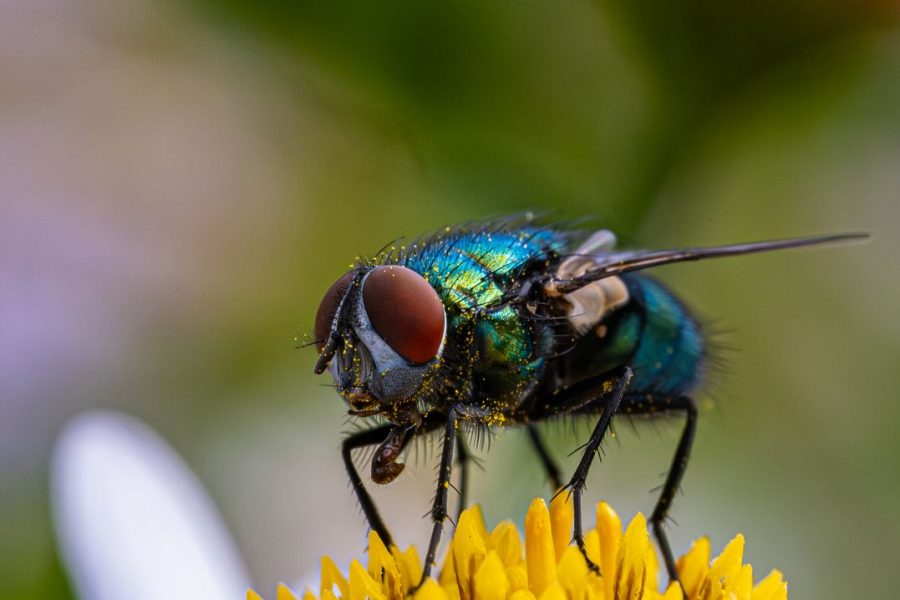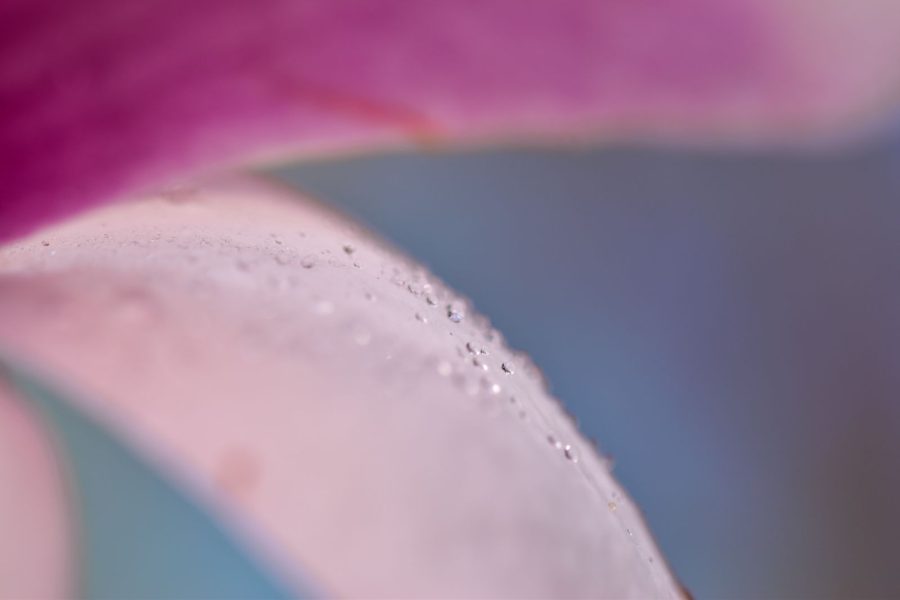

A tiny subject makes a big promise. The veins of a leaf, the edge of a petal, a drop hanging from a stem. Then you bring the phone closer and the detail turns to mush. Moving closer was easy. Getting a sharp photograph is the part that takes attention.
Phone macro photography tips should start with that problem, not a magic distance. Your phone can only focus within the limits of the camera you are using. Find the distance that works, choose the detail that matters, and build the light and composition around it.
Updated October 2026. Phone cameras, apps and close-focus modes differ. The real photographs in this guide illustrate texture, light and composition; they are not claimed phone-camera samples or controlled comparisons.
Know what your phone means by macro
In traditional photography, macro is tied to magnification on the sensor. Phone makers also use the word for close-focus features that help fill the frame with small subjects. The label alone does not tell you which camera is active, how large the subject appears on the sensor or how much fine detail will survive in the finished file.
Check the instructions for your exact phone and camera app. Apple’s macro camera guide describes automatic switching to the Ultra Wide camera on supported iPhones. Google’s Pixel guidance describes Macro Focus on supported models. Neither establishes what an unrelated device can do.
Some phones offer a close-focus camera, some use an existing camera and software, and some simply cannot focus very close. That is not a reason to give up. A modest close-up with clean detail can be more useful than a large, blurred subject. Judge the photograph rather than the badge on the screen.
Find the closest distance that actually stays sharp
Begin with a still subject in useful light. A leaf on a table, a textured object or a flower that is not blowing around makes a better test than a moving insect. Clean the lens and start farther away than you think necessary. Where your app allows it, tap the detail you want sharp.
Make a frame, move closer a little and make another. Review the actual photographs at a useful size. Stop when the important detail becomes unreliable, then back away until it returns. Do not assume a focus box proves the camera resolved the texture. The phone can report focus while the wrong plane is sharp.
Watch for automatic camera switching. A sudden change in framing, color or perspective can mean the phone chose another camera. Learn that behavior during the test rather than during a fleeting moment. If your phone provides a control for it, practice using that control and compare the results. If it does not, work with the limits you observe.
There is no universal one-inch rule. Apple describes very close working distances for supported models, but that is a device feature, not a distance every phone can handle. Your own sharp frames are the useful evidence. Save a simple note about which camera and distance worked with your usual app.
Choose one detail before you compose
A flower contains more possible pictures than one frame can carry. You might care about the curve of a petal, the repeating center or the way a drop catches light. Decide which one is the subject before trying to fit everything in. A close-up becomes stronger when the viewer can tell where to look.
Move around the subject and watch the relationships change. A petal can overlap a dark gap instead of another bright petal. A droplet can separate from the edge of a leaf. Small changes in position can clean the picture without touching the subject or inventing a background afterward.
Use the edges of the frame deliberately. A tight crop can turn an ordinary object into pattern and color; a wider view can explain what you are looking at. Make both if the scene allows it. Choose the version that tells the clearest story rather than the one that simply looks largest on the screen.
Keep the important surface near the focus plane
At close range, a small shift can move the sharp area away from the detail you chose. Try placing the camera so the important surface is more nearly parallel to it. A flat leaf photographed from above may keep more of its veins sharp than the same leaf viewed at a steep angle.
That is a choice, not a requirement to make every photograph flat. An angled petal with a sharp edge and a soft background may be exactly what you want. The point is to understand why part of the subject falls out of focus instead of treating every soft area as a technical failure.
Do not assume your phone provides a real adjustable aperture because an app shows a blur slider. Simulated background blur and optical depth of field are different things. Inspect thin edges and transparent drops if you use a software effect. A normal capture is often a better starting point for fine natural detail.
Learn the broader focus and magnification principles from our aperture tips, then apply them within your phone’s actual controls. A camera tutorial can explain the problem without giving every phone the same hardware.
Use light that reveals texture
Start beside a window or outdoors in open shade. Watch the surface as you change direction. Light from the side may reveal ridges and veins; flatter light may make the color and shape easier to read. Choose based on the subject instead of assuming one lighting direction works for everything.
A shiny object can reflect the phone, your hand or a bright window. Shift your angle and look again before reaching for editing tools. For a small indoor setup, a plain card placed safely nearby can change a reflection or return some light to a shadow. Keep the arrangement simple enough that you can explain what each object does.
Do not block the useful light with the phone itself. At very close distances your body or camera can cast a shadow across the detail. Back away slightly or work from another side. Google specifically reminds Macro Focus users not to shade the subject or block the light source.
Flash can be useful, but a nearby phone flash may create a hard reflection or light the scene unevenly. Compare a frame with and without it where your app allows. If an accessory light helps, verify its fit and safe use rather than fastening a hot or unstable improvised light next to a delicate subject.
Control brightness without erasing the subject
Water drops, pale petals and glossy surfaces can produce bright highlights. Where your camera allows exposure adjustment, change brightness and inspect whether the detail you care about remains. Do not automatically darken everything because the background is black or brighten everything because the subject is small.
Choose which tones matter. A specular reflection may remain bright while texture around it is clear. A pale petal may need more careful exposure because its shape depends on subtle variation. Review the actual file, not just a screen preview viewed in outdoor glare.
Phones process images in different ways. Strong automatic brightening or sharpening may make a preview look crisp while fine texture looks unnatural at a larger size. Make a second frame with a different supported option if necessary. Avoid promising that one setting will always protect every highlight.
Separate camera movement from subject movement
A steady grip helps when the subject stays still. Use both hands, keep your elbows supported if possible and press the shutter gently. A stable holder or safe support can reduce camera movement, but check that it will not topple or scratch the phone.
The leaf can move even when the camera does not. A tripod does not stop wind, a walking insect or a hand holding a flower. If the subject moves, wait for a calmer moment, find better light or use an appropriate faster exposure when your app genuinely provides that control. Read our shutter-speed tips for the distinction between camera shake and subject motion.
At close range, movement toward or away from the phone also changes focus. It may look like a sharpness problem when the real issue is that the chosen detail left the focus plane. Make another frame when the subject settles and compare. Do not diagnose every soft picture as a dirty lens.
A timer or compatible remote can help with a supported phone and still subject. Test the release before depending on it. A timer that is useful on a table can be frustrating with a subject that changes while you wait.
Make the background earn its place
Backgrounds are especially important when a tiny subject fills the frame. A bright patch can pull attention away from the sharp detail. Move a few inches, lower the phone or change the direction you shoot. Those choices often remove the distraction without moving a plant.
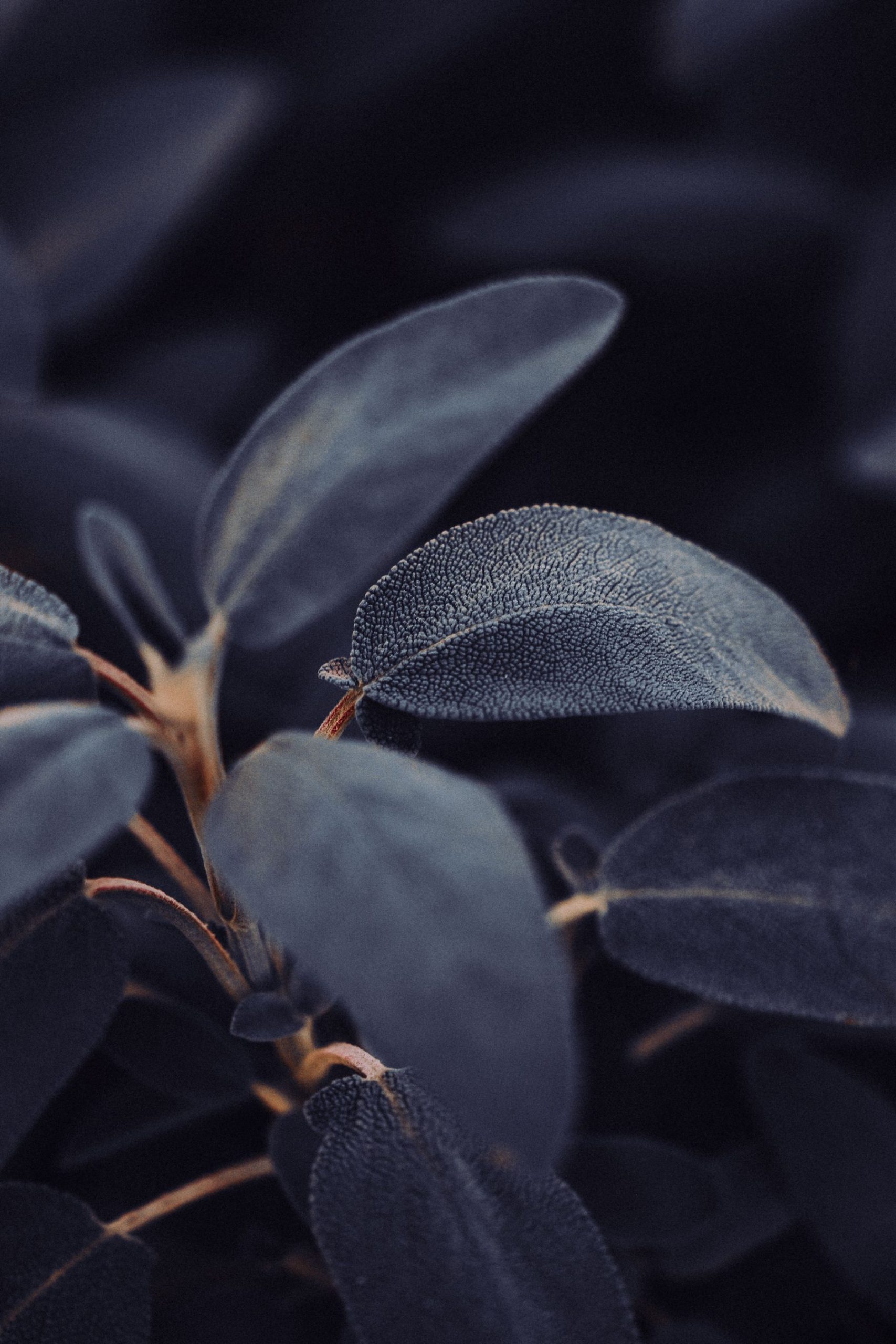
Look for contrast that serves the picture. A dark gap behind a pale petal can make its edge clear. A green background may keep a leaf study quiet. Do not make every close-up black simply because dark pictures feel dramatic; color and context can be useful too.
For an indoor still life, use a plain background far enough from the object to keep it from competing. Watch for creases, dirt and unwanted reflections. Change one thing at a time so you know whether the improvement came from the background, light or camera position.
Approach living subjects without disturbing them
A close-up does not justify moving wildlife into a better setting. Observe from a safe distance, keep paths clear and leave plants and insects as you found them. If your phone cannot make the photograph without disturbing the subject, choose another subject or a wider view.
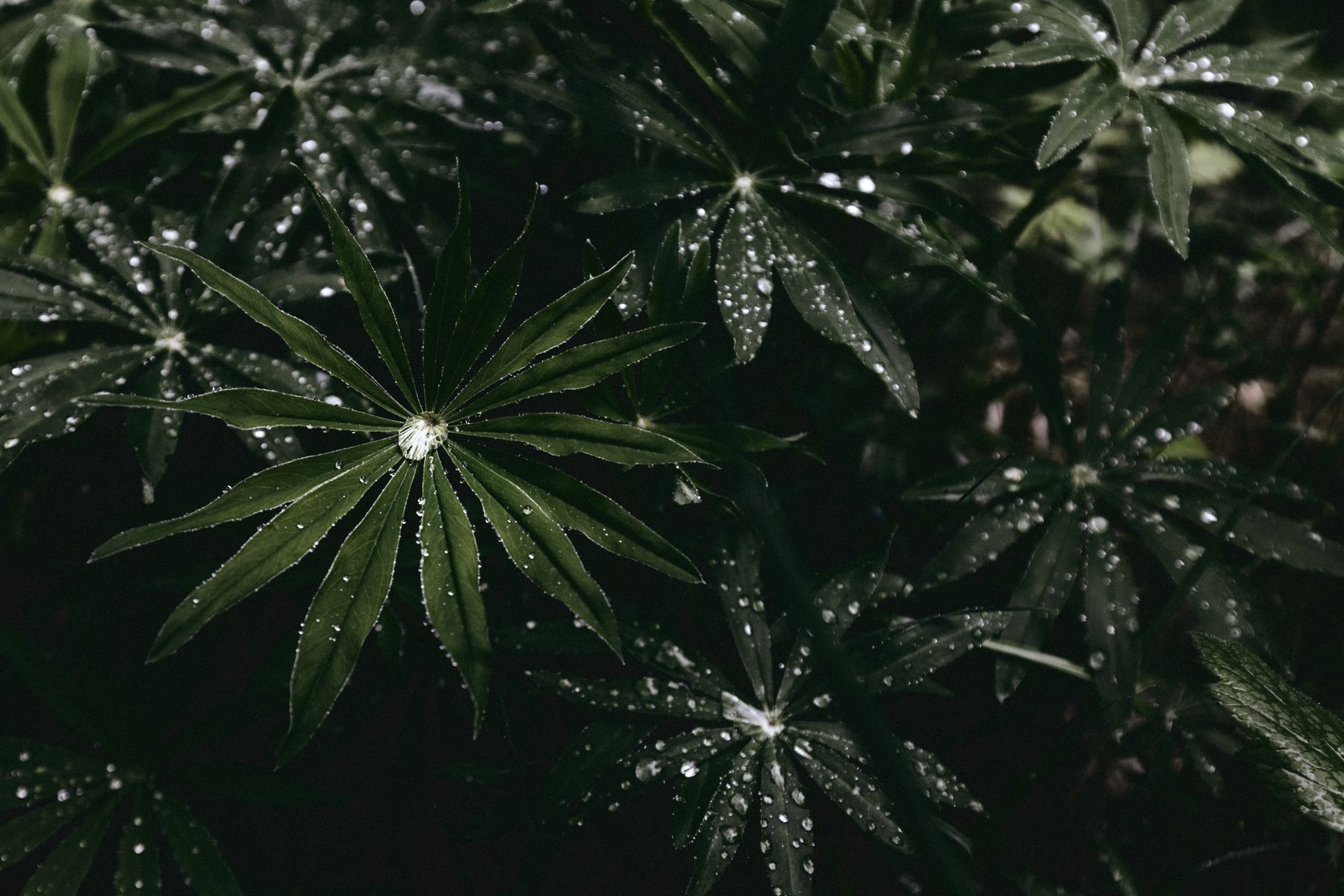
Do not handle unknown insects, plants or fungi for a photograph. Do not spray wildlife to manufacture droplets or bend stems into position. A quiet scene after rain may already contain the pattern you need. Notice what is there rather than forcing a picture that damages it.
Choose a stable place for yourself too. Looking closely at a screen makes it easy to miss a slippery surface, a sharp branch or other people using a path. Put your safety and the subject’s space ahead of filling the frame.
Compare a close frame with a modest crop
Make one photograph at your closest reliable distance and another slightly farther away. Compare a modest crop from the farther frame with the close frame at the same display size. The larger subject in the original preview is not automatically the better result.
Look at the exact detail you chose: vein edges, petal texture or a printed line on a still object. Also check noise, oversharpening and unwanted blur. Keep the option that survives your intended output. A small online image and a large print ask different things of the file.
Digital enlargement cannot guarantee genuine new optical detail. Processing may alter how detail looks, but that is not a reason to trust a zoom number without inspection. Make a real comparison using your own phone rather than assuming every device behaves identically.
Use accessories only when they solve a known problem
A clip-on close-up lens may help with a particular phone, but it introduces alignment, fit and working-distance questions. Check the exact device, active camera and case before buying. A lens that covers the wrong camera or sits off-center can make the image worse.
Test the accessory on a still subject in useful light. Inspect the center and edges, check for dark corners and compare a frame without it. Keep the attachment secure and do not force it against camera glass. Avoid improvised objects that can scratch the phone or fall onto the subject.
Do not buy a collection of accessories before identifying the limitation. Better support may solve hand movement; it will not fix a camera that cannot focus at your chosen distance. A light may help exposure; it will not improve a cluttered composition by itself.
Edit for detail, not for a crunchy look
Choose the sharpest useful frame before editing. Crop and straighten with the subject in mind, then adjust brightness and color carefully. Preserve an original so you can compare your changes without guessing what the camera recorded.
Check sharpening and noise reduction at a larger size. Fine droplets and leaf textures can become harsh outlines or smooth patches if you push too far. A dramatic screen preview is not proof of natural detail. Look at the whole photograph as well as a close inspection.
Do not invent missing veins, wings or drops when the purpose is to show what was actually there. Keep documentary pictures honest and describe substantial generative changes when they matter. A simple crop is often a better final choice than a repair that creates a different subject.
Phone macro photography FAQ
How close should I put the phone?
Use the closest distance at which your selected camera consistently records the detail sharply. That distance varies by phone and camera; a universal one-inch rule is unreliable.
Why does the view suddenly change when I move closer?
Some supported phones automatically switch cameras for close focus. Check your device’s guidance and compare the resulting framing and detail before relying on the mode.
Will a tripod make every macro photo sharp?
No. It can reduce camera movement, but it does not stop the subject moving or correct a focus distance that your camera cannot handle.
Do I need a clip-on macro lens?
Not automatically. Test the phone you have first. Buy only for a specific limitation and verify fit, camera alignment and safe attachment.
Can I use portrait blur for a close-up?
You can compare it if your app supports it, but inspect thin edges and transparent details. Simulated blur is not the same as optical depth of field.
Are the photographs here phone-camera tests?
No. They are real photographs illustrating light, texture and composition, not claimed phone samples or controlled settings comparisons.
Gear for phone macro photography
Test your phone’s close focus first. Compare a secure phone holder, stable support and a compatible close-up lens only for a problem you can name. Check the active camera, case clearance, lens alignment and attachment safety before buying.
Compare on Amazon | Compare on B&H
These are comparison searches, not reviews or promises of compatibility, price or availability. Build your understanding of light and composition with the Shut Your Aperture Academy.
Affiliate disclosure: As an Amazon Associate I earn from qualifying purchases. Purchases through Amazon and B&H links may earn a commission at no extra cost to you.