Updated October 2026
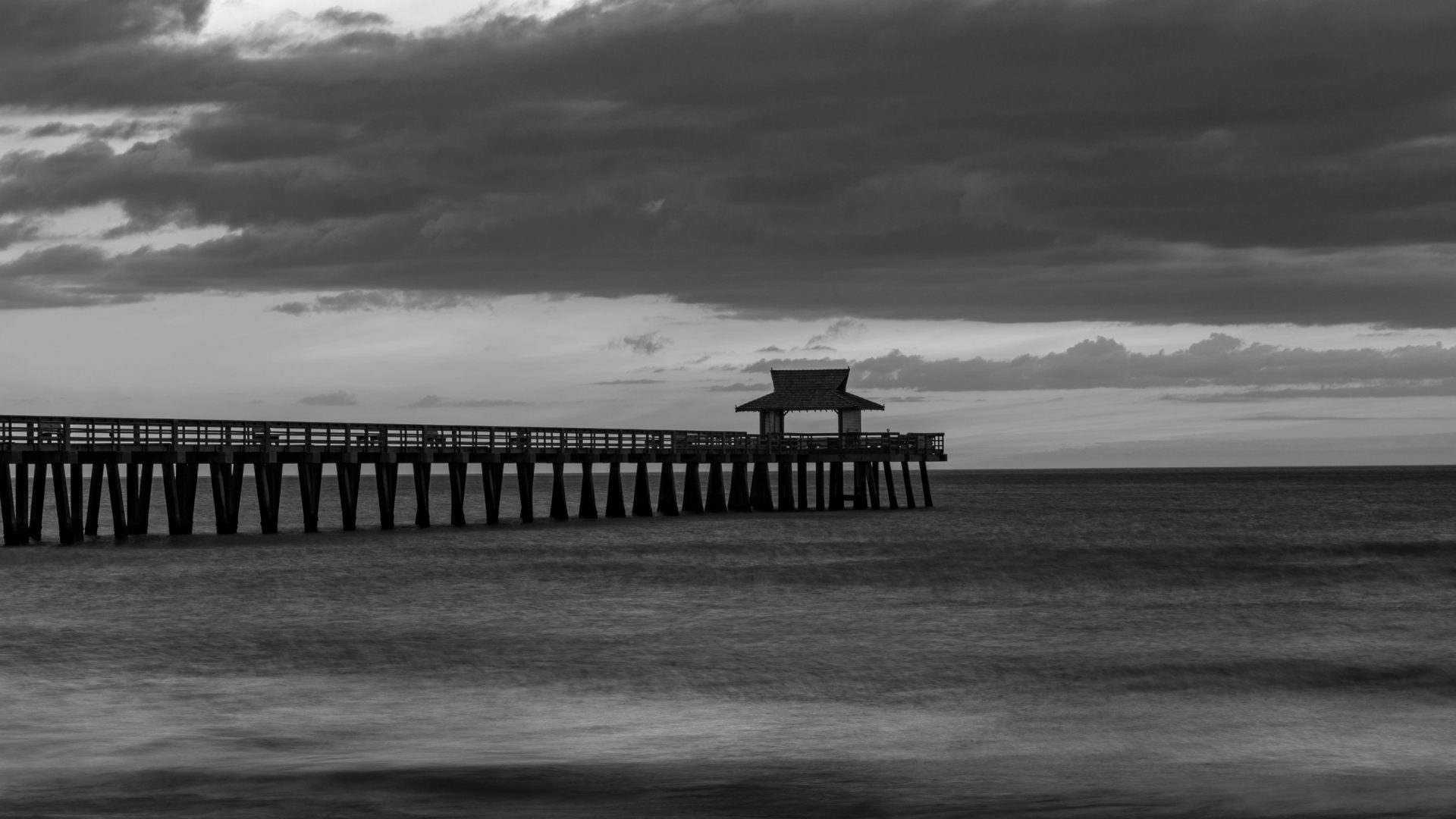
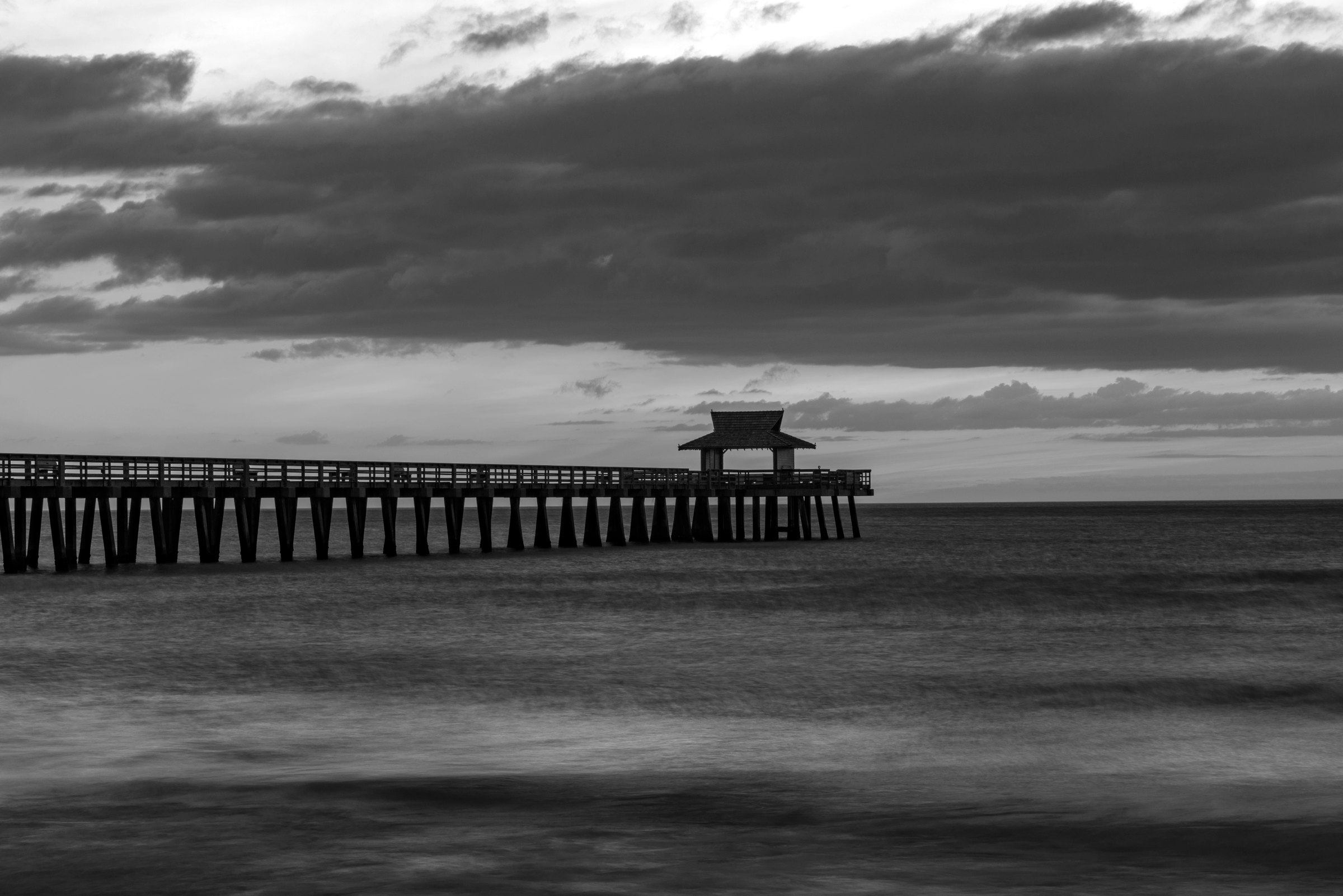
Strip color out of a landscape and something wild happens. The scene stops being about where you were and starts being about light itself. Shape, shadow, texture, mood. That is the whole game. A dramatic black and white landscape photo does not happen by hitting a desaturate button and hoping for the best. It is built, one decision at a time, from the moment you set up the tripod to the last nudge of the tone curve in Lightroom.
My black and white work draws on the same 20-plus years of field experience behind everything I shoot, from the piers of Miami to the slot canyons of Arizona. What follows is a complete Lightroom workflow for building a dramatic black and white landscape photo, step by step. Follow it end to end and your landscapes will hit harder than they ever did in color.
 Save
SaveIt starts in the field, not in Lightroom
Here is the truth most people skip: a dramatic black and white photo is conceived in color. The core rules were first published in this black and white photography tips guide, and they still hold.
Always shoot in color. Most cameras have a monochrome picture mode. Leave it off. Monochrome mode changes the JPEG the camera writes and the preview on the screen; a RAW file keeps the full color data either way, and that data is what Lightroom’s Black and White Mix uses to decide exactly how each color converts into gray. That per-color control is the entire foundation of the drama you are about to build. Commit to monochrome JPEGs in camera and you have given away your best editing tool.
Always shoot RAW. A JPEG bakes in a contrast curve and clips what it clips. A raw file keeps the highlight and shadow information you will need when you start pushing tones around. You can still make a beautiful black and white from a JPEG, but you are fighting with one hand tied down.
Use the lowest ISO you can. Clean files convert clean. If you want grain and grit for mood, add it in post where you control the amount, instead of letting a high ISO decide for you. A noisy sky that was supposed to be a smooth silver gradient will break the illusion every time.
Learn to see in black and white before you press the shutter. Without color to carry the frame, the eye hunts for shapes, lines, and contrast. Storm clouds against a pale horizon. Dark water against bright stone. A pier slicing through fog. Scout a scene for black and white by squinting at it, literally. Squinting flattens color and reveals the tonal structure underneath. If the tones are mush, no amount of Lightroom work will save the frame. If the bones are there, the conversion will sing.
Light matters here more than anywhere. Low, directional light at the edges of the day builds the long shadows and glowing highlights that black and white thrives on. If you are still dialing in your field work at sunrise and sunset, the guide to 7 golden hour landscape mistakes and how to fix them pairs perfectly with this workflow.
The conversion: the B&W panel is where the drama is born
Home in Lightroom Classic’s Develop module, the actual conversion takes one second. In the Basic panel, set Treatment to Black and White, or just press V. That is the moment of birth, but the photo right after conversion is usually a flat, lifeless gray. This is where the real work starts.
Scroll to the B&W panel. This is Black and White Mix, and it is the single most powerful black and white tool in Lightroom. Every slider in it represents a color from your original photo: red, orange, yellow, green, aqua, blue, purple, magenta. Drag a slider left and every area that contained that color goes darker. Drag it right and those areas go brighter. You are not just darkening pixels at random, you are choosing what each color becomes in the final grayscale image, and that is a completely different level of control than any one-click filter.
Two moves define most landscape conversions:
- Darken the sky with blue and aqua. Daytime skies are loaded with blue. Pull the blue slider down and the sky goes from washed-out gray to deep, brooding charcoal, and the clouds explode out of it. This is the classic dramatic black and white sky, and it is also where the famous dark-sky infrared look comes from.
- Separate land and water from sky with green, yellow, and orange. Foliage, sand, and rock sit mostly in these channels. Brighten them while the sky falls, and suddenly the frame has depth it never had in color.
If you want a starting point, hit Auto in the B&W panel. Lightroom sets a grayscale mix that spreads the tones out, and it is often surprisingly decent. Treat it as a sketch, never the finished piece. Better yet, grab the Targeted Adjustment tool in the B&W panel, click directly on the sky in your photo, and drag down. Then click the water or the cliffs and drag up. You are painting with tone, straight on the image, and Lightroom moves the right color sliders for you.
One warning worth repeating: every slider you push hard also pushes noise and artifacting in those areas, especially in skies. Zoom to 100 percent and check. If the sky starts to look crunchy, back the slider off and get the rest of the way there with masking, which we will hit in a minute.
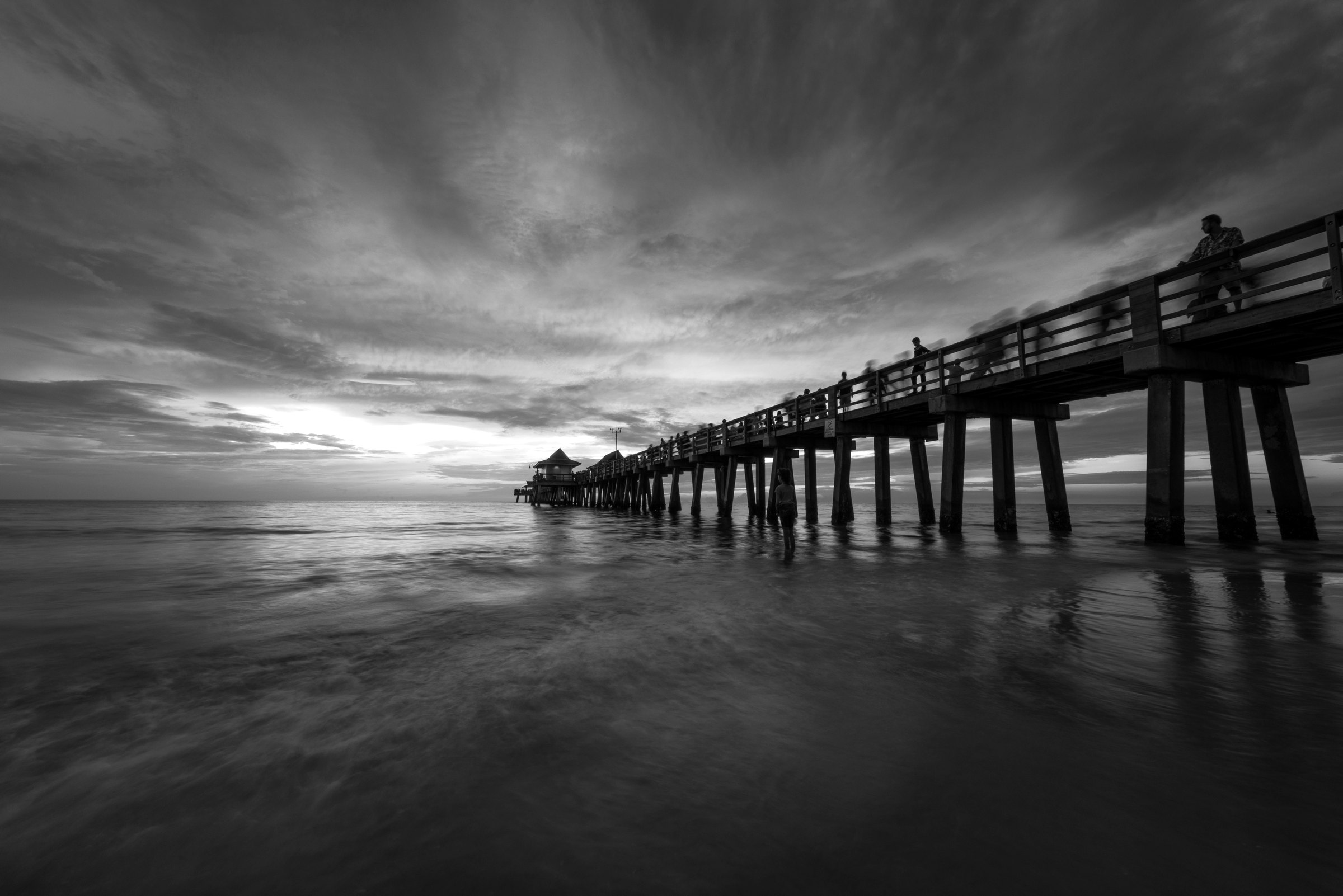 Save
SaveSculpt the light with the tone curve
The B&W panel decides what each color becomes. The tone curve decides how the whole image breathes. This is the difference between a black and white photo and a dramatic black and white photo.
Open the Tone Curve panel. The graph maps the tones in your original file on the horizontal axis, blacks on the left to whites on the right, against your adjusted tones on the vertical axis. Push a point up and those tones get lighter; pull it down and they go darker. The region sliders underneath (Highlights, Lights, Darks, Shadows) move the same curve in broad zones, and the Point Curve menu gives you Linear, Medium Contrast, and Strong Contrast as instant starting shapes.
For drama, the classic move is a gentle S-curve. Lift the lights a touch, sink the darks a touch, and suddenly the image has punch. Then the pro move: drag the bottom-left point of the curve up a hair so the blacks never quite reach pure black. That lifted shadow is what gives a print that rich, matte, fine-art feel instead of a harsh digital crunch. While you work, remember that the Highlights and Shadows region sliders affect mainly the ends of the tonal range, and the Darks and Lights sliders work the middle, so small moves go a long way.
Do not be afraid of deep shadows. Black and white can carry far more darkness than color ever could. Let the unimportant parts of the frame fall into true black so the eye has nowhere to go but your subject. Contrast sets the mood, defines your lines, and drags shapes and textures out of the shadows that color photography never shows.
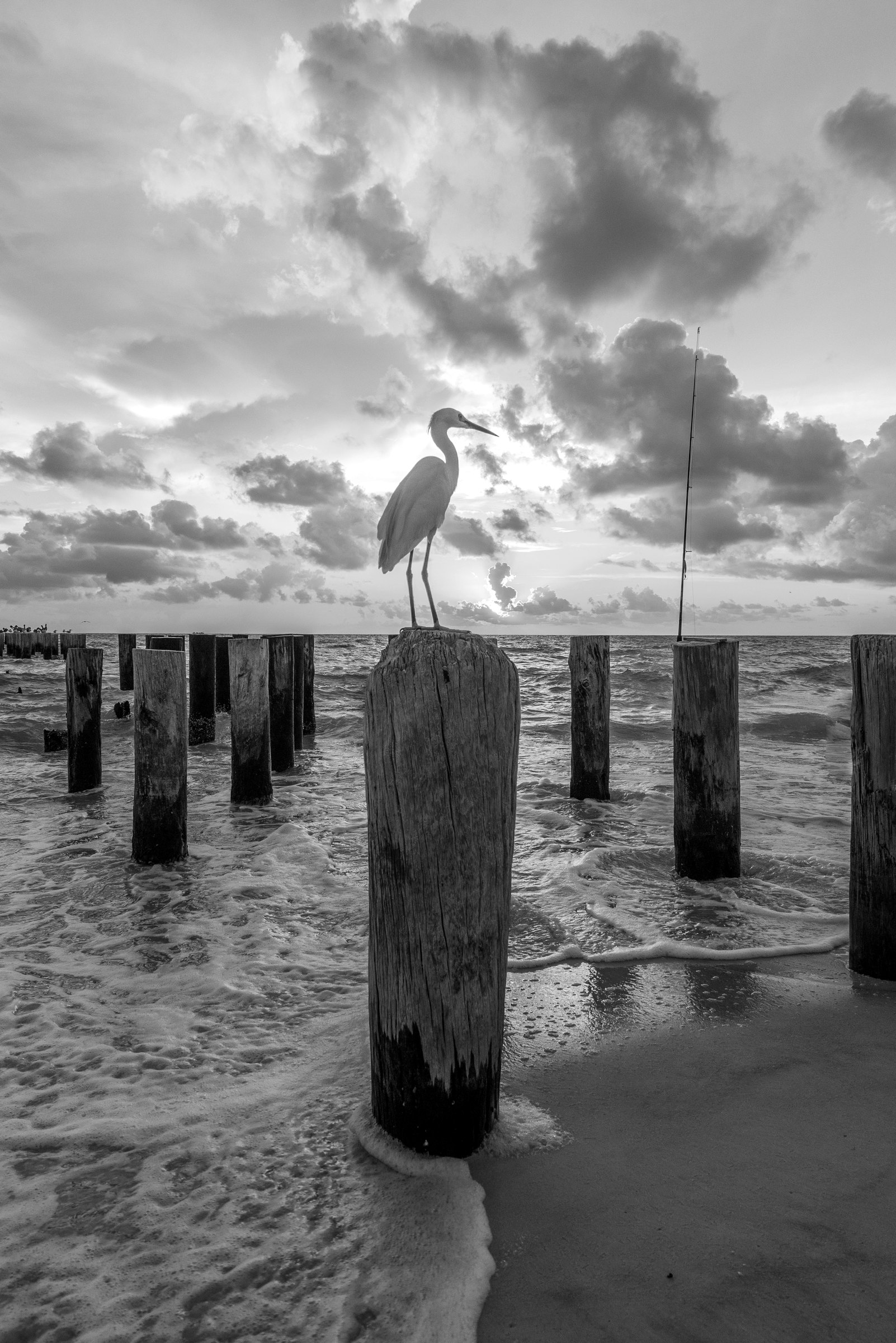 Save
SaveTexture, clarity, and dehaze: the punch trilogy
With the global tones in place, three sliders in the Basic panel’s Presence section add the bite.
Clarity boosts midtone contrast, which makes rock, bark, clouds, and water look carved. On black and white landscapes you can push clarity far harder than you ever would on color, but watch the halos that creep in around high-contrast edges when you go too far.
Texture works finer, enhancing the small details in stone and sand without crunching the whole frame. For slot canyons and seascapes, a touch of texture is pure magic.
Dehaze cuts atmospheric haze and adds a heavy dose of contrast in one move. A small push, ten to twenty points, can turn a flat distant ridge into a layered wall of tones. Dehaze is also available as a local adjustment inside the masking tools, which is where it gets really dangerous in the best way.
Dodge and burn with masking: where good becomes epic
Global edits make a photo consistent. Local edits make it epic. Darkroom printers used dodging and burning to guide the eye, holding light back from one area and pouring it onto another. Lightroom’s Masking panel is that tradition with superpowers.
Click Masking and you get Brush, Linear Gradient, Radial Gradient, Range masks, and the AI-powered Select Subject, Select Sky, and Select Background options. For black and white landscapes, the core moves:
- Select Sky, then darken and add contrast. One click selects just the sky. Drop exposure slightly, add contrast, maybe a touch of Dehaze, and the clouds turn theatrical. The mask keeps the heavy lifting off the blue channel, which is where the crunchy noise comes from. Automatic sky masks can miss edges, so inspect the mask, refine it where it bleeds, and check the sky at 100 percent before moving on.
- Linear Gradient over the foreground, pulled down. Darkening the bottom edge of the frame acts like an anchor and pushes the viewer’s eye up into the scene.
- Brush in the light. Paint exposure and clarity onto the one spot where you want the eye to land: the crest of a dune, the end of a pier, the lit face of a tower. This is dodging, and it is the single most personal move in the whole workflow. Nobody’s brush strokes look like yours.
- Luminance Range masks for surgical work. Under Range, a luminance mask lets you target only the bright water or only the dark trees, so you can brighten foam without touching the wet sand around it.
The rule that ties it all together: every local adjustment should serve the same question. Where do I want the eye to go? Darken everything that does not matter. Brighten the one thing that does. Drama is not more contrast everywhere. Drama is a directed eye.
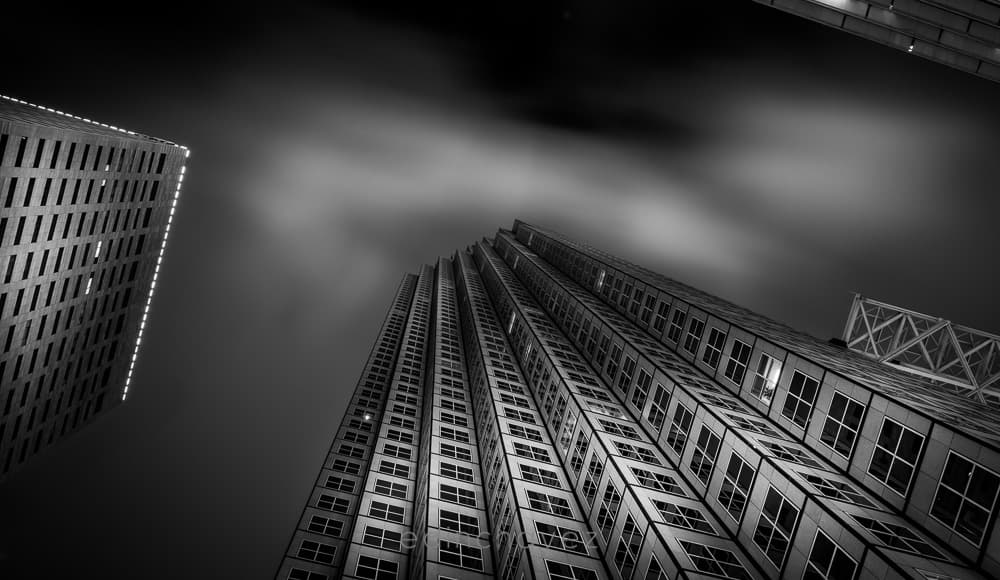 Save
SaveToning: color grade a black and white photo
Here is a secret the old masters knew: the finest black and white prints are not perfectly neutral. A whisper of warmth in the highlights or coolness in the shadows adds a depth that pure gray never reaches.
In the Color Grading panel, you get color wheels for the shadows, midtones, and highlights, and they work beautifully on grayscale images. Drop a tiny amount of cool blue into the shadows and the darkest parts of the frame go cold and quiet. Add a hair of warmth to the highlights and the lit areas glow against them. That gentle warm-against-cool tension is a split tone, and it is one of the most timeless looks in black and white landscape photography. The extreme shadows and highlights stay black and white, so the effect stays classy as long as you keep it subtle. If you want the full vintage treatment, one warm tone across the whole tonal range gives you the classic sepia look.
Subtle is the whole trick. If someone can name the color you added, you added too much.
The finishing moves: vignette and grain
Two last touches live in the Effects panel.
A gentle post-crop vignette pulls the corners down and keeps the viewer’s eye inside the frame. Keep it soft and small. You should feel it, not see it.
Then grain. Digital black and white can look almost too clean, and a little film-style grain in the midtones gives the image tooth and a handcrafted feel. Because you are adding it deliberately in post, the underlying file stays clean and high resolution. Grain belongs in post, not in the capture, so keep the field ISO low. If the grain is obvious from across the room, dial it back. It should feel like film, not like static.
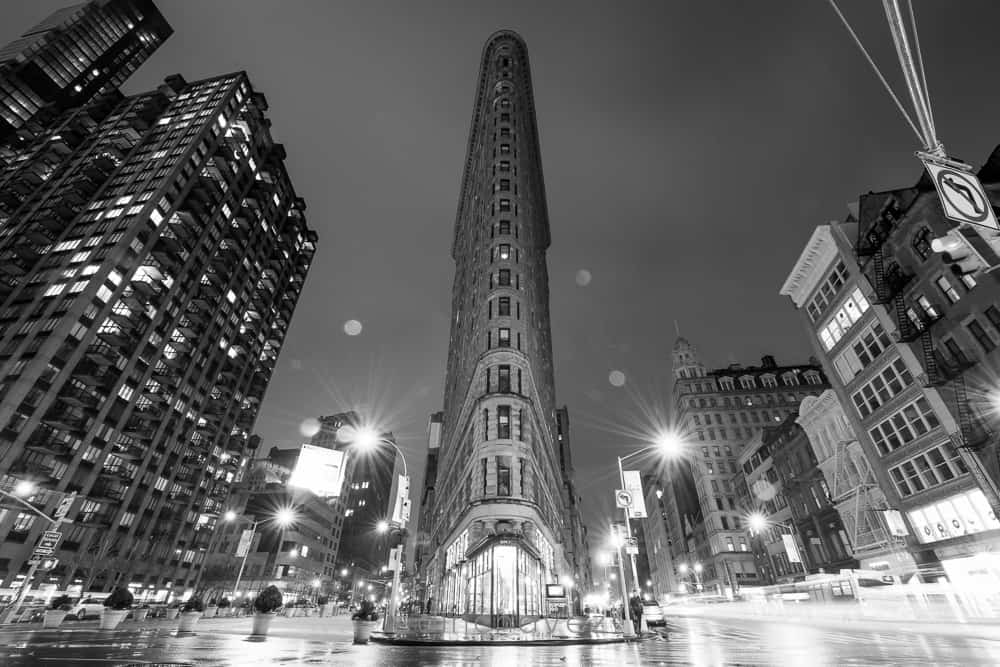 Save
SaveThe complete black and white recipe
Put it all together and the workflow looks like this, in order:
- In the field: shoot in color, shoot RAW, lowest ISO possible, and compose for shapes, lines, and contrast instead of color.
- Convert: press V or set Treatment to Black and White in the Basic panel.
- Build the mix: in the B&W panel, darken blues for the sky, lift greens and yellows for the land, and use the Targeted Adjustment tool right on the image. Auto is a sketch, never the final mix.
- Sculpt: shape a gentle S-curve in the tone curve and lift the black point a touch for that fine-art matte feel.
- Punch: clarity and texture for bite, a small push of Dehaze for weight.
- Direct the eye: Select Sky to dramatize the clouds, gradients to anchor the frame, and the brush to dodge light exactly where you want the viewer to land.
- Tone: a whisper of cool in the shadows or warmth in the highlights with the Color Grading wheels.
- Finish: a soft vignette and a touch of grain in the Effects panel, then step away and look at it with fresh eyes before you export.
Do this a dozen times and something shifts in how you shoot. You start seeing the world in tones instead of colors, and that is when your black and white landscapes stop looking like conversions and start looking like they were always meant to be monochrome.
Black and white landscape photography Q&A
Should I shoot in my camera’s black and white mode or convert in Lightroom?
Shoot in color and convert in Lightroom. A camera’s monochrome mode affects the JPEG and the screen preview; a RAW file still records the full color data. The reliable path is still color capture plus a Lightroom conversion, because Lightroom’s Black and White Mix uses that color data to control how each hue becomes a gray tone. If you like to pre-visualize, many cameras can show a black and white preview while still recording color.
What is the fastest way to convert a photo to black and white in Lightroom Classic?
Press V in the Develop module, or set Treatment to Black and White in the Basic panel. The conversion is instant, but the real work starts afterward in the B&W panel, where you decide how each original color maps to gray tones.
How do I make the sky darker in a black and white landscape in Lightroom?
In the B&W panel, drag the blue and aqua sliders to the left. Daytime skies are mostly blue, so they darken dramatically while clouds stay bright. If you push too far and noise creeps in, back off and finish the job with a Select Sky mask, where you can drop exposure and add contrast only in the sky.
Do I need to shoot RAW for black and white landscape photography?
RAW is strongly recommended. It keeps the highlight and shadow information you need when you reshape tones with the curve and the Black and White Mix, and it lets you re-decide white balance after the fact. A JPEG still converts, but with far less room to push before the image falls apart.
How do I add a sepia or split-tone look to a black and white photo in Lightroom?
Use the Color Grading panel. Its color wheels work on grayscale images: one warm tone across the range gives a classic sepia, while cool shadows against warm highlights creates a split tone. The extreme blacks and whites stay neutral, and subtle amounts look far better than heavy ones.
Why do my black and white photos look flat and gray?
Flat conversions usually mean the tones were never shaped. A one-click desaturation removes the color but gives you no per-color control over how each hue translates to gray, so skies, water, and rock can collapse into the same flat tones. Fix it by building contrast deliberately: darken the sky with the blue slider in the B&W panel, add an S-curve in the tone curve, push clarity and texture for bite, and dodge and burn with masks so the eye has one clear place to land.
Keep building your landscape skills
Black and white conversion is one piece of the craft. For the full system, from scouting and light to exposure and complete Lightroom editing workflows, explore the Landscape Photography Course at Shut Your Aperture Academy. Check the Academy for current access options.
Recommended gear for black and white landscapes
Start with the camera and lens you already own. These are topic-matched options to compare, not a record of gear used for the photographs above.
- Benro Slim Travel Tripod (Aluminum): smooth-water pier shots like the ones above are hard to get handheld. A tripod that actually travels with you beats a heavy one that stays home.
- B+W MRC Nano Master #810 ND filter (77mm, 10-stop): the tool that opens up long exposures in daylight, where moving water and clouds can blur into glass and silk. How much blur you get depends on how fast the scene is moving and how long you expose. Match the thread size to your lens or use step-up rings.
- Nikon Circular Polarizer II, 72mm: cuts glare off wet rock and foliage so textures record with full contrast, which is pure gold for black and white. Fits any 72mm thread; check your lens before buying.
Affiliate disclosure: this article contains B&H affiliate links. If you buy through them, Shut Your Aperture may earn a commission at no extra cost to you. The recommendations are not claims of hands-on testing.
Technique references: Adobe’s guide to tone, color, and grayscale in Lightroom Classic and Adobe’s Develop module tools reference.