
Updated October 2026
Replacing a sky is only half the work when the photograph contains water. If the sky changes and the lake still reflects the old sky, the image gives away the edit. This tutorial began in October 2019, when I was working with a beta version of Luminar 4. It now preserves the original Mono Lake example and adds a careful workflow for matching a replacement sky with its reflection.
This is a creative compositing guide, not a new software test or a claim that the dramatic sky was photographed over Mono Lake in that exposure. The original article explicitly described replacing the sky and matching the water. The old preorder link has been removed. Luminar 4 and Luminar Neo are different applications, so do not assume their menus, licenses, or current compatibility are the same.
The useful question is not whether you can flip an image. It is whether the sky, water, rocks, horizon, and light still belong together after you do. I want the whole photograph to work. An epic sky with a careless reflection is a weaker picture than a quiet sky that fits the scene.
Read the original comparison in the right order
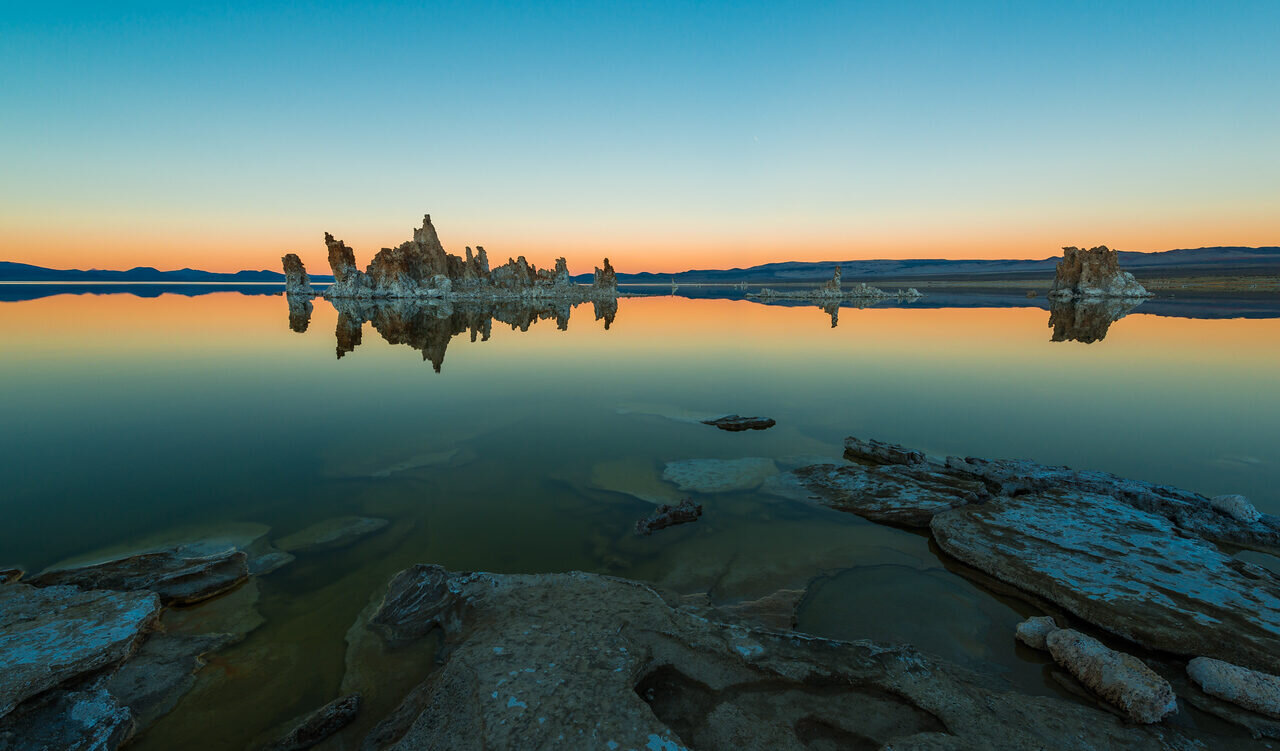
The legacy slider used two Mono Lake files, but the media IDs do not put them in a trustworthy before-and-after order. The file named Mono-Lake-Edin-Chavez.jpg shows a blue sky and matching blue water. The file with Luminar in its name shows the dramatic replacement sky and warm reflection. The images below are labeled by their visible content and the original article’s description, not by the numerical order of the attachment IDs.
No exact slider values or layer settings survive in the article. That means this update can explain a defensible workflow, but it cannot pretend to reproduce the edit one control at a time. There may be several changes between the two files. Treat the comparison as an illustration of the final direction, not proof of a single adjustment.
 Save
Save Save
SaveWhat Luminar 4 could and could not do
Contemporary Luminar 4 tutorials described a limitation of its automatic sky replacement: the sky could change while the reflected sky remained untouched. Their solution was a separate image layer, transformed and masked into the water. That historical distinction is important. Do not look for a modern automatic reflection control in an old tutorial and assume it was there all along.
CaptureLandscapes described loading the sky as an image layer, flipping it vertically, positioning it, choosing a blend mode, and using a mask to keep it off the land. Other contemporary tutorials addressed the same problem. Exact methods differed, including workarounds for bundled skies and platform differences. This guide uses the transparent layer-and-mask approach rather than promising one universal shortcut.
Current Skylum product information says Luminar Neo’s Sky AI takes water reflections into account. That is a different product claim, not a reason to rewrite the 2019 beta experience as if it happened in Neo. Check the documentation for the version installed on your computer. Even with automated reflection handling, inspect the finished picture rather than treating detection as proof that the result is right.
Choose a sky that fits the foreground light
Start by studying the original photograph. Where does the light come from? Which rocks or buildings are bright, and which are in shadow? A sunset sky does not automatically explain a foreground lit by hard midday sunlight. If those relationships conflict, you may be asking the software to solve a problem that belongs to the choice of source images.
The Mono Lake composite shifts the scene toward warmer light while keeping the tufa formations recognizable. Compare the rock faces with the warm sky and the water. If the warmth affects only the top half, the edit will feel divided. If it washes over every surface equally, it can erase the shape and texture that made the foreground interesting.
Use a sky whose light and perspective give the base photograph a fair chance. A quieter source may fit better than the most dramatic one in your folder. Compare at a small size before investing in detailed masking. If the whole picture already feels wrong, a perfect edge will not make it convincing.
Keep an accessible, licensed sky file
The manual layer method needs the sky image again for the reflection. Use a file you can actually access, not only a thumbnail or a sky hidden inside an application. Keep that source with the project. If the file is missing later, recreating the reflected portion can become unnecessarily difficult.
Use your own sky photograph or an asset whose license covers your intended use. Being included in a software library or easy to download does not establish every kind of permission. Keep the source and terms with the working files, particularly for commercial work. A license for a finished composite is not necessarily a license to redistribute the sky file.
Check the resolution of the actual image. A low-resolution sky can look acceptable in a small preview and fall apart in a print. Water may soften detail, but that is not a reason to stretch a tiny file across the whole frame without inspection. Start with enough information for the output you need.
Settle the sky before building the reflection
Complete the main sky placement first. Refine the horizon and mask, check scale, and decide which clouds or bright areas belong where. If you move the sky substantially after building the reflection, you will need to revisit the water. Working in order prevents you from polishing a reflection of a placement you later abandon.
Save a working version before adding the reflected layer. Keep the base and source sky unchanged. The project should let you return to a clean starting point without searching through several exports. Name versions according to what changed rather than using a string of final-final filenames.
Add the reflection as its own layer
In the historical Luminar 4 approach, add the same sky file as an image layer above the base. At first it will cover the photograph. That is expected: you have introduced a full image, not a water-only adjustment. The next steps define its orientation, position, and visible area.
Keep the reflected sky separate so you can adjust it without disturbing the main sky. Do not flatten the project early just to simplify the layer list. Separate control matters when you need to reduce brightness in the water, alter softness, or correct a shoreline edge later.
Flip vertically, then align around the horizon
Use the layer transform controls to flip the sky vertically. This reverses the top and bottom, giving you the basic reflected orientation. A horizontal flip is a different operation and will move features left to right. Check which transformation you applied before trying to fix a confusing alignment.
Position the layer in the water area relative to the scene’s horizon. The horizon is not automatically the middle of the frame, so a centered upside-down image may sit in the wrong place. Compare recognizable cloud shapes and brighter regions above and below the horizon. Do not rely only on the layer boundary or the canvas center.
Scale and position deliberately. A wide sky above a tiny, enlarged reflected cloud can look disconnected. Avoid repeated or mirrored patterns that call attention to the technique. If the water occupies only a narrow strip, you may see only part of the sky in the reflection, and that can be appropriate.
Mask the reflection to the water
The reflected layer belongs on water, not on tufa, shoreline rocks, buildings, or boats. Use a layer mask to define that area. Choose whether to start with the layer hidden and paint it into the water, or start visible and remove it from the land. The easier path depends on how much of the frame contains water.
Work carefully around the tufa formations. Small gaps between rocks can contain water while the rock itself must remain protected. A broad brush may make progress quickly but leave obvious patches over the land. Zoom in for those boundaries, then return to the full image to make sure the mask has not become too hard or too soft.
Watch the near shoreline as carefully as the distant horizon. Water changes shape around stones, reeds, and shallow areas. The mask should follow what is visible in the photograph. Do not make every dark patch reflective just because it is near the lake.
Blend with the water, not over it
A reflected sky should not erase the water surface underneath. Preserve ripples, shallow detail, and the tonal character of the original water where they belong. The added layer is one part of the final appearance, not a replacement for every piece of information in the foreground.
Contemporary tutorials discussed Overlay and Soft Light as useful blend modes, but no mode is universally correct. Compare the options in your file. Watch what happens to contrast and color, particularly in darker water and pale reflections. A mode that looks good in one sample can be too strong in another.
Reduce opacity until the reflection feels part of the scene. There is no magic percentage to copy from another photograph. Judge the relationship with the main sky and the existing water. If the reflection announces itself before the rest of the photograph, a lower intensity may be the better starting point.
Match softness to the surface
Calm water can retain a recognizable reflected shape. Uneven water can break it into softer or distorted forms. Study the surface in the original before deciding how sharp the added layer should remain. A crisp cloud pasted onto visibly rippled water can look wrong even when its position is correct.
Do not blur the entire foreground indiscriminately to hide a mismatch. The rocks may need to remain sharp while the reflected sky is softer. Keep those decisions separate. Inspect the boundaries after changing softness so the reflection does not bleed over land or leave a conspicuous smooth band beside textured water.
 Save
SaveCheck existing reflections and color together
A lake may already reflect clouds, mountains, and rock formations. Do not leave an old cloud reflection underneath a completely different new sky if that contradiction dominates the image. At the same time, preserve reflections of landforms that still belong to the scene. Replacing every reflection with the sky layer can erase important structure.
Compare color temperature across the sky, rocks, and water. Warm clouds can produce a warm reflected area without turning all foreground stone orange. Use restraint and look for unexplained color casts. You want a relationship between areas, not a single color painted across the entire photograph.
Take a short break and compare a restrained version with the strongest version. Heavy color can become normal to your eyes while you work. A fresh view often makes the quieter option easier to judge. Keep the one in which the entire frame makes sense.
Export and describe the composite honestly
Inspect the actual export, not only the editing preview. Check mask edges, repeated cloud shapes, softness, color, and small water gaps around rocks. Open it at the size you plan to publish or print. A problem invisible in a thumbnail can become obvious when the photograph is larger.
Describe the image as a composite where its origin affects how people understand it. Do not present a replacement sky and its fabricated reflection as proof of a particular weather event or an unaltered landscape capture. Check any contest, publication, or client requirements before using the file there. Creative editing can be worthwhile without hiding what changed.
 Save
SaveKeep the project ready for a later revision
Store the base photograph, sky asset, license notes, working project, and final export together. Back up important files independently before clearing cards or deleting working versions. The storage option below can support a working copy; it is not equipment claimed to have been used for the original image.
For stronger decisions about composition, light, and editing, explore the Shut Your Aperture Academy. Understanding the photograph helps you judge the software. The same eye that notices a strong natural reflection will help you spot a misplaced cloud, a heavy color treatment, or a mask that does not belong in a composite.
Frequently asked questions
Did Luminar 4 automatically replace water reflections?
Contemporary tutorials described its sky replacement leaving reflections unchanged and used manual layers and masks to match the water. Do not assume modern Neo controls were present in that legacy workflow.
Which original Mono Lake image is the composite?
The file with Luminar in its name shows the dramatic orange replacement sky and warmer reflection. The blue-sky file is shown as the starting reference, without claiming it is an unedited RAW image.
What opacity should a reflected sky use?
There is no universal setting. Compare the added reflection with the water surface and main sky, preserving texture and reducing intensity when it looks pasted on.
Can I use a sky file downloaded online?
Only if permission or a license covers your intended use. Keep the source file and terms with the project; downloading a file alone does not establish permission.
Is this a current Luminar Neo test?
No. The original tutorial used a Luminar 4 beta in 2019. This update adds historical context and practical checks, not a new hands-on test of either application.
Source note: Original 2019 tutorial and comparison files; separate Mono Lake archive photograph; historical layer-and-mask workflow; contemporary reflection tutorial; current Sky AI information.