You come home from a shoot, open the files, and the screen looks flat. The sky was glowing when you pressed the shutter, the water had that deep blue, and now the picture on your monitor looks like a tired version of the memory. Almost every photographer hits this. The good news is that color is one of the easiest things to bring back in Photoshop, as long as you go about it with a plan instead of dragging one slider until it hurts.
This guide covers the main color tools in Photoshop, in the order I would reach for them: Vibrance, Hue/Saturation, the Adjust Colors control, color casts and recoloring a single object. For each one I explain what it does, when to use it and what to watch for.
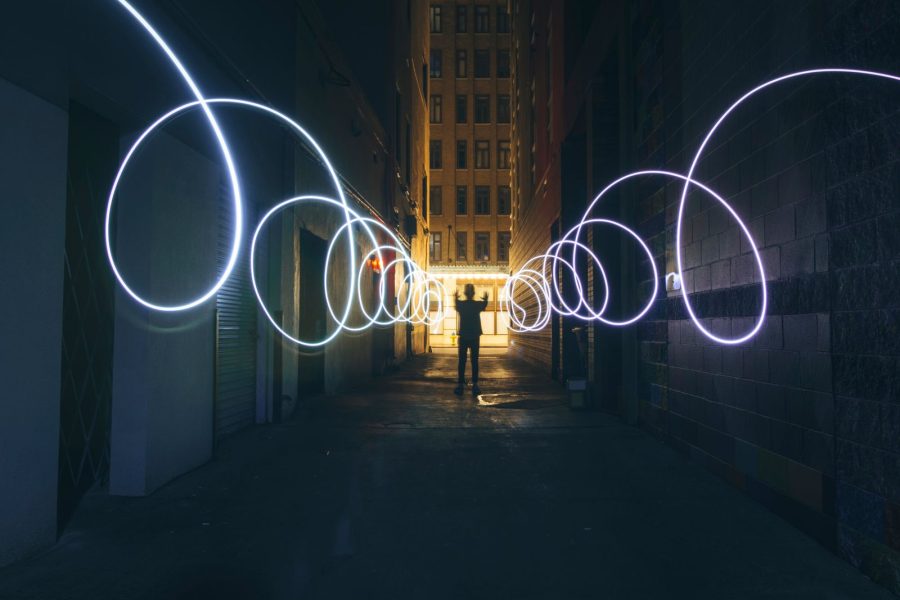
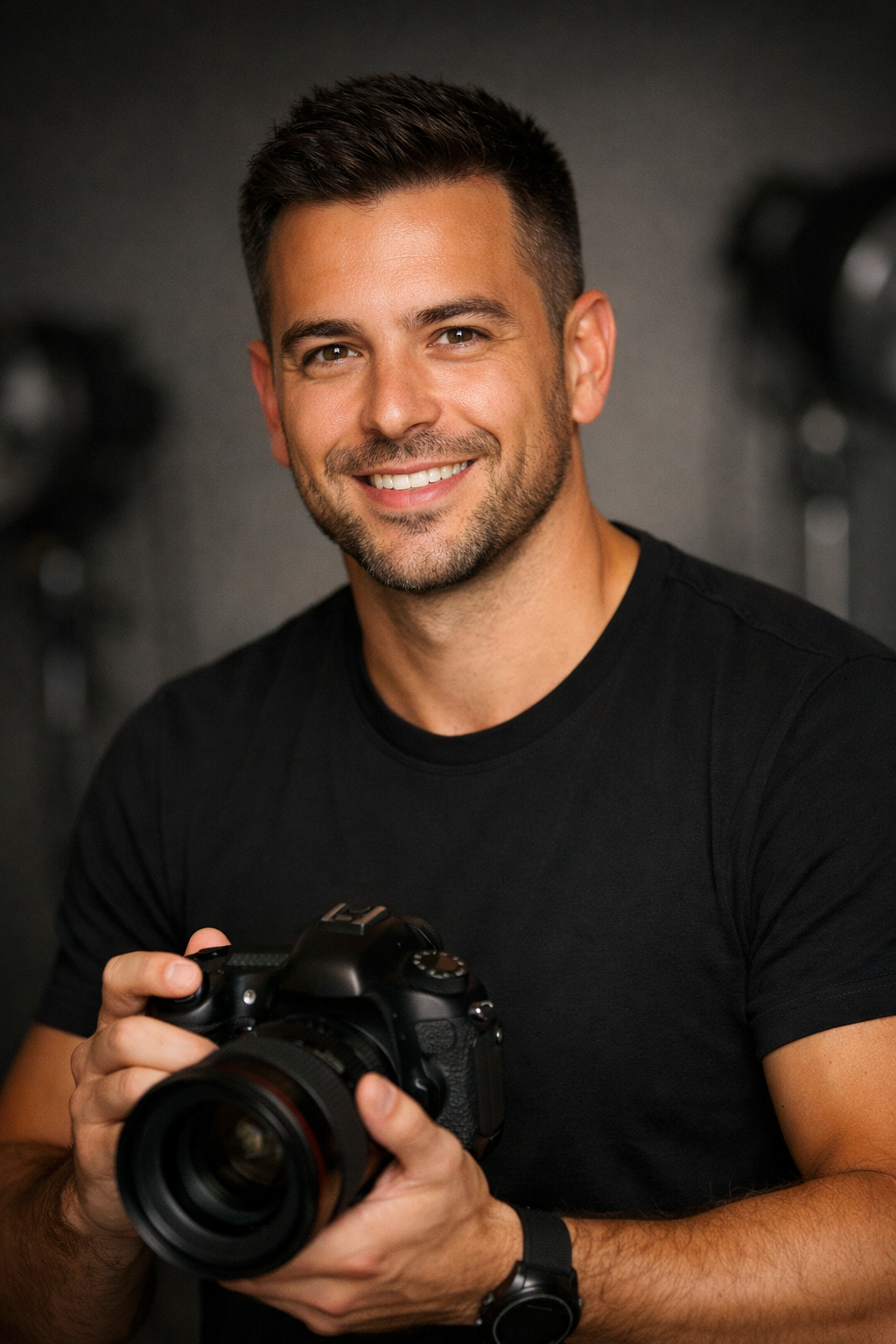
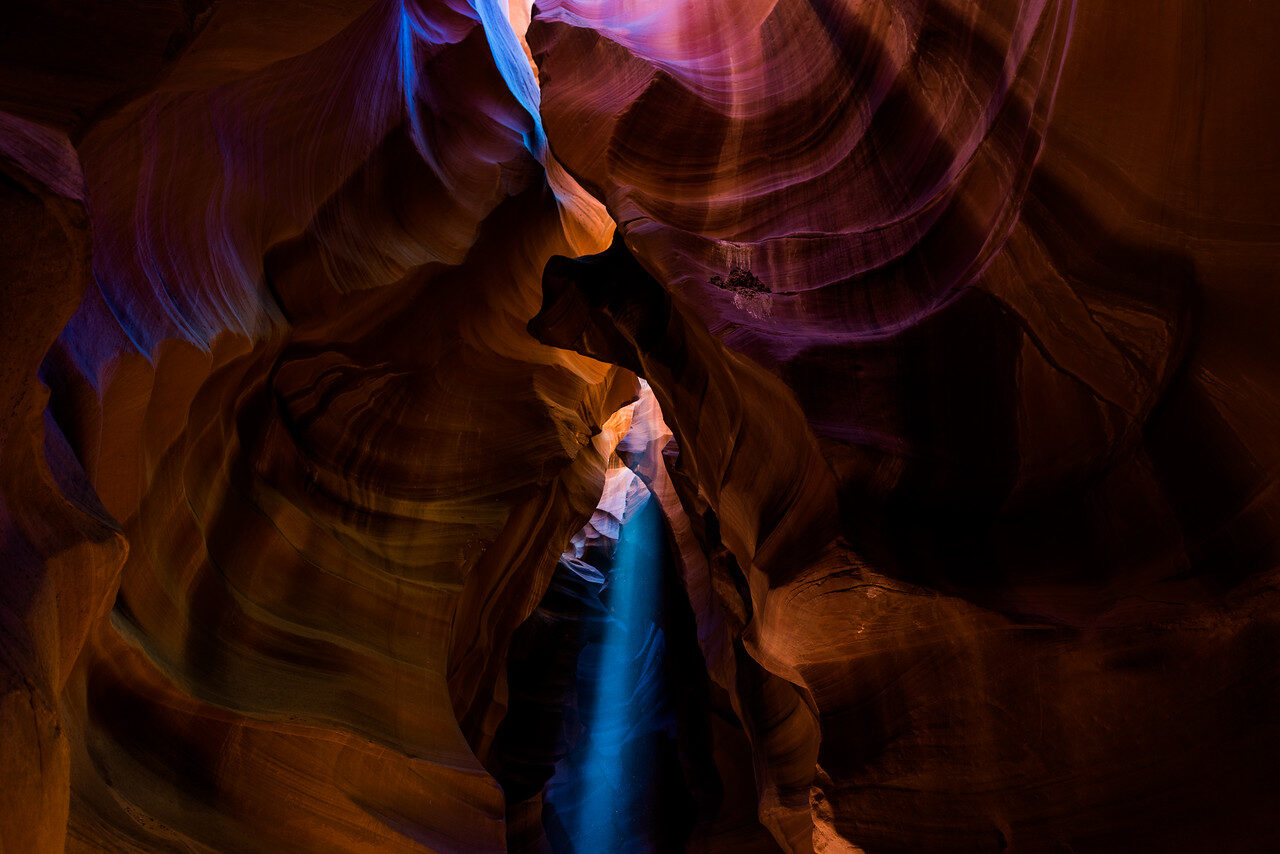
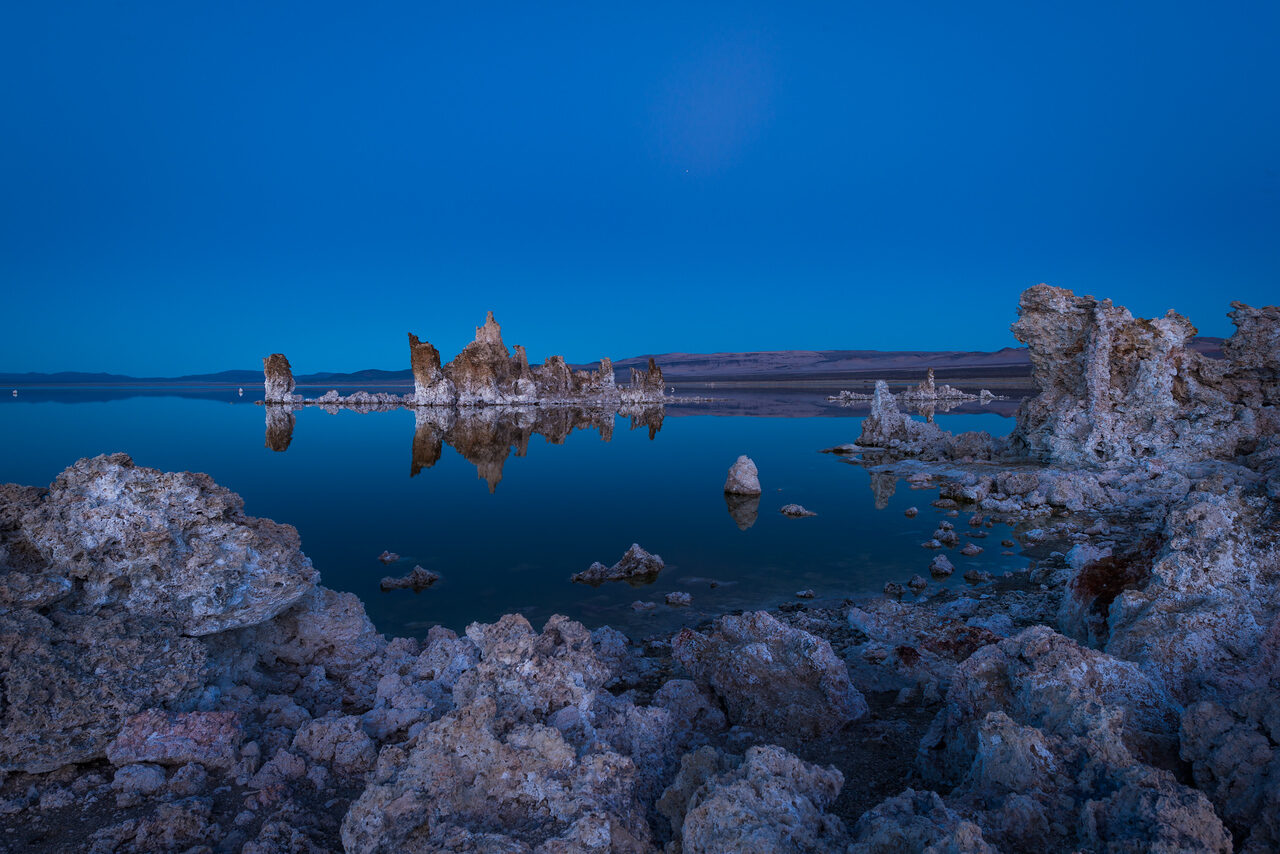
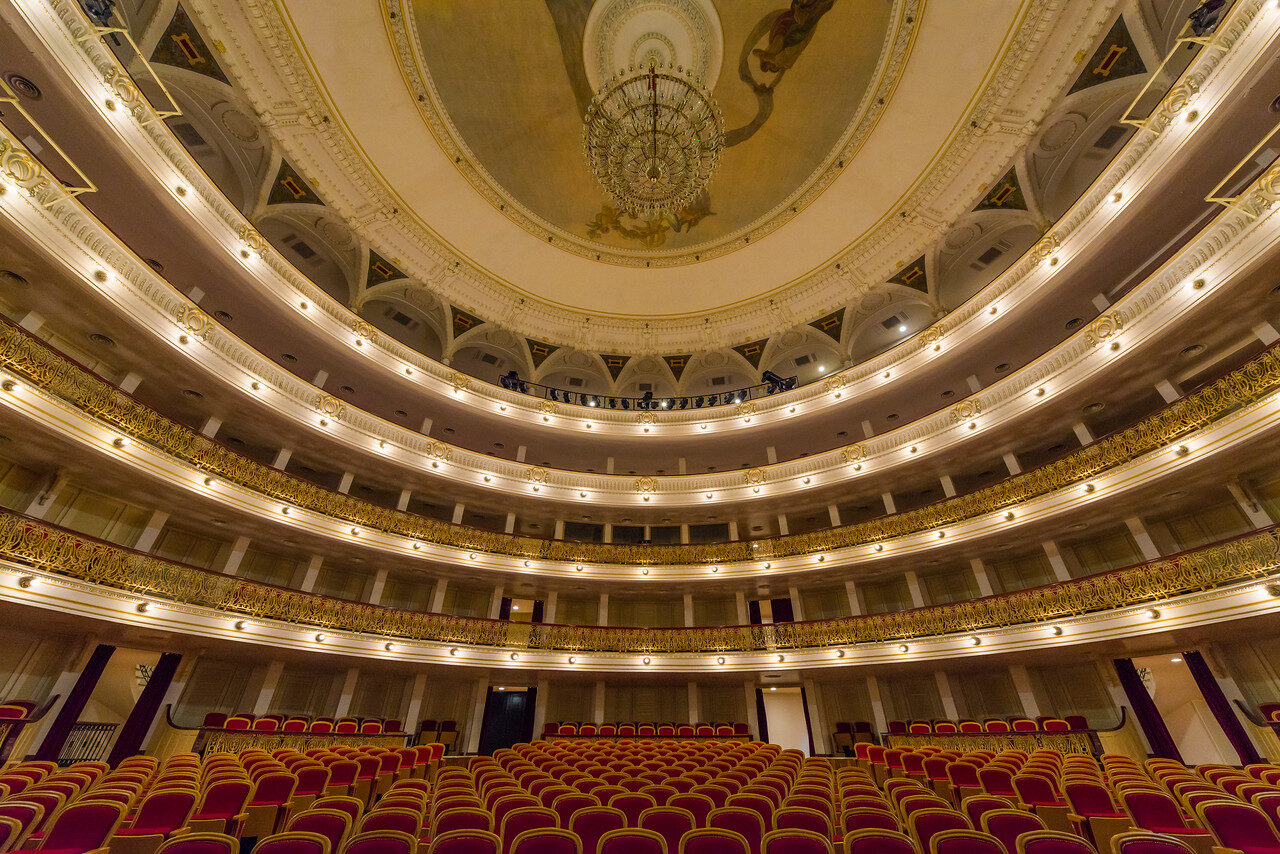
How this guide was built: the tool descriptions and menu paths come from Adobe’s own help pages (linked where they are used), and I rechecked them in October 2026. Menu names move around between Photoshop versions, so if a label looks different on your screen, search for the tool name. The photos are my own, and I have not described my own editing steps on them. They are here to show the kind of color you are working with.
Updated October 2026.
 Save
SaveWhat people mean by "making colors pop"
Three words come up in every color discussion, and they are not the same thing. Using the definitions from Adobe’s “Use color to change the look of a photo” tutorial:
- Hue is the actual color: red, orange, blue and so on.
- Saturation is the intensity of the color. Adobe describes a saturated color like the red of a fire engine as rich and pure, while a less saturated red is more muted and tinted with gray.
- Lightness is the brightness of the color.
If a photograph does not look as compelling as the scene you remember, Adobe suggests adding a pop of color by adjusting saturation. That sounds simple, and it is, but the way you do it decides whether the result looks rich or cheap. The rest of this guide is about doing it well.
Rule one: use adjustment layers
Before you move a single color slider, set yourself up so you can change your mind. Adobe’s adjustment layers help page explains that adjustment layers let you apply color and tonal corrections, like brightness, contrast or vibrance, without permanently changing pixel data. Adobe’s Vibrance page adds the other side of this: the Image > Adjustments route makes direct adjustments to the image layer and discards image information.
In plain terms, an adjustment layer floats above your photo. You can turn it off, lower its opacity, mask part of it or delete it next week. A direct adjustment bakes the change into the pixels. Adobe’s color tutorial calls the layer approach non-destructive editing and says it is a good habit to get into because it protects your photo and gives you the flexibility to change your mind.
To add one, use the Create new fill or adjustment layer button at the bottom of the Layers panel, or go to Layer > New Adjustment Layer. Adobe’s list of options includes the ones this guide uses: Vibrance, Hue/Saturation, Color Balance, Selective Color, Photo Filter, Levels and Curves.
 Save
SaveStep 1: start with Vibrance
Vibrance is the safest first move, which is why I put it first. Adobe’s Vibrance help page says Vibrance adjusts saturation so that clipping is minimized as colors approach full saturation. It increases the saturation of less saturated colors more than colors that are already saturated. It also prevents skin tones from becoming over saturated.
Why that matters: a plain Saturation slider pushes every color the same amount. The colors that were already strong, like a red car or a deep blue sky, run out of room and turn into flat blobs, while the quiet colors barely change. Vibrance works the other way around. It lifts the muted parts of the picture and holds back the parts that are already loud.
How to use it:
- Add a Vibrance adjustment layer. In the menu bar choose Layer > New Adjustment Layer > Vibrance, name it and click OK, or click the Vibrance icon in the Adjustments panel.
- In the Properties panel, drag the Vibrance slider to the right to apply more adjustment to less saturated colors without clipping them as they reach total saturation.
- Use the Saturation slider on the same panel only if you want the same amount of saturation change applied to all colors, whatever their current saturation.
- To tone color down, move either slider to the left.
My rule of thumb, which is editorial and not from Adobe: push Vibrance until the picture looks good, then pull it back a little. Your eye adapts quickly to strong color, and the thing that looked great after two minutes of staring often looks heavy the next morning.
Step 2: Hue/Saturation for control over single colors
When Vibrance is not enough, or you want to change one color without touching the rest, go to Hue/Saturation. Adobe’s Hue/Saturation help page lists the steps:
- Open your image and select the layer to adjust.
- Go to Layer > New Adjustment Layer > Hue/Saturation.
- In the New Layer dialog you can name the layer. Tick Use Previous Layer to Create Clipping Mask if you want to limit the adjustment to the layer below. The dialog also has Color, Mode and Opacity settings.
- In the Properties panel, move the three sliders: Hue changes the color tones, Saturation adjusts the color intensity and Lightness changes the color brightness.
- Fine-tune the adjustment and watch the real-time changes on the canvas.
Two more things from the same page are worth knowing. The Colorize checkbox applies a single, uniform color to the entire image, which is how you make a monotone look. And if you go too far, Reset to adjustment defaults in the Properties panel undoes a Hue/Saturation adjustment.
Adobe’s color tutorial describes using Hue/Saturation to change the saturation, hue or lightness of all the colors in a photograph or to target specific colors. The targeting is the useful part. If a sunset is warm but the blue in the shadows feels dull, you can work on the blues without making the oranges any louder.
The newer Hue/Saturation panel adds a color wheel in degrees. Adobe explains that the inner vertical sliders define the editable range, while the outer triangular sliders apply a fall-off, creating a smooth, feathered adjustment rather than an abrupt change. In practice, that feathering is what stops a color edit from leaving harsh edges where one color meets another. Adobe also notes that the Color Range tool in this panel helps you refine adjustments to specific targeted areas.
 Save
SaveStep 3: the Adjust Colors control
Recent versions of Photoshop have a faster way to work on the main colors in a photo. Adobe’s Hue/Saturation page describes the Adjust Colors option in the Contextual Task Bar, which detects and modifies the hue, saturation and lightness of the prominent colors in your image. The steps:
- Select Adjust Colors from the Contextual Task Bar.
- Pick a color on the Adjust color pinwheel.
- A window with Hue, Saturation and Lightness sliders appears directly on the canvas. Drag the sliders and watch the image update.
- To target another color, use the Eyedropper tool from the Contextual Task Bar and click that color in your image.
This is a good place to start if you are new to color work, because you do not need to know which range of the Hue/Saturation panel matches the color you want. I would still check what it created in the Layers panel afterwards so you know what you have.
Step 4: fix a color cast before you boost anything
Boosting color on top of a color problem makes the problem louder. So check for a cast first. Adobe defines a color cast as a wash of color across a photograph. Some casts, like a green cast from fluorescent lighting, are unwanted. Others, like the golden glow from a sunset, are welcome.
For an unwanted cast, Adobe’s tutorial gives a quick fix: use the gray eyedropper in the Levels or Curves controls to click on something in the photo that should be medium gray. Photoshop uses this hint to remap all the colors in the photo for a more natural look. This only works if there is something truly neutral in the frame, so do not expect it to work on every image, and do not use it on a cast you like. A warm evening glow is part of the picture.
Color Balance and Photo Filter adjustment layers are also in Adobe’s list of options. Adobe describes Color Balance as changing the overall color cast and Photo Filter as applying warming or cooling lens effects. Both are useful when you want to shift the overall mood instead of fixing a mistake.
 Save
SaveStep 5: people and skin tones
Skin is where heavy-handed saturation shows up first. A blue sky can take a lot. A face cannot. Adobe’s color tutorial says that if there are people in your photo, use a Vibrance adjustment layer to adjust color intensity, because it is a more subtle way to adjust saturation: it focuses on the colors that need it most and protects skin tones from over-saturation.
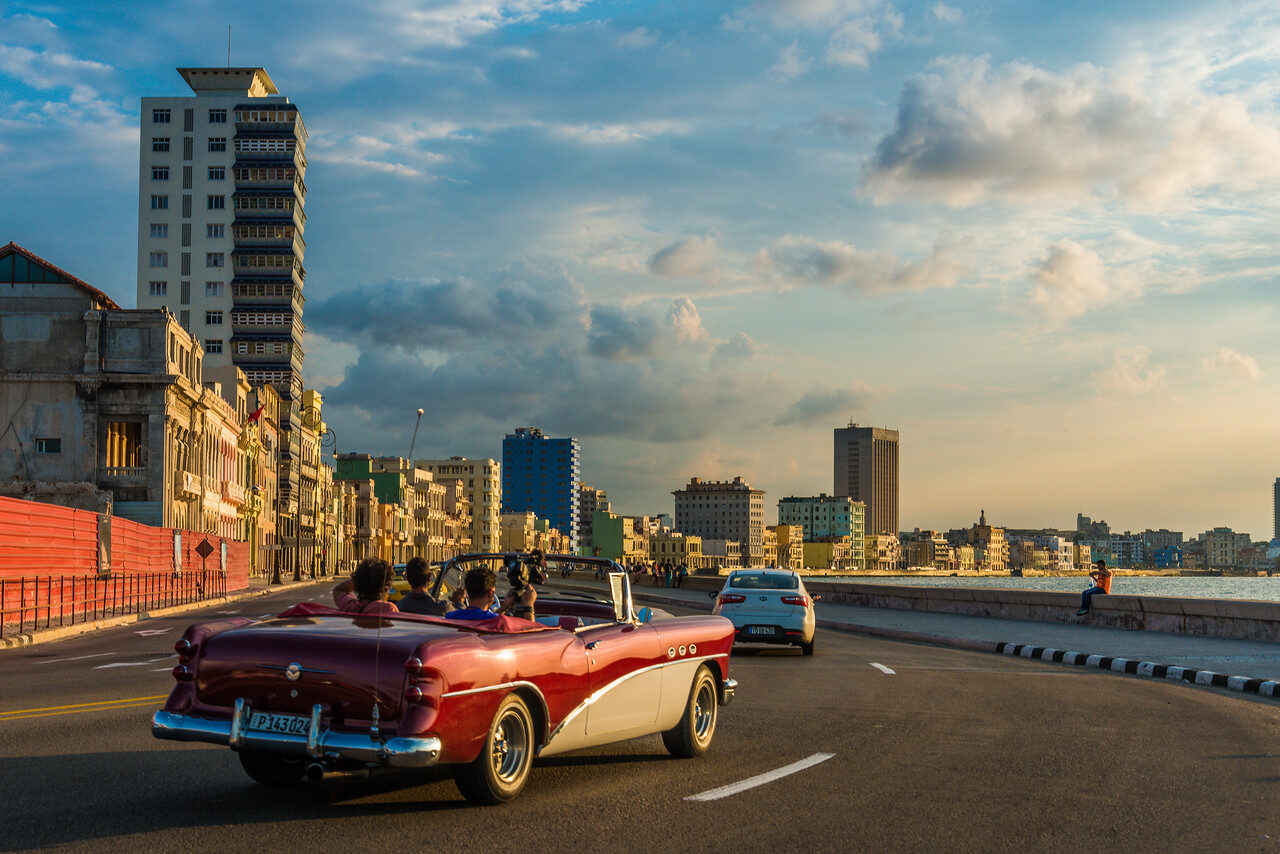
That is the reason I would not use a global Saturation boost on a portrait. A common approach, and one I would suggest as an editorial tip, is to use Vibrance for the whole image and then handle the clothing, the background or any single color separately with a Hue/Saturation layer and a mask. The shirts in the frame above are a good example: they carry strong colors, and you could work on those without touching the faces.
Step 6: change the color of one object
Sometimes the color is simply wrong, not weak. A car, a jacket, a wall. Adobe’s tutorial explains the approach: use any of Photoshop’s selection tools to select the object, and with the object selected you can change the color of only that object. One way to do that is a Hue/Saturation adjustment, which lets you change hue, saturation and lightness together until you get the color you want.
Do it with an adjustment layer, as in Step 1, so the selection becomes a mask on the layer. If the edges look rough, that is the layer mask to fix. You can paint on it with black and white to hide or reveal the change. Keep in mind that this is a real change to what the photo shows, so it is fine for a personal project or a mockup, but think before you do it on documentary work or a client product where color accuracy matters.
The color adjustments at a glance
| Tool | What Adobe says it does | Reach for it when |
|---|---|---|
| Vibrance | Boosts less saturated colors more than saturated ones, with less clipping and protection for skin tones | First pass on almost any photo, and on portraits |
| Hue/Saturation | Changes hue, saturation and lightness for all colors or targeted colors | One color needs its own edit |
| Adjust Colors (Contextual Task Bar) | Detects the prominent colors and lets you change their hue, saturation and lightness | You want a quick edit without choosing a range |
| Color Balance | Changes the overall color cast | The whole picture leans the wrong way |
| Photo Filter | Applies warming or cooling lens effects | You want a warmer or cooler mood |
| Levels or Curves, gray eyedropper | Remaps colors using a point that should be medium gray | There is a real neutral in the frame and the cast is unwanted |
The table lists tools as Adobe describes them. Which one to use first is my own suggestion and a matter of taste.
Edit on a screen you can trust
There is one more thing that has nothing to do with Photoshop, and it can undo all of the above. If your monitor shows color incorrectly, you will correct the picture to suit the wrong screen. A photo that looks perfect on your display can look too green, too dark or too punchy on someone else’s.
The usual fix is to calibrate and profile your display with a colorimeter. B&H describes the Calibrite Display Pro HL as a tool that lets you calibrate a monitor’s output to exact specifications and measure up to 3000 nits, working with LCD, mini-LED, OLED and Apple XDR displays. It is optional, and not needed for everything, but it is the piece of equipment that makes your color decisions repeatable. It is listed in the gear box below, with the exact model so you do not buy the wrong version.
 Save
SaveCommon color mistakes
- Pushing Saturation instead of Vibrance. Everything gets louder at once, and the strongest colors clip first.
- Editing at the end of a long session. Your eyes get used to strong color. Look again after a break.
- Fixing the cast after boosting. Do it in the other order.
- Using Image > Adjustments on the pixel layer. It discards information, per Adobe, and you cannot undo it later with a slider.
- Treating every color the same. Skies, skin and neon each need a different amount.
- Forgetting the screen. What you see is only as good as your display.
A simple workflow you can reuse
- Check for an unwanted color cast and correct it if there is one.
- Add a Vibrance layer and raise it until the muted colors wake up.
- Add a Hue/Saturation layer for any single color that still feels off.
- Mask the layers if an effect should only touch part of the picture.
- Compare against the original by turning the layers off, then back on.
- Step away, look again, and lower anything that feels heavy.
Go deeper in the Academy
If you want to learn color properly rather than slider by slider, my Lightroom editing course in the Shut Your Aperture Academy has a module called “Color Science for Photographers” (Module 5), with the line “Color is the emotion your viewer feels before they think”, followed by “Color Grading for a Signature Look” (Module 6). The course is built around Lightroom, not Photoshop, but the ideas about hue, saturation and mood carry across. It is optional; everything in this guide works without it.
Frequently asked questions
What is the difference between Vibrance and Saturation in Photoshop?
Per Adobe, Vibrance raises the saturation of less saturated colors more than colors that are already saturated and protects skin tones from over-saturation. The Saturation slider applies the same amount of change to all colors regardless of their current saturation.
Should I use an adjustment layer or Image > Adjustments?
Use an adjustment layer. Adobe notes that Image > Adjustments makes direct changes to the image layer and discards image information, while adjustment layers apply corrections without permanently changing pixel data.
How do I change only one color in a photo?
Add a Hue/Saturation adjustment layer and target the color you want, or use Adjust Colors in the Contextual Task Bar and pick the color on the pinwheel or with the Eyedropper. For one object, select it first so the change only affects that object.
What does the Colorize checkbox do?
In the Hue/Saturation adjustment it applies a single, uniform color to the entire image, which is how you create a monotone look.
How do I remove an unwanted color cast?
Adobe’s quick method is to use the gray eyedropper in Levels or Curves and click on something in the photo that should be medium gray. It only works when the frame contains a true neutral, and you should leave welcome casts like a golden sunset alone.
Do I need a calibrated monitor to edit color?
It is not required, but a display that shows color incorrectly makes your edits unreliable on other screens. A colorimeter such as the Calibrite Display Pro HL is one way to calibrate and profile it. Check that the version suits your display type.
Want to explore more of the craft? Our portrait photography guide covers working with people, and our landscape photography tutorials cover scenes like the ones above.
Photography by Edin Chavez. Tool descriptions checked October 2026 against Adobe Help: Adjust vibrance, Hue/Saturation, Adjustment layers and Use color to change the look of a photo. Menu names can differ between Photoshop versions.