Updated October 2026
Macphun became Skylum because the company was no longer making software only for Mac. That is the short answer. The longer answer matters if you have an old Luminar or Aurora HDR installation, an archive of edited photographs, or a February 2018 promotion sitting in your browser history. A company name change does not make every old product current.
This article originally celebrated the rename with discounts and bonuses for Luminar 2018 and Aurora HDR 2018. Those offers belonged to a February 15-26, 2018 promotion. They are not current buying terms. The old prices, bonus promises, and FINEART coupon recommendation have been removed so nobody mistakes an archived offer for a working deal.
The useful job now is protecting your photographs and choosing an editing workflow that fits your computer, files, and goals. Start there. A new logo is not a reason to move a working archive, and a longer tool list is not proof that your editing will improve. The photographs below illustrate tonal decisions; they are not software comparisons or proof of processing in any Skylum product.
When Macphun became Skylum
In its October 25, 2017 announcement, the company said it would continue using Macphun through that year and move fully to Skylum early in 2018. The reason it gave was growth beyond Mac-only development. That explains the name without turning a gradual transition into a single-day event.
DPReview’s contemporary coverage connected the rename with Windows versions of Aurora HDR and Luminar. By February 2018, promotional coverage described the transition as complete. Keep those dates attached when quoting the history. A later update timestamp on an archived page does not make its old promotion current.
Macphun, Skylum, Luminar, and Aurora are not four names for the same application. Macphun and Skylum identify the company at different times. Luminar and Aurora HDR identify software product lines. Within those lines, the version or generation matters. A tutorial that leaves off the year or full product name can send you looking for a control you do not have.
Identify what you actually own before making changes
Open the application and record its exact name and version. Then note the operating system, computer, plugins, and camera files you use. An old receipt saying Luminar does not answer whether you have Luminar 2018, Luminar 4, Luminar AI, or Luminar Neo. Avoid buying or reinstalling against a vague name.
Find the original purchase information through the vendor’s legitimate account or support route. Keep installers and license details safely, but do not download random copies from a search result. An installer that asks you to disable security protections is not a sensible shortcut to recovering an old editing workflow.
Make an inventory of the archive too. Where are the original RAW files? Where are the catalogs or project folders? Which photographs exist only as exports? Are external drives involved? You cannot plan a safe move until you know what has to move. A thumbnail visible in a catalog is not proof that the full-resolution source is present.
 Save
SaveKeep legacy products separate from current offerings
Skylum’s Aurora comparison page describes Aurora HDR as an older product that no longer receives updates or upgrades. An existing installation that still works is a different situation from starting fresh on a new computer. Do not turn a 2018 release note into a current compatibility promise.
Luminar Neo is also not simply Luminar 2018 with a new company label. Check its own current product information and support pages. Features, catalog behavior, plugin support, and purchase terms need to be verified for that application and version, not inherited from an old blog post about a different generation.
If an older setup is stable, avoid changing it in the middle of important work. Finish the job, preserve the source files, and test the replacement separately. Keeping an old application for archive access can be useful while you evaluate a newer workflow. That does not mean it is safe to depend on legacy software indefinitely.
System requirements are a starting point, not a speed promise
Use Skylum’s current FAQ and the documentation for the version you intend to install. Check operating system, processor, memory, graphics support, and disk space. Do not copy an old minimum specification into a buying decision without rechecking the current page.
A machine that meets minimum requirements may still feel slow with large RAW files, many adjustments, or other applications running. Test a normal job, not only one small JPEG. Measure whether importing, editing, switching images, and exporting all fit your working pace. A fast preview alone does not prove a fast workflow.
Storage matters beyond installation space. Leave room for originals, catalog data, working files, exports, and backups. Filling a drive to its last available space is a poor way to judge a new editor. Check the complete storage arrangement before deciding that every delay is caused by the application.
Back up before moving catalogs or originals
Keep a copy of original files and the complete catalog or project folder before experimenting. A catalog can contain edits and organization without containing every original photograph. Backing up only one half of that arrangement may leave you with thumbnails and settings but no file to render at full size.
Skylum’s current catalog-transfer guidance tells readers to copy both the complete catalog folder and original image files while preserving folder structure. Its current page uses the name Luminar for Desktop and specifies same-operating-system transfers. Do not silently extend that instruction to every historical product or to cross-platform migration.
Separate copying a catalog to another computer from migrating between different software generations. They are different operations. A folder that opens in the same application on a second Mac does not prove it will open in a different application on Windows. Verify the exact migration path and inspect the result before retiring the old setup.
 Save
SaveDo not assume all old edits will transfer
Some migration tools support particular source applications and versions, not every product the company ever sold. User discussions about Luminar 4 and Neo show why the source version matters. Treat those discussions as a warning to check the official route, not as a complete current compatibility chart.
Choose a small test set containing ordinary edits and difficult edits. Include masks, crops, local adjustments, a monochrome photograph, and any special feature you rely on. Compare the result visually after moving it. A migration that completes without an error can still leave a different-looking photograph or missing work.
Keep finished exports from important older projects. They provide a visual reference if a new application cannot reproduce the old edit. They are not replacements for the original RAW files, but they preserve what the delivered image looked like. Maintain both when the work matters.
Test the Lightroom handoff as its own workflow
Skylum documents using Luminar Neo with Lightroom Classic. Its instructions distinguish opening source files from editing a copy with Lightroom adjustments. That difference matters: you are deciding whether the handoff includes the edits already made in Lightroom.
Test the route you intend to use. Open a photograph, make a visible change, send it through the plugin, edit it, and confirm where the resulting file appears. Look at the file type, dimensions, and appearance. Do not assume the standalone application and plugin preserve the same editing history in the same way.
Keep your catalog organized after the round trip. Name the derivative clearly, identify the original, and avoid confusing a rendered copy with a RAW file containing editable instructions. Several versions can be useful, but only when you can tell which one was delivered and which one can still be revised.
Syncing edits is not the same as every kind of batch processing
Skylum’s Neo syncing guidance describes applying adjustments from one photograph to others, then exporting multiple images. It also identifies tools that cannot be synced, including Crop, Erase, and Background Removal. Verify the current version before depending on a bulk operation.
Separate copying settings, batch export, and merging multiple exposure brackets. They solve different problems. A page saying batch processing does not automatically promise unattended HDR merging of an entire shoot. Describe the exact operation you need, then test it with a small group of files.
Inspect the result on every photograph that matters. A setting that works on one bright sky may push another too far. Different exposure, subject scale, and light can make copied adjustments uneven. Automation is useful when it reduces repetitive work without hiding mistakes in the finished set.
Storage for a working copy of your archive
The Samsung 1TB T7 Shield portable SSD uses USB 3.2 Gen 2 Type-C and has an IP65-rated exterior. Check your computer port, cable, file system, and capacity needs. Advertised speeds are maximums, not a promise for every setup. A single portable drive is not a complete backup, and water resistance does not make it waterproof.
Affiliate links may earn a commission. Verify current specifications, price, included cables, and return terms.Choose editing tools by the photograph
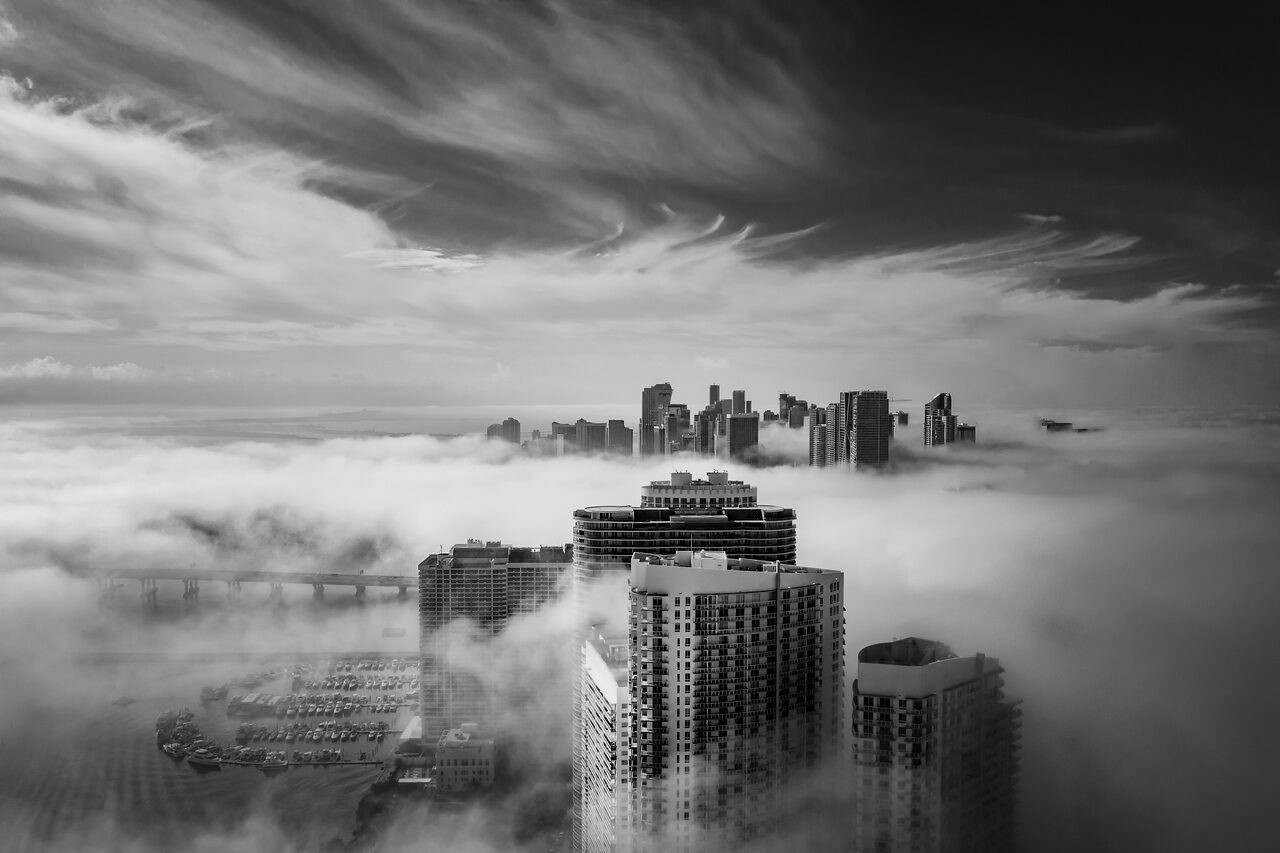
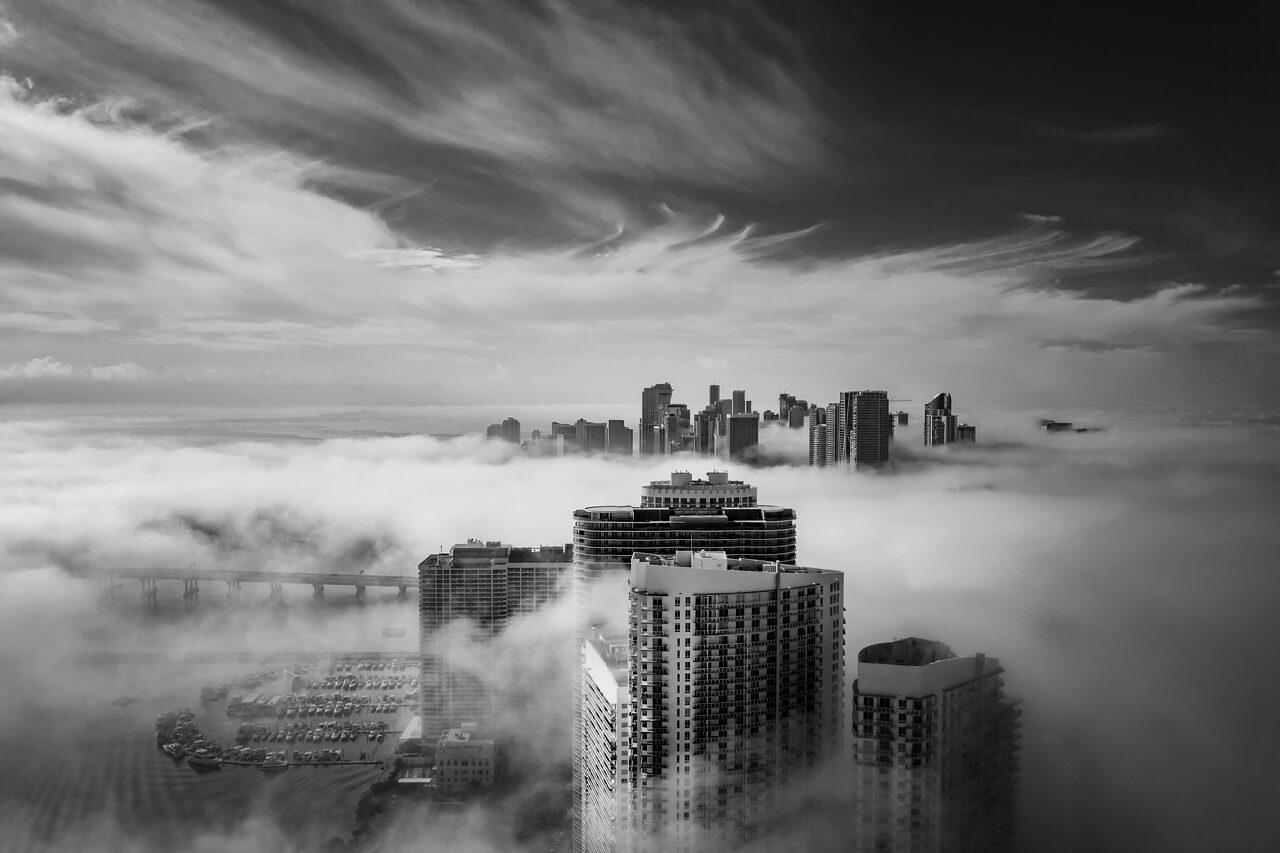
Begin with exposure, white balance, and overall contrast. Then decide which local changes improve the subject. In a foggy cityscape, brightening everything can remove the separation between buildings and atmosphere. Keep the visual hierarchy clear rather than trying to show maximum detail in every part of the frame.
Inspect halos, banding, repeated textures, and hard transitions around masks. Strong detail settings can make smooth fog look dirty. Heavy noise reduction can erase subtle texture. Compare the source and edited result at full size, then at the intended output size. Both views tell you something useful.
Keep creative replacement or generated elements separate from ordinary tonal editing when describing an image. Do not present an altered sky as proof of the original conditions. No such processing claim is made for the illustrations here. A software comparison needs actual controlled source files and outputs, not a photograph assigned to a product by guesswork.
 Save
SaveExport, reopen, and check what you will deliver
Make an export at the dimensions and color settings required by the destination. Open that exported file outside the editor and inspect it. The application preview is not the deliverable. Check gradients, edge detail, color, and whether the final crop reads clearly at the size people will see.
Keep a simple naming system for source, working edit, and final output. Save a reference export before a major software move. If the new workflow produces a different result, you then have something concrete to compare instead of relying on memory of an old screen preview.
Test recovery too. Can you reopen the project? Can you locate the original after reconnecting an external drive? Does the backup contain the newest work? A workflow is not reliable just because it can create a pretty file once. Reliability includes finding and rebuilding the file later.
Make a buying decision without the old promotion
Check the vendor’s current checkout terms for the exact product, license, included features, renewal conditions, and refund policy. This article does not validate an old FINEART code or any replacement code. Do not let a bonus list from 2018 choose your software in 2026.
Compare the job the application solves with the tools you already own. If your current editor handles your RAW files, exports correctly, and gives you the control you need, switching may add more work than value. If there is a real missing capability, test that capability first rather than buying because the product name sounds newer.
Build an editing practice you can repeat
Work on a small set of photographs and write down the problem you are solving in each one. One may need better highlight control. Another may need a cleaner crop or quieter background. That makes software testing useful: you can judge whether the application helps the photograph instead of cycling through presets without a goal.
The Shut Your Aperture Academy offers guided photography learning to help you improve exposure, composition, and editing decisions. Check the current catalog for material that fits your goals. A repeatable practice and protected archive are more useful than chasing an expired bundle of extras.
Frequently asked questions
Why did Macphun change its name to Skylum?
The company said the new name reflected its growth beyond Mac-only software. It announced the transition in October 2017 and planned to move fully to Skylum early in 2018.
Is the February 2018 FINEART promotion still valid?
This guide does not confirm that old coupon, price, or bonus offer as current. Check present vendor terms before buying.
Is Aurora HDR still getting updates?
Skylum describes Aurora HDR as an older product that no longer receives updates or upgrades. An old release announcement is not a current compatibility promise.
Can every old Luminar catalog move into a newer product?
Do not assume that. Verify the exact source application, version, operating system, and supported migration route. Back up originals and catalog data, then test edits visually.
Were these photographs edited in Luminar or Aurora HDR?
No software attribution is made. They illustrate tonal and composition decisions, not verified software tests or before-and-after examples.
References: Skylum rename announcement, current product/support documentation, contemporary DPReview coverage, and B&H storage specifications. Photographic illustrations from the owner’s Miami fog collection.