
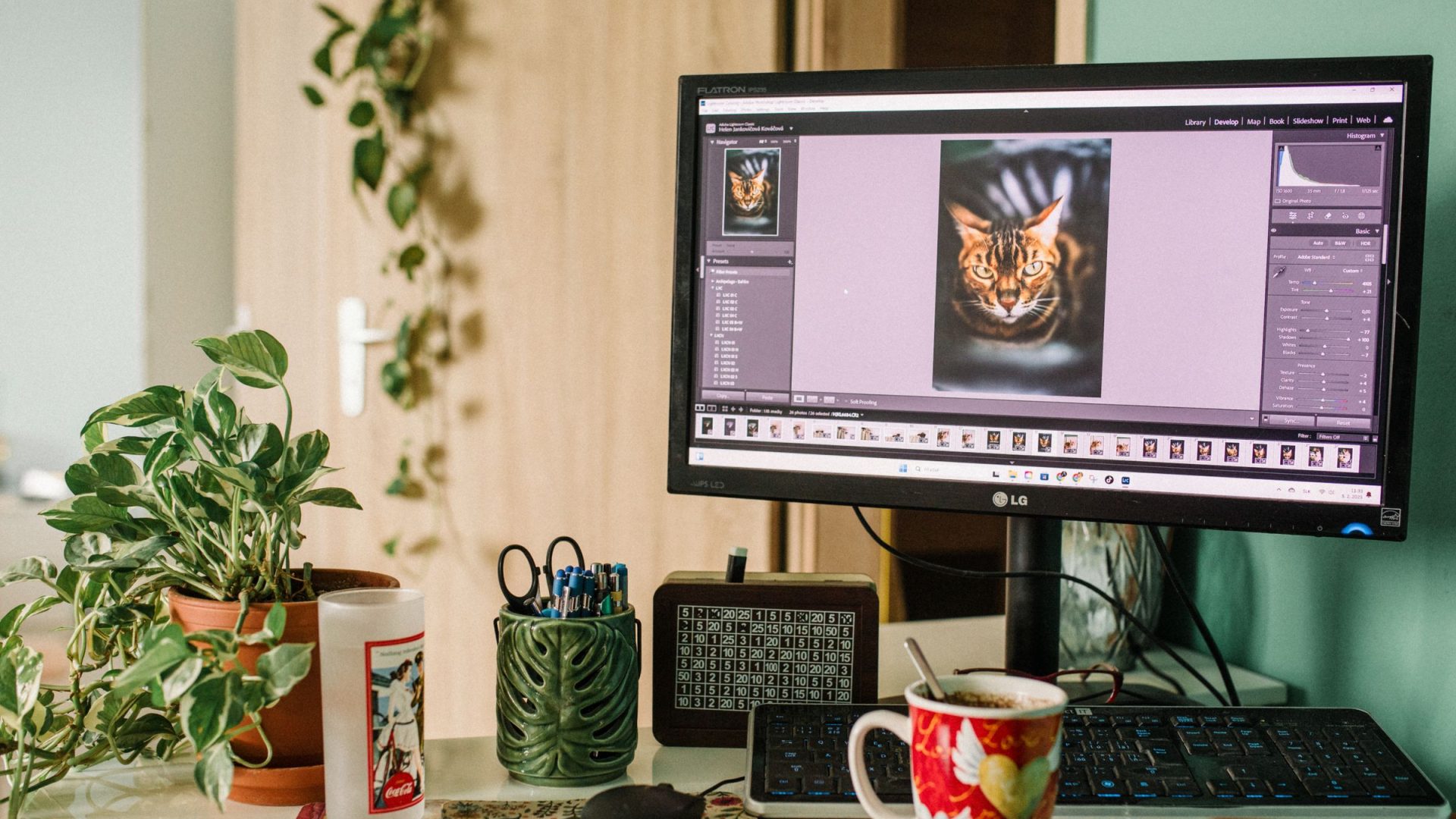
AI can clean up the boring work. It cannot decide whether your photograph has a pulse. Use it to tame noise, find a subject, remove dust and sort a first pass. Then take the wheel: check where the eye goes, whether the color belongs, and whether the edit still tells the truth. A one-click result is a starting point, not a finished photograph. This guide shows where Lightroom, Photoshop, Luminar and specialist tools fit, with a repeatable test you can run on your own files. No invented bench tests. Just a practical way to find what earns a place in your workflow.
 Save
SaveStart with the photograph, not the software
Before you touch an AI slider, choose one image and state the problem in plain words. Is high-ISO noise hiding detail? Is the face darker than the background? Is a power line distracting from an architectural subject? Those are different jobs. Make a virtual copy or duplicate the file so the original survives. Decide whether the result must stay documentary, whether the client allows replacement of scene elements, and where the file will appear. A family portrait, a real-estate listing and a news photograph have different expectations even when the same button is available.
At 100% zoom, inspect edges, hair, hands, repeating textures and any lettering. Then zoom out: a technically clean crop can still feel flat. Check the before-and-after at the size the audience will see, not only at 400%. If a change solves one flaw and creates another, lower its strength or brush it off. Save an editable version and export a copy for delivery. These simple checks matter more than a list of AI features.
AI denoise: rescue detail without inventing it
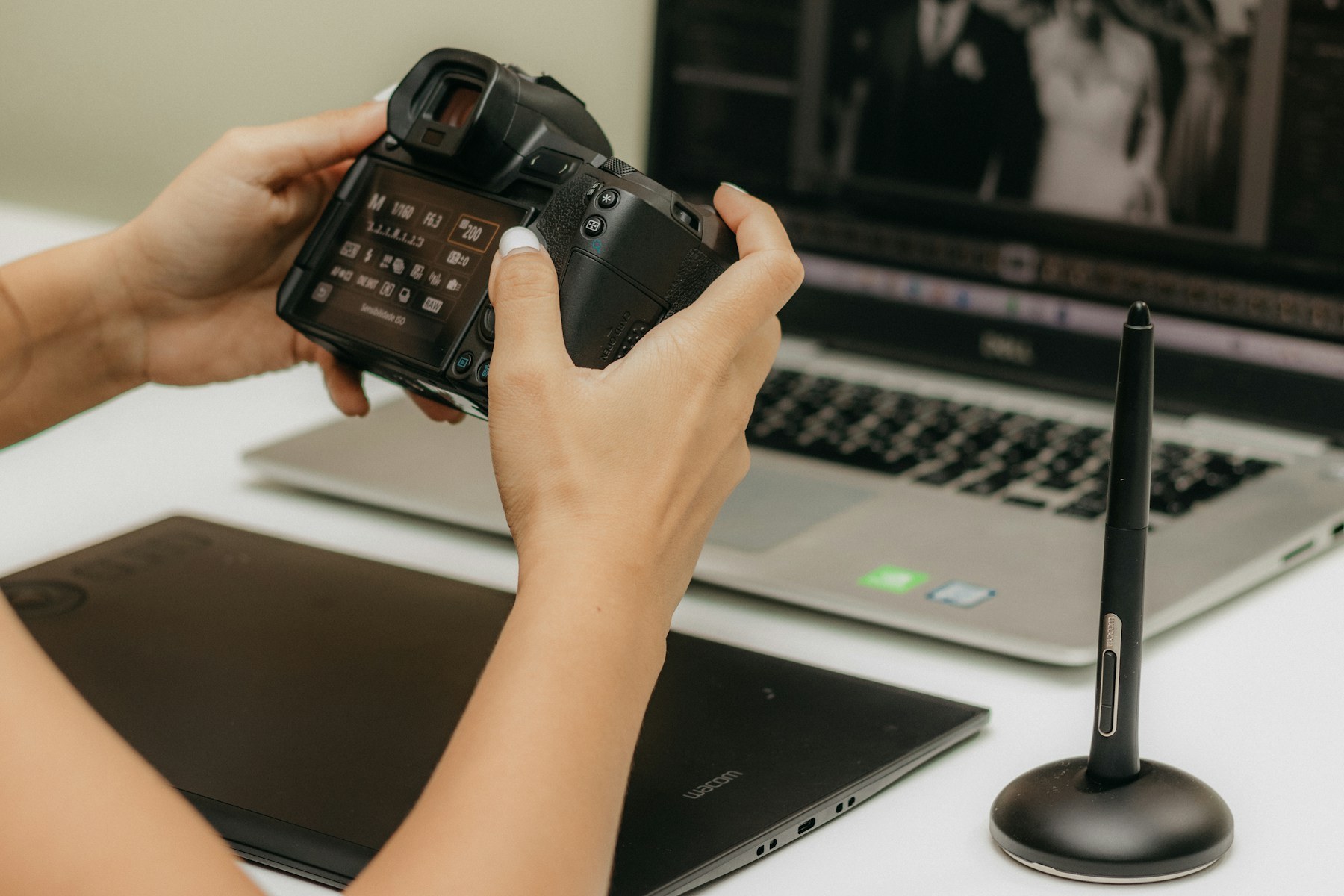
Noise reduction is a strong first place to try AI. In a dim venue or after a heavy shadow lift, grain and color speckles can compete with the subject. Lightroom’s Denoise is integrated into Adobe’s raw workflow; dedicated alternatives include Topaz Photo AI and DxO PureRAW. Their processing, supported files and licensing change, so compare current compatibility before buying. A denoiser cannot restore a face that was out of focus or motion-blurred beyond recognition. It may smooth eyelashes, feathers, fine fabric or skin if pushed too far.
Try this on three raw files rather than one showcase image: a portrait at high ISO, a dark landscape with textured foliage, and a frame with small text or architecture. Apply each tool’s default, then compare identical crops at 100% and at the intended export size. Look for waxy skin, halos around bright edges and watercolor-looking leaves. Adjust strength before sharpening. Evaluate the resulting file size and whether it returns to your catalog cleanly. For a wedding or event job, also time import, processing and review of a modest batch; throughput is a workflow question, not a claim about which engine always wins.
If you already pay for Lightroom and only occasionally need denoise, test its built-in option first. If your work involves large batches of noisy files, trial specialist software against your own cameras and deadlines. Do not buy another app because a dramatic demonstration uses a file unlike yours. Adobe’s raw enhancement instructions are a useful starting point for checking what its current Denoise supports.
 Save
SaveMasking: fast selections, slow judgment
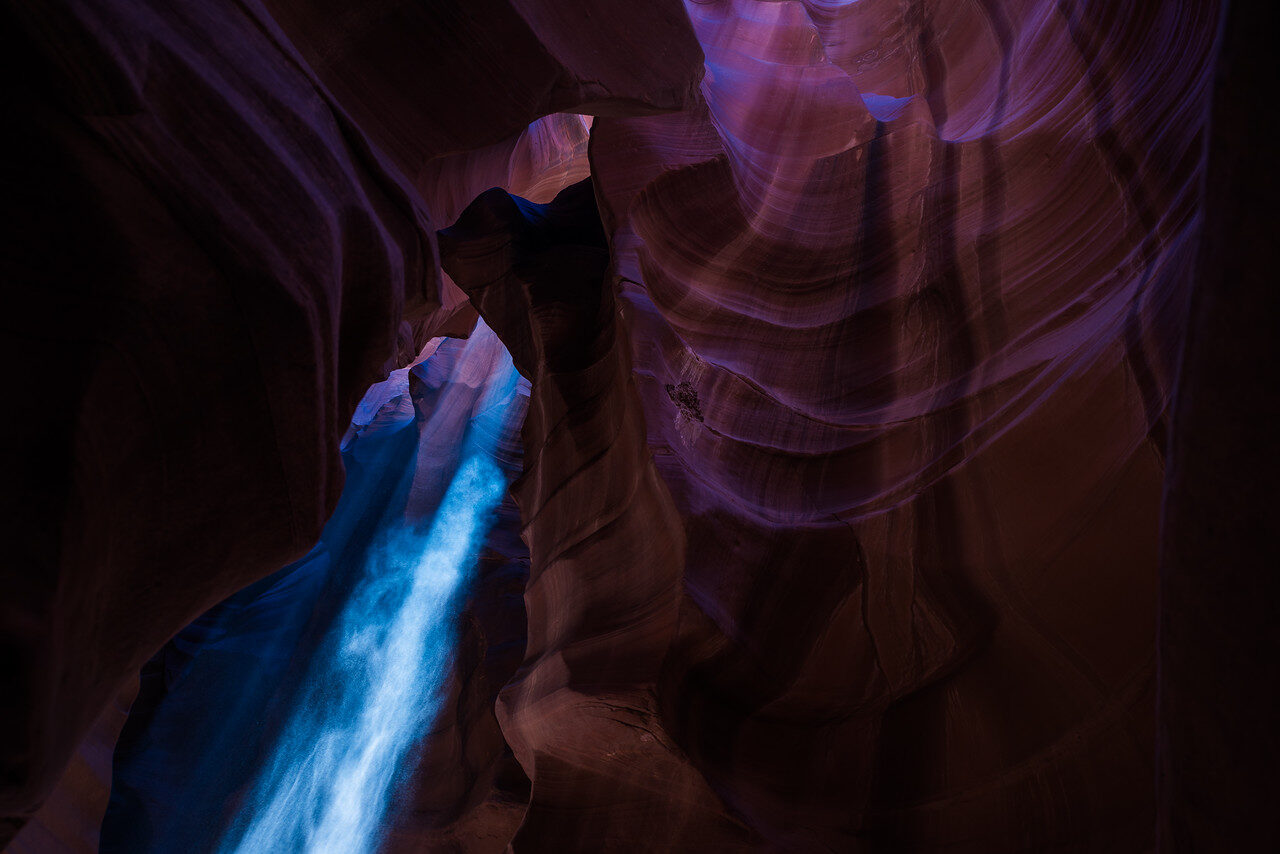
AI masks select broad regions such as a subject, sky or background. Selection is not an edit by itself. In a backlit portrait, make a subject mask, lift exposure just enough to reveal the face, and check the boundary around hair and shoulders. Then make a separate background adjustment if the frame still feels too bright. Avoid lifting shadows so far that the subject looks pasted over the setting. In a landscape, darken a bright sky by a small amount, then inspect branches and rooflines for a bright rim.
Mask quality varies with the image. Transparent objects, veils, glasses, tree leaves and reflections can confuse an automatic edge. Overlay the mask, add or subtract with a brush, and feather only where the transition calls for it. If you sync a mask across a series, inspect several frames: the subject’s position and shape change. For a deeper editing foundation, the site’s Lightroom guide covers the broader workflow. AI is a first selection, not permission to skip the edge check.
Luminar: a visual AI editor for selective creative work
Luminar is worth considering if you want a more visual route to scene-level changes. Skylum lists Sky AI, Relight AI, object removal and other controls on its official feature tour. Sky replacement is different from darkening the sky that was actually there: one corrects tone and the other changes the scene. Use the latter only when your purpose and audience allow it. A believable composite needs matching light direction, horizon, color temperature and reflections. If the new sky is warm but the buildings and water remain cool, the trick shows.
For a restrained landscape edit, begin with the existing exposure and white balance. Try a modest relight adjustment to keep foreground detail readable without flattening the scene. If you test Sky AI, choose a sky whose light could plausibly fall on the landscape, inspect fine branches and water, and compare with an edit that keeps the original sky. Keep both versions. On a portrait, check skin tone separately from the background; a global enhancement that makes the environment dramatic may push a face too orange. This is a practical way to judge Luminar with your own files, not an assertion about a result we made for you.
Skylum’s naming and license options have changed, and a feature described in a product announcement might not be in every installer or plan. Check the current version, operating-system support, trial terms and whether the tools you need are included before committing. The site’s Luminar 1.28 release-note summary separates announced features from shipped ones. If this style of editing fits your work, see Luminar through our Skylum affiliate link and check the current terms on the destination page. We do not promise a discount, fixed price or particular license here.
Generative removal and replacement: know what changed
Photoshop’s generative tools can rebuild an area after you remove an object; Lightroom offers generative removal for certain cleanup jobs. These tools can be useful for a stray bin, a sensor mark or an unwanted edge distraction. They can also fabricate a wall, a person or a piece of landscape that was never there. The larger and more structured the missing area, the more closely you should inspect repeated patterns, warped lines, shadows and reflections. A clean thumbnail is not proof of a clean full-size export.
Use the smallest selection that covers the distraction, keep surrounding context for the tool, then compare several variants if the application offers them. Inspect the seam at 100% and again at normal viewing size. If a simple crop keeps the composition, that may be more honest and faster. If you need to remove a documentary detail, ask whether you should remove it at all. For journalism, evidence, contests or client work, read the applicable rules and disclose material alterations where required. Do not assume that a subtle change is exempt because nobody notices.
Sky replacement deserves special care. Match cloud scale, sun direction, horizon and any reflective surfaces. Consider whether the new sky tells a false story about a travel destination or real-estate property. Lightroom’s sky mask edits an existing sky; replacing the sky requires a separate compositing feature such as those offered by Photoshop or Luminar. Keep that distinction clear when comparing products.
Culling: reduce the pile without losing the moment
Culling tools can flag blur, closed eyes and near-duplicates, then surface possible selects. They do not know which expression your client treasures or whether a technically imperfect frame is the only picture of an important moment. For a wedding, do not auto-delete a rejected set. Keep the originals, scan each scene and check the beginning and end of a burst. Then compare the AI shortlist to a manual pass over a small representative folder. Count missed keepers, not only minutes saved.
Aftershoot is one option for culling; Imagen focuses on learning edits from a photographer’s prior work. Check their current product boundaries and pricing directly rather than treating either as a universal replacement for a person. A high-volume studio may value consistent first-pass exposure and white balance. A photographer editing a few personal landscapes each week may gain little from another subscription. The decision should follow image volume, repeatability, privacy requirements and the time you actually spend, not a headline promising instant finished galleries.
 Save
SaveStyle learning and presets are different tools
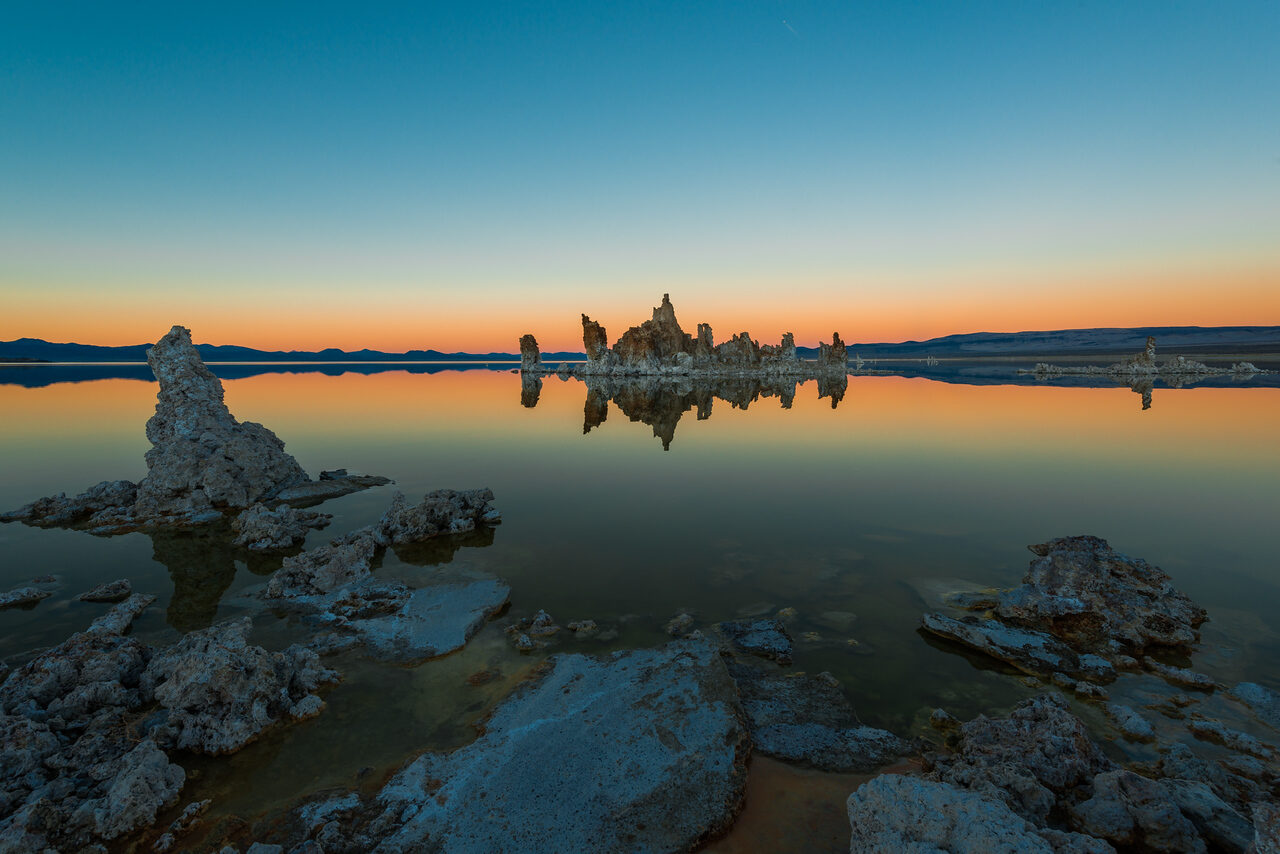
A preset applies a known set of adjustments, often with manual correction afterward. A learned editing profile tries to adapt choices across differing files. Neither gives you a visual point of view. Build a reference set: images you would gladly put in a portfolio, plus difficult examples under mixed light. Note what you like about contrast, skin tones, highlight retention and color. Compare a learned batch to that reference before trusting it across a whole client delivery.
With presets, start at the camera profile and white balance. Apply the preset, then correct exposure and skin or neutral objects independently. Do not force the same warm grade onto a fluorescent reception and a blue-hour street scene. The site’s tips on making your own Lightroom presets explain how to save a repeatable starting point. If you want a reference look rather than building from zero, the Landscape, Cityscape and Drone Preset Pack is an optional paid starting point; check compatibility and examples before buying. A preset should get you closer to your own finish, not become the finish by default.
Choose by task, not by the longest feature list
Already organizing raw files in Lightroom? Start there for catalog work, Denoise and masks, then add a specialist only if a repeated shortfall is clear. Need detailed layered retouching or compositing? Photoshop is a more fitting comparison than a one-click editor. Want guided sky, light and scene adjustments? Put Luminar beside your usual editor on the same files and compare control, artifacts and export. Shooting thousands of similar client frames? Test a culling or style-learning tool with a real delivery set. A tool is good when it solves the bottleneck in your workflow without breaking consistency.
Ask five questions during a trial. Does it read your camera files and preserve metadata? Can you get back to the original edit? What happens to edges, skin and repeated textures? Does it fit your deadline on your computer? Finally, what do the current plan, renewal and export terms say? Some products move features between tiers or use cloud processing for particular functions. Review privacy terms before uploading sensitive client photographs. We are not quoting prices because those can change and depend on plan, region and promotion.
 Save
SaveA practical 30-minute comparison
Pick six files: a noisy low-light portrait, a landscape with a detailed tree line, a backlit subject, an architecture frame with straight edges, a group portrait with several expressions, and a file with an obvious small distraction. Make untouched copies and write down the intended final use. Give each candidate tool the same limited task. Do not let one app do a sky replacement while another merely changes exposure and call that a fair comparison.
For each result, inspect at full size and export at your normal delivery dimensions. Record the time from opening the file to a usable export, including repair work after the automatic pass. Mark any invented texture, odd edges, unnatural skin or changed scene detail. Invite another editor to choose between blinded exports if possible. The winner is the version that serves the photograph and the audience, not necessarily the one that made the largest change. Keep the test files: after an app update, re-run them before moving an active job onto a new version.
Three editing recipes to try today
Low-light portrait: start from the raw file. Set white balance using a neutral reference if one is available, recover highlight detail without flattening the face, then run a modest Denoise pass. Inspect eyelashes and hair at 100%. Mask the face for a slight exposure adjustment if needed and check that the background still conveys the venue. Export a small proof and compare it with the original on an ordinary screen.
Cityscape at dusk: correct verticals before creative effects, set a balanced exposure, and use a sky mask to restrain the brightest part of the frame. Inspect antennas and rooflines where the mask meets the skyline. Remove a minor edge distraction only if the use permits it, then verify that windows and brick patterns have not been duplicated. If a replacement sky is proposed, compare it honestly against the real sky and consider whether a client or viewer would expect an unaltered scene.
Fast event select: group similar frames, use a culling suggestion as a starting point, then inspect each burst for expressions and context. Apply a restrained base edit to your selects and spot-check white balance across locations. Synchronize only adjustments that still make sense in the next lighting setup. Hold back the strongest frames for a deliberate second pass. Automation can clear routine work; it should not discard the only meaningful moment.
What to leave to the photographer
Software can detect pixels and propose adjustments. It cannot know why you made the frame, whether the expression is authentic, what a publication’s rules permit, or how your work should feel as a series. The human pass is where you reject a technically perfect but emotionally flat frame; preserve a shadow that gives the scene depth; or decide not to erase evidence of place. This is also where you decide when an AI edit needs a caption or client disclosure.
Do not collect subscriptions like they are camera straps. Start with what you own. Make one change you can defend, keep the original, and stop when the photograph feels finished. The goal is a stronger image, not proof that you found every slider. For a broader foundation in consistent color and local edits, visit the Lightroom tips. For a visual AI-editor comparison, the Luminar product page through our affiliate link is one appropriate next stop. Neither replaces a careful review of your own test images.
Want to go further? The ShutYourAperture Academy’s Edit Like You Mean It: The Complete Lightroom Editing Course (10 modules, 42+ lessons) is built to help you learn to edit with a clear workflow, from catalog organization to color.
Gear for keeping an unaltered editing copy
Keep the original before testing another AI edit. A Samsung T7 Shield 1TB portable SSD is one option for a separate working copy of your files. Check capacity, computer ports and cables, then verify that copied photographs open normally. Keep another backup separate. A drive cannot judge an edit, recover invented detail or turn one copy into a complete backup plan. Compare the current retailer specifications; no hands-on test, price or stock promise is being made here.
Compare Samsung T7 Shield 1TB on Amazon | Check Samsung T7 Shield 1TB at B&H
Affiliate disclosure: We may earn a commission from qualifying purchases through these gear links at no extra cost to you. As an Amazon Associate, Shut Your Aperture earns from qualifying purchases.
AI photo editing FAQ
What is the best AI photo editing tool in 2026?
There is no one winner for every photographer. Lightroom is a sensible first test for a Lightroom catalog user who needs raw Denoise and masks. Luminar is a relevant test for visual scene editing and sky or light adjustments. Photoshop fits layered retouching and compositing; a dedicated denoiser or culling app may fit high-volume needs. Compare them on your own files and check current terms before paying.
Can AI fix a blurry or out-of-focus photo?
Some tools can improve the apparent sharpness of a mildly soft image. They cannot reliably recover information the camera never recorded. Examine eyes, hair and lettering at full size before delivering a sharpened file, and keep the original. If the moment matters more than technical perfection, consider using the imperfect original rather than an unnatural reconstruction.
Is AI sky replacement the same as a sky mask?
No. A sky mask selects the sky already in your photograph so you can adjust its brightness or color. Sky replacement substitutes new visual material. That may be fine for declared creative art, but it changes what was there. Check client, editorial and contest rules before using it in work presented as an unaltered scene.
Do I have to disclose AI edits?
Disclosure depends on the use and the rules of the client, publication, platform or contest. Material additions or replacements can change the meaning of a photograph. When in doubt, preserve the unaltered original, tell the relevant party what was changed, and follow their written policy. Routine exposure corrections are not the same as inventing scene elements.
Should I buy another editor if I already have Lightroom?
First identify a repeated task Lightroom is not solving well for you. Test a trial on several representative files, measure the whole export workflow, and compare the result with your existing tools. If the improvement is occasional or cosmetic, another subscription may not be worth it. If it saves meaningful time without changing the look or honesty of your work, it may earn a place beside Lightroom.
Affiliate disclosure: This article contains affiliate links, including the Luminar links to Skylum. If you buy through one, Shut Your Aperture may earn a commission at no extra cost to you. Links do not change our advice to check the current features, terms and fit for your work.