Featured photograph: Photo by Luis Quintero via Pexels (source; Pexels license). (Stock photo, illustrative.)
A photography business needs equipment that lets you complete the work you have agreed to deliver. That is a different question from which camera looks most impressive in a shop window. A camera you know, a lens suited to the assignment, a workable lighting plan and a tested backup process make a more useful starting point than a bag full of unfamiliar upgrades.
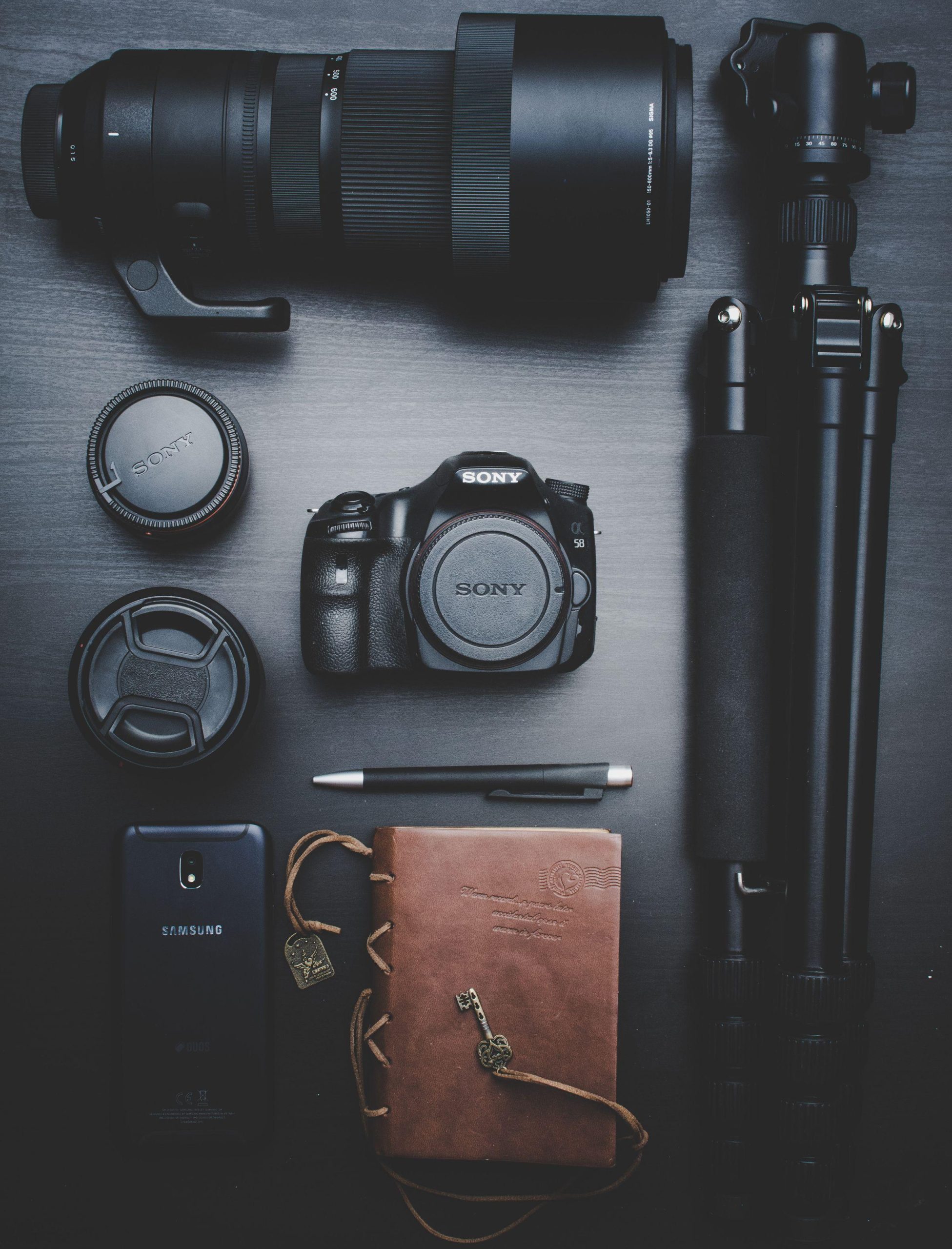
Start with the service you intend to sell. Headshots in a small office, products on a tabletop, outdoor family portraits and a one-time event put different demands on the same budget. Write down the work, the delivery format and what could stop you from delivering. Buy to close those gaps. The photographs below are stock illustrations of equipment and workspaces, not a shopping list or a record of gear tested for this article.
Build the kit around one service
Before comparing camera specifications, describe a typical assignment from the client’s first question to final file delivery. Where will you work? How much room will you have? Can the subject wait while you change a battery? Is the finished photograph for a website, a large print or both? Which parts of the job can you repeat if something goes wrong?
Use those answers to make two lists: equipment you need to deliver this service and equipment that would be pleasant to own. Keep the second list out of the initial order. For an unfamiliar specialty, a small practice assignment can reveal more about a missing tool than another evening comparing shopping carts.
- For a repeatable tabletop setup, think about stable support, consistent light and enough working space.
- For portraits on location, consider how you will carry the kit, control the light and keep the session moving.
- For an event you cannot repeat, plan how you will continue if a camera, battery, card or light fails.
These are planning prompts, not universal kit requirements. A wedding assignment is not the place to discover that your only camera behaves differently under the venue’s lighting. Practice with the actual combination of body, lens and light before promising an outcome.
 Save
SaveChoose a camera you can use and support
Neither DSLR nor mirrorless is automatically the professional choice. Start with the camera you already have and ask what the paid work requires that it cannot do. An upgrade needs a reason tied to the job: a focal length you cannot cover, a handling limitation, an output requirement or a missing function you have tested and know you need.
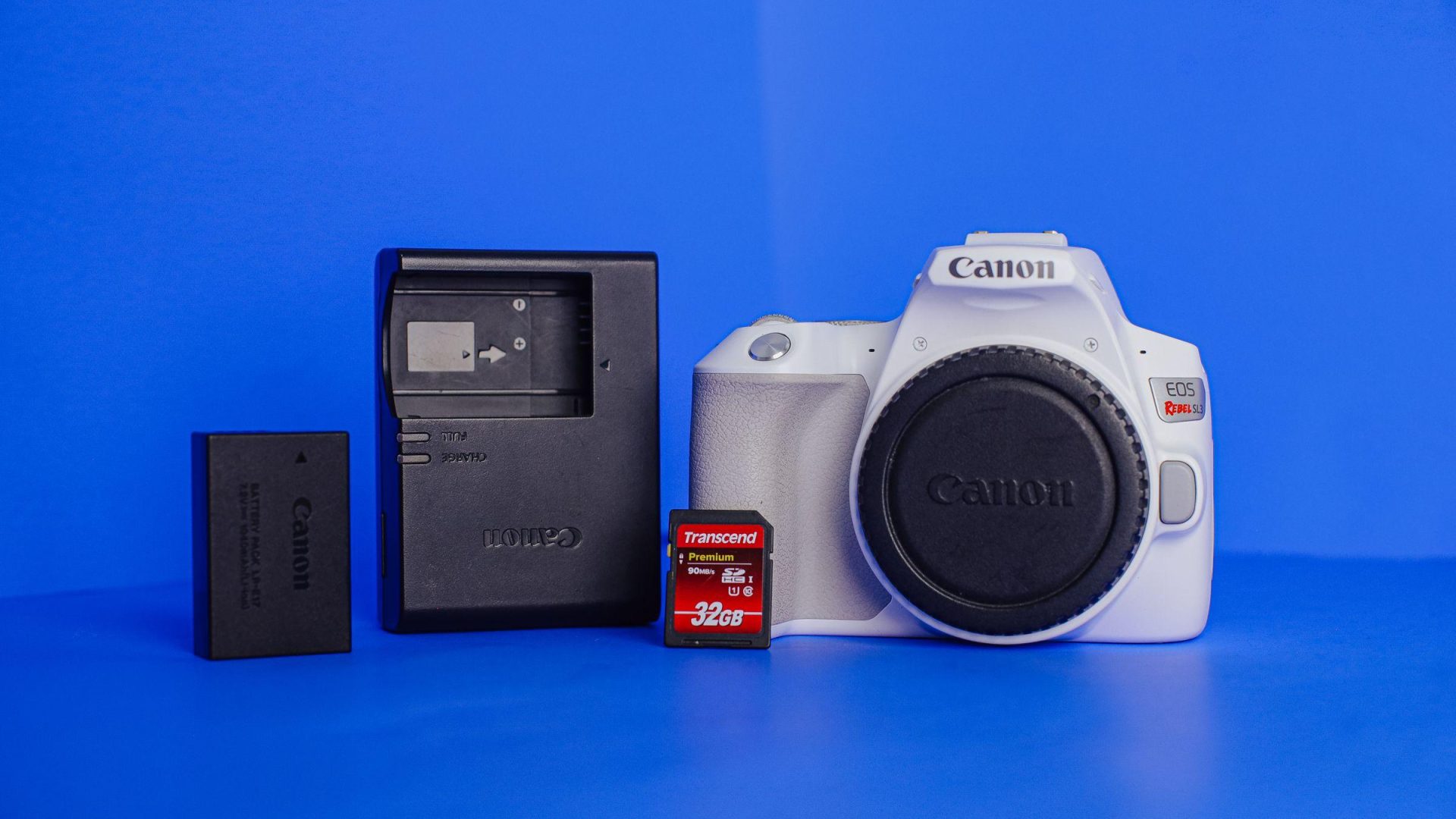
Check the complete system, not only the body. Are suitable lenses available? Do you have batteries, a charger, a card reader and a way to connect the camera to your computer if that workflow matters? Can you read the files in your chosen editing software? Use the manufacturer’s manual for the exact model when checking card types, power options and flash compatibility. Similar names do not guarantee interchangeable accessories.
A used body can be worth considering, but judge the particular unit and seller. Inspect its condition, test the controls and ports you need, and read the actual return and warranty terms before paying. A low purchase price is not a complete cost comparison if you must replace missing accessories or cannot return a faulty unit.
Pick lenses for the space and subject
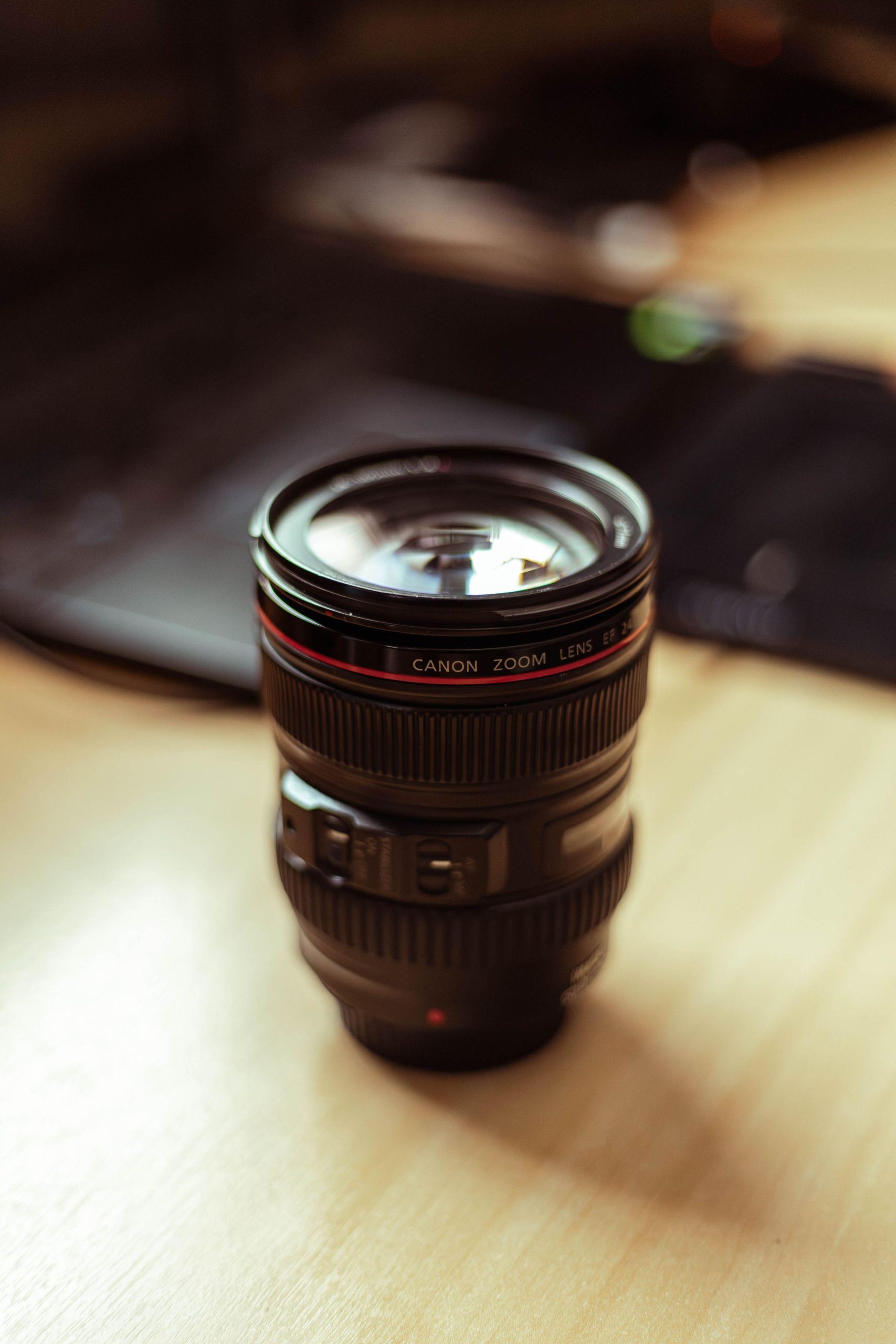
Choose focal length by how you want the subject to look and how far back you can stand. In a small room, a lens you love outdoors may leave you backed against the wall. For small products, check how close the lens focuses and whether that gives the framing you need. For groups, test whether you can keep the people you need sharp at your intended camera position.
Do not treat a wide maximum aperture as a promise of better client photographs. It is one option in controlling exposure and depth of field, with tradeoffs you should test on the work you sell. A versatile zoom may suit one service; a smaller prime lens may suit another. Start with the gap you need to fill, not a rule that every professional must own the same set.
Practice a complete session with the lens before adding another. Check the corners of the frame, focus accuracy and how much working room you actually need. Keep notes on the photographs you could not make and why. That record gives your next purchase a job to do.
 Save
SavePlan for power, cards and small failures
Small accessories are easy to forget because they rarely appear at the top of a wish list. Make a packing checklist for charged batteries, suitable memory cards, a reader, the right cables and anything needed to attach or support a light. Label items so you can tell which batteries are ready and which cards still contain work you have not checked.
Card compatibility comes before speed claims. Confirm the card format and any recording requirements in the camera’s manual. A faster advertised transfer speed alone does not establish compatibility or a particular recording mode. Buy from a source you can verify, test the card in the camera and test its files in your own import workflow before using it on a paid job.
Decide when a card is ready to reuse. A useful working rule is to wait until you have checked the imported files and the separate backup copies required by your plan. Do not make the decision while tired at the end of a session. Put it in the checklist beforehand, then follow the same steps each time.
Learn a lighting setup before expanding it
Start with a setup you can explain, repeat and transport. That might be available light and a reflector, a continuous light for a tabletop, or a flash with a suitable modifier. The right starting point depends on the service and location. Buying several lights at once does not tell you where to put them or how they will affect your subject.
If you use flash, check the exact camera version, mounting arrangement and triggering method. A product name shared across several versions does not mean each version supports the same camera functions. Test the light at the shutter speeds and distances you intend to use, and read its manual before relying on automatic features.
Support equipment belongs in this plan. Check that stands, brackets and modifiers work together and that you have enough room to use them without blocking people. Route cables thoughtfully and assess the location rather than assuming a setup that worked in your room will suit a busy office. Get site-specific guidance when the assignment needs it.
Make backups part of the equipment budget
A portable drive gives you another place to store files, but owning one is not the same as having a backup process. Decide where the working files live, where separate copies live and how you will confirm that you can restore a job. A copy on the same device does not cover the loss of that device.
Choose storage with enough room for your actual workload and a connection your computer supports. Plan for both the original photographs and the files your editing and delivery process creates. When a job is copied, open a selection of files from the backup destination and test a restore into a separate location. Do not wait for the working drive to fail before finding out what your restore procedure does.
Editing applications can store different parts of a job in different places. Adobe’s Lightroom Classic catalog FAQ explains that the catalog references photographs rather than containing the original photo files. Protect the originals as well as the catalog. Read the documentation for your own application and check what its backup command actually includes.
 Save
SaveSet up an editing and delivery workspace
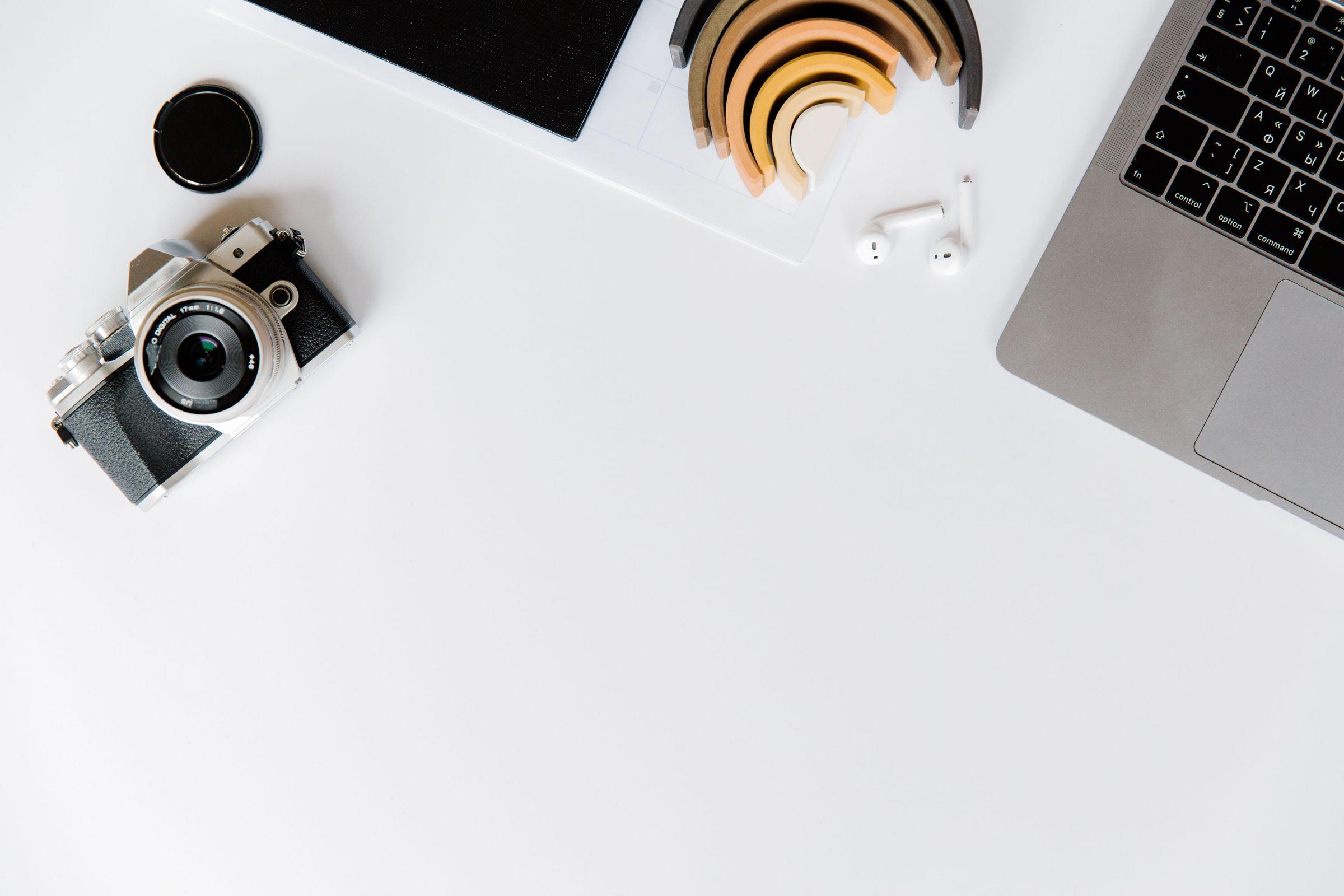
Before buying a new computer, run a representative job on the one you have. Import the files, make the edits you offer, export the delivery set and reopen it. Note where the process slows down or fails. Check the software maker’s current requirements before choosing an upgrade; do not guess from the computer’s appearance or age alone.
Keep the workspace practical. You need a way to view files, compare edits, find the right job and deliver the agreed versions. Decide on a folder and naming pattern you can follow under pressure. Keep a written record of delivery sizes and file formats so you are not recreating those decisions for each client.
For work where color matters, think about the entire viewing and output process, not only a display’s marketing label. Test the delivered files in the form the client will use and discuss specific output requirements before the assignment. Avoid promising that every screen or print will look identical.
If Lightroom Classic is part of your workflow, the Lightroom Classic shortcut guide is a practical next step. Learn a few commands for tasks you repeat instead of trying to memorize every key before you begin.
 Save
SaveRent specialist equipment when the job calls for it
An occasional specialist assignment does not automatically justify owning its entire kit. Compare the actual rental quote, collection and return arrangements, compatibility, insurance requirements and consequences of damage or late return. Read the terms for the specific rental rather than relying on a general assumption about what is included.
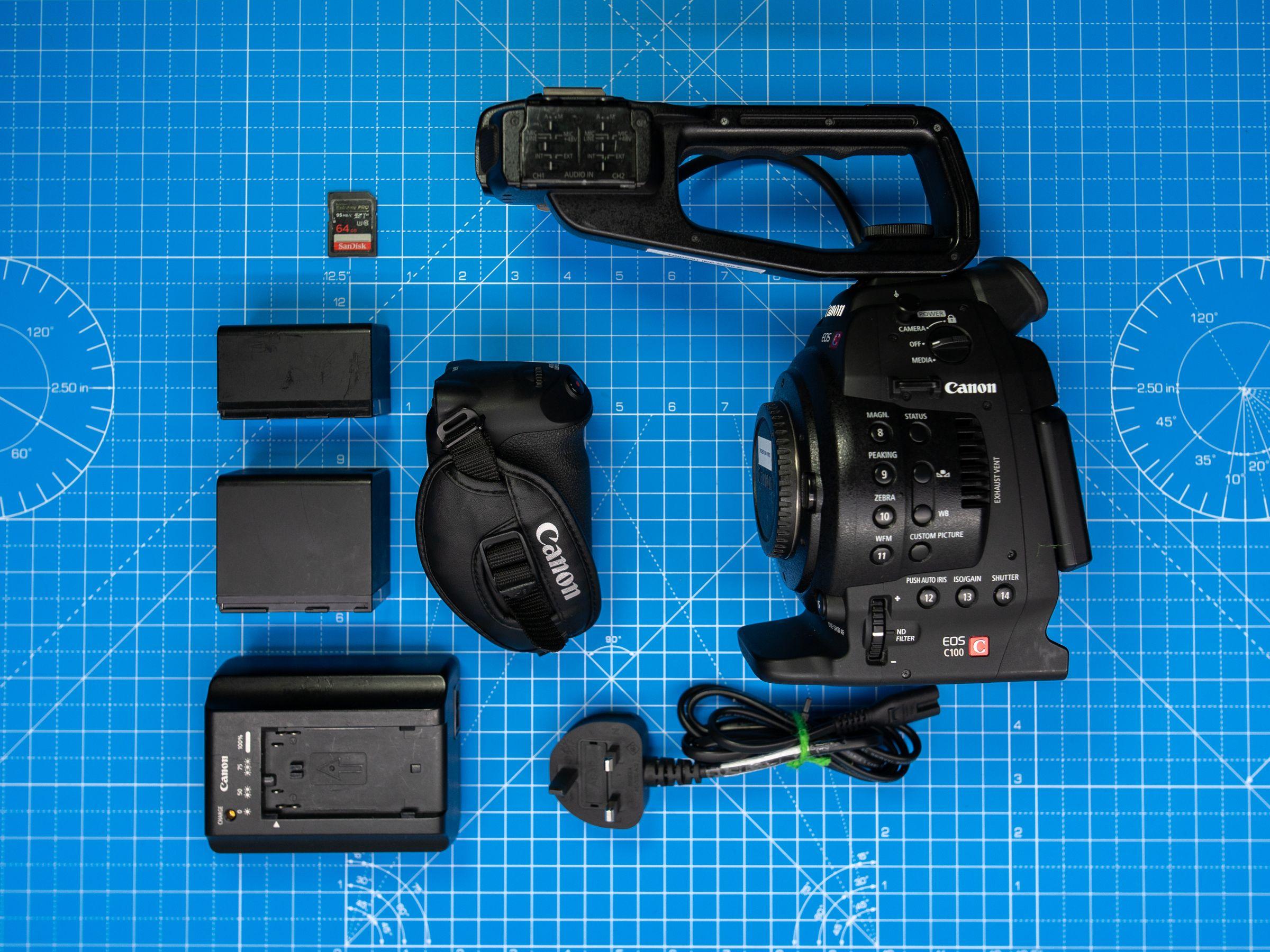
Allow time to test a rented tool. Confirm how it fits the rest of your kit and whether you need additional batteries, media or cables. If a client asks for video as well as still photographs, treat that as a separate service to plan and practice. A cinema camera kit is an illustration of the extra equipment involved, not a requirement for launching a still-photography business.
The same discipline applies to upgrades you buy. Keep a short equipment log: the problem, the proposed tool, its full cost and how often you expect to use it. Review that log after real assignments. Your kit should reflect the service you deliver, not every service you might someday offer.
 Save
SaveA pre-assignment test that earns its place
Pack the proposed kit and run through a small version of the job. Make test photographs in comparable light. Change a battery, change a card, attach the light or support you will use, and check how you will carry everything. Import the files, edit a set, make a backup, restore a few files and export the delivery.
Write down anything that interrupts the process. Some fixes are purchases; others are labels, a checklist, more practice or a clearer agreement about the deliverable. Solve the interruption before expanding the kit. You are ready to take on the assignment when you understand both what the equipment can do and how you will respond when part of it does not work as planned.
Sources and further reading
For the catalog/original-file distinction, see Adobe Lightroom Classic catalog FAQ. Product identities and specifications are checked against the B&H product pages linked below. Images use the Pexels license; each photograph has its own source credit.
Frequently asked questions
Do I need a full-frame camera to start a photography business?
Not as a general rule. Choose equipment against the service, output and conditions you intend to deliver. Test the camera you already have before deciding that a different sensor format is the missing piece.
Should I buy a DSLR or a mirrorless camera?
Either type can be considered. Compare the actual body, lenses, power, media, handling and support you need. A camera category alone does not establish whether the system fits your assignments.
What should I buy before a second lens?
First check the gaps that could stop delivery: suitable batteries and cards, a way to import the files, storage, backup copies and any support or lighting required by the job. The order depends on what you already own and what the assignment needs.
Does a Lightroom Classic catalog backup include my original photographs?
No. Lightroom Classic references the original photographs rather than storing them inside its catalog. Protect the originals separately as well as the catalog, and test that you can restore the files you need.
Is a portable SSD enough for a backup plan?
Not by itself. Decide where independent copies will live, what they contain and how you will restore a job if the working device is lost or fails. Test the process before relying on it for client work.
Should I rent specialist equipment or buy it?
Compare the actual rental terms and total costs with how often you expect to use the tool. Allow time to test compatibility and operation before the assignment. An occasional need does not automatically justify a permanent purchase.
Equipment references to compare
These are product references for the planning questions above, not a complete starter kit, a hands-on test or the equipment used in the stock photographs. Check the linked pages for current specifications, compatibility and terms.
- SANDISK 128GB Extreme PRO UHS-II SDXC Memory Card: An SDXC option to compare against the requirements of your exact camera and recording mode. Do not buy on speed labels alone.
- Samsung 2TB T7 Shield Portable SSD (Black): A portable storage option for an import or copy workflow. Check computer connection compatibility; a drive alone is not a complete backup plan.
- Godox TT685C II Flash for Canon Cameras: A Canon-version flash reference for a lighting setup. Verify camera compatibility and the triggering method you plan to use; other camera systems need their own checks.
Affiliate disclosure: if you buy through these B&H links, Shut Your Aperture may earn a commission at no extra cost to you.