
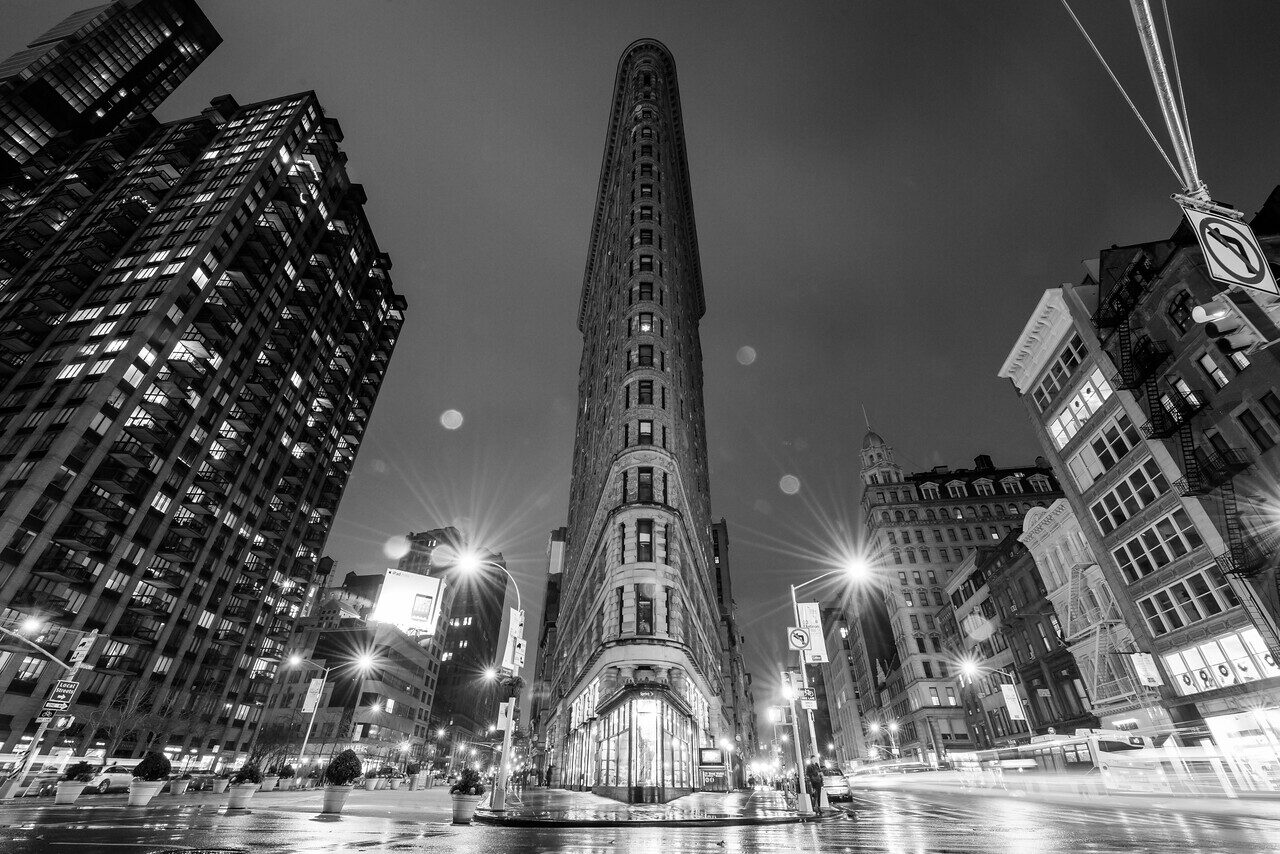
Black and white does not rescue a weak photograph by removing the color. It changes the job. Now the frame has to work through tone, shape, light and the relationship between them. Before converting, ask what the color was doing and what will take its place.
A red coat against a green wall may separate clearly in color and merge into similar grey in monochrome. A quiet color scene may reveal strong structure when the color is removed. This guide gives you a way to see that difference, make a controlled conversion and judge the result without turning every shadow black.
Decide why this photograph should be monochrome
Start with the subject. Is the important relationship a gesture, a shape, a texture or the direction of light? Would removing color make that relationship clearer? If the photograph depends on a particular color contrast, conversion may remove the very thing that makes it work.
Make a temporary black-and-white version and compare it with the original. Do not commit immediately. Look at where your eye goes in both. A cleaner-looking preview is not automatically a stronger photograph if it also loses context or makes the subject disappear.
Write one sentence describing the purpose of the conversion. “Separate the face from the patterned background” gives you something to judge. “Make it artistic” does not. A clear purpose helps you stop before the edit becomes a pile of effects.
Some photographs will stay better in color. Keep them that way. A consistent portfolio does not require forcing every image through the same treatment if the treatment works against the subject.
Look for tonal separation at capture
Notice which elements are light, middle and dark. A pale face against a pale wall may need a change of position or light. A dark jacket against a dark doorway may merge. You can often solve this in the scene more honestly than by pushing a slider later.
Move the camera and compare the background behind the subject. A small change can replace a busy patch with a simpler tone. Check the edges, the space around the head and any bright objects that compete for attention.
Do not assume saturated colors will stay distinct after conversion. Depending on the conversion, different colors can produce similar brightness. Make a test on a scene with two colored objects and inspect their grey values. The test teaches you what your camera preview or software is doing.
Contrast is not only the difference between the darkest and brightest pixel. Local separation around the subject can matter more than the total range. A photograph can have a black corner and a white lamp while the face in the middle remains flat.
Use the direction of light
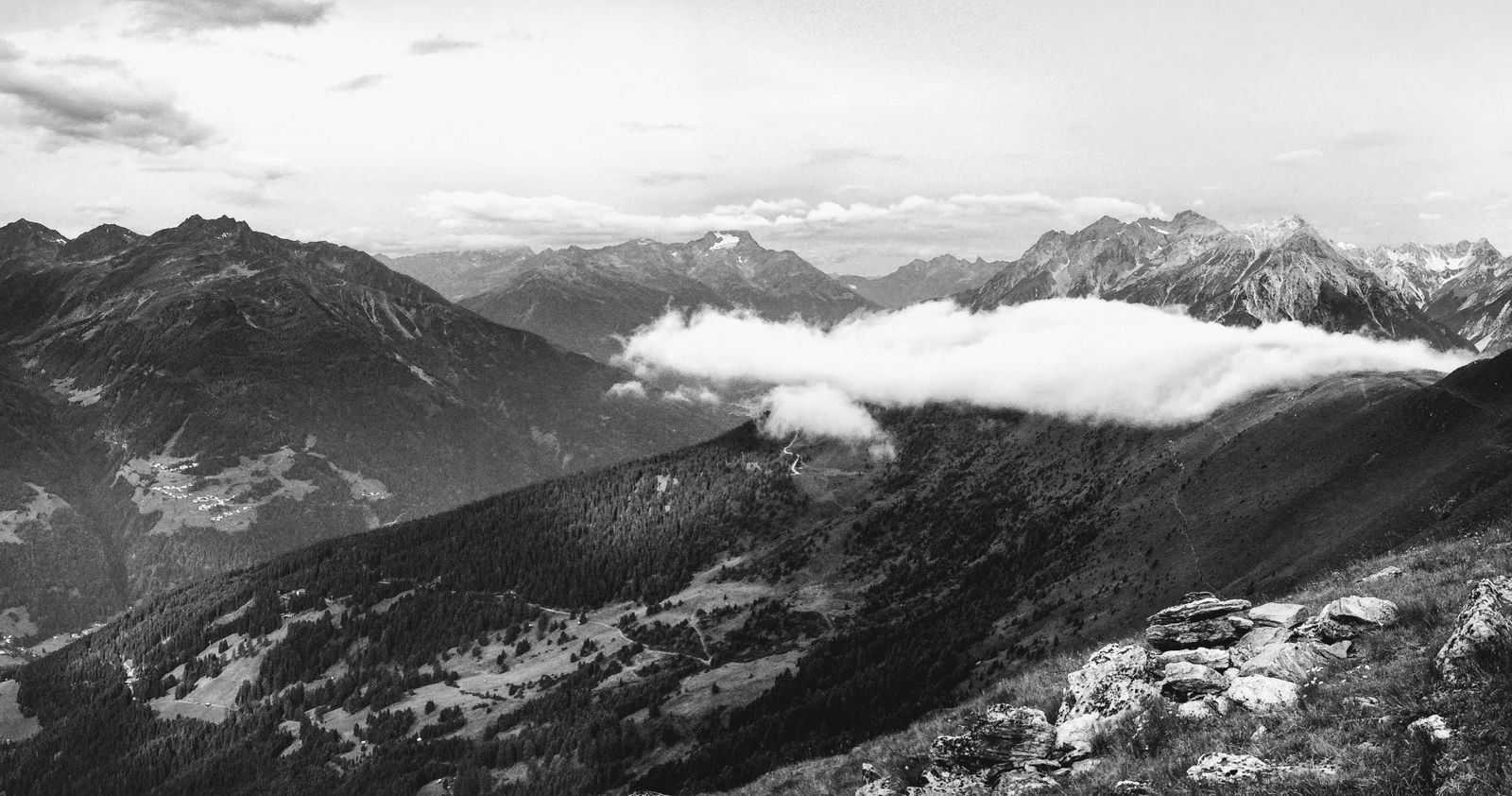
Side light can reveal texture and volume through alternating light and shadow. Frontal light may simplify texture. Backlight can emphasize an outline. Choose the direction that supports the subject rather than assuming dramatic shadows are always better.
For a portrait, inspect the eyes, nose shadow and separation from the background. For architecture, inspect how the light describes edges and planes. For a landscape, look at whether the main shapes remain readable as the light changes.
Hard light can give distinct boundaries, but it can also hide important information in shadow. Soft light can give gradual transitions without becoming dull. Make a comparison when possible: the same subject under different light, with a similar composition, is more useful than unrelated examples.
 Save
SaveExpose for the important detail and verify a test file. Conversion does not restore a clipped highlight or make a moving subject sharp. The exposure relationship still applies in monochrome.
Keep a reversible original
Where your camera and workflow support it, keep a RAW or color original alongside the preview you use to compose. Camera monochrome modes and file settings vary. Read the manual before assuming a setting changes only the preview or that every file remains recoverable in color.
Use a reversible editing method. Save the original file and create an edit or adjustment that can be changed. Do not overwrite the only color version simply because the first conversion looks promising.
In Photoshop, adjustment layers allow tonal and color changes without directly replacing the underlying pixel layer. Adobe’s adjustment-layer documentation explains that approach. Check the current interface for your version rather than following old screenshots blindly.
Keep the file structure simple enough that you know what each layer or adjustment does. A stack of unnamed experiments is hard to review. Name significant edits by purpose, such as background separation or face brightness, rather than by the order you clicked them.
Make a neutral conversion first
Begin with a balanced conversion before adding strong contrast, grain or toning. Check the overall exposure and the important relationships. If the face and background merge, solve that specific separation rather than making the entire frame harsher.
Adobe’s black-and-white conversion guide describes software approaches to a monochrome image. The method should leave room to control the result, not force every photograph into one preset.
A color-channel or color-range control can change how original colors become grey. Move one control at a time and watch the relevant areas. Lightening one color may also affect skin, clothing or background objects you did not intend to change.
Avoid extreme channel moves that create unnatural edges, patchy skin or halos. Inspect the image at full size and compare against the original. A clear graphic result may be intentional, but it should be a decision you can explain, not an unnoticed side effect.
 Save
SaveBuild contrast around the subject
Choose the darkest and brightest meaningful areas. You do not need every photograph to contain a pure black and a pure white. A misty scene may depend on a narrower range. A hard-lit architectural study may benefit from stronger separation.
Adjust the middle tones as carefully as the endpoints. A face, stone surface or fabric can lose its shape if the middle range is compressed too far. Look for transitions that describe form, not just a dramatic thumbnail.
Use local changes when the problem is local. A small bright distraction at an edge may need restraint, while a shadow near the subject may need a little opening. Keep the adjustment gradual and inspect for visible boundaries.
Compare at the intended display size. An edit that looks subtle at a huge zoom level may feel heavy in a small print. An edit that looks powerful on a bright screen may block up on another display. The final use should guide the finishing pass.
Dodge and burn with a reason
Dodging and burning means selectively lightening and darkening areas. Use it to support existing light and structure. A modest lift on an important detail or restraint on a distracting patch can direct attention without making the edit obvious.
Start with a low-strength adjustment and build slowly. Keep the change broad enough to follow the surface or light transition. Small repeated strokes can create spots that look like dirt or uneven skin when viewed normally.
After each pass, toggle the adjustment off and on. If the change only makes the subject look artificially pasted onto the scene, reduce it. The aim is a stronger relationship between the elements, not proof that you can brighten one object.
For documentary, scientific, contest or client work, check the relevant limits on local editing. A monochrome conversion is not a blanket exemption from rules about altering the record. Describe material changes where required.
Handle texture without over-sharpening
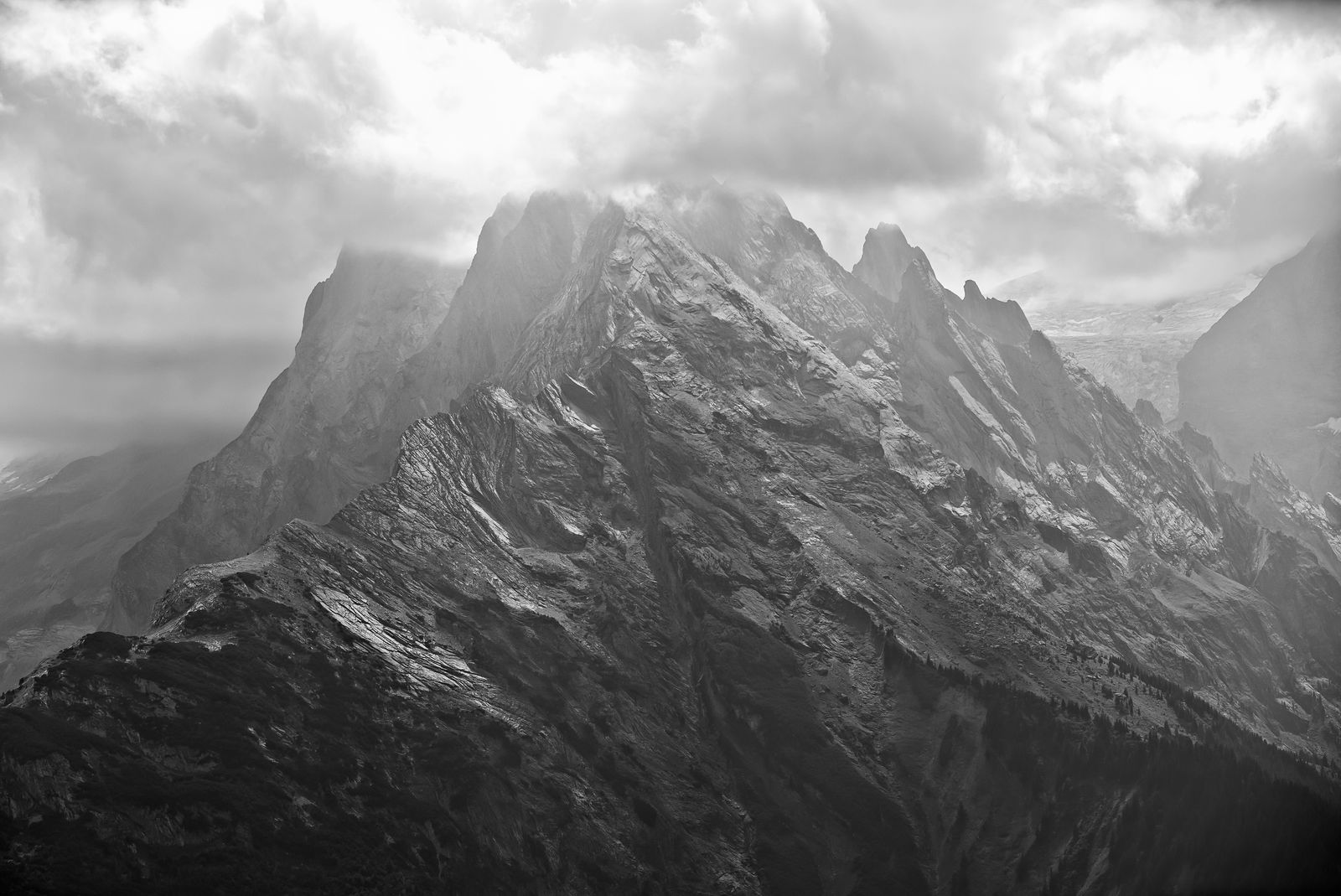
Texture becomes prominent in many black-and-white photographs, but more texture is not always better. A wall may benefit from detail while a face needs a gentler treatment. Decide which surfaces should carry attention.
 Save
SaveExcess sharpening can create bright and dark outlines around edges. Heavy clarity or local contrast can make smooth transitions brittle. Inspect fine lines, hair, leaves and skin at full size, then return to a normal view.
Noise and added grain are different choices. Noise may come from capture and processing. Added grain is an aesthetic treatment. Neither should be used to hide a missing focus decision without acknowledging the result.
If you add grain, keep it consistent with the final size and the image’s purpose. A large screen preview is not the same as a small printed photograph. Make a test output when the final use matters.
A controlled color-to-monochrome exercise
- Choose two colored objects: Place them under consistent light with a simple background.
- Photograph in color: Make sure focus, exposure and composition are usable before converting.
- Make a neutral conversion: Compare the objects’ grey values and their separation.
- Change one color control: Watch which object and background areas move together.
- Make one local adjustment: Improve a specific relationship without changing the whole frame.
- Compare the versions: Judge which one explains the subject most clearly at the intended size.
This exercise shows why removing color is not the end of the decision. You can see how original colors map to tone and how a small adjustment can help or hurt the frame. Keep the test files so you can repeat the result.
Apply the method to portraits, streets and landscapes
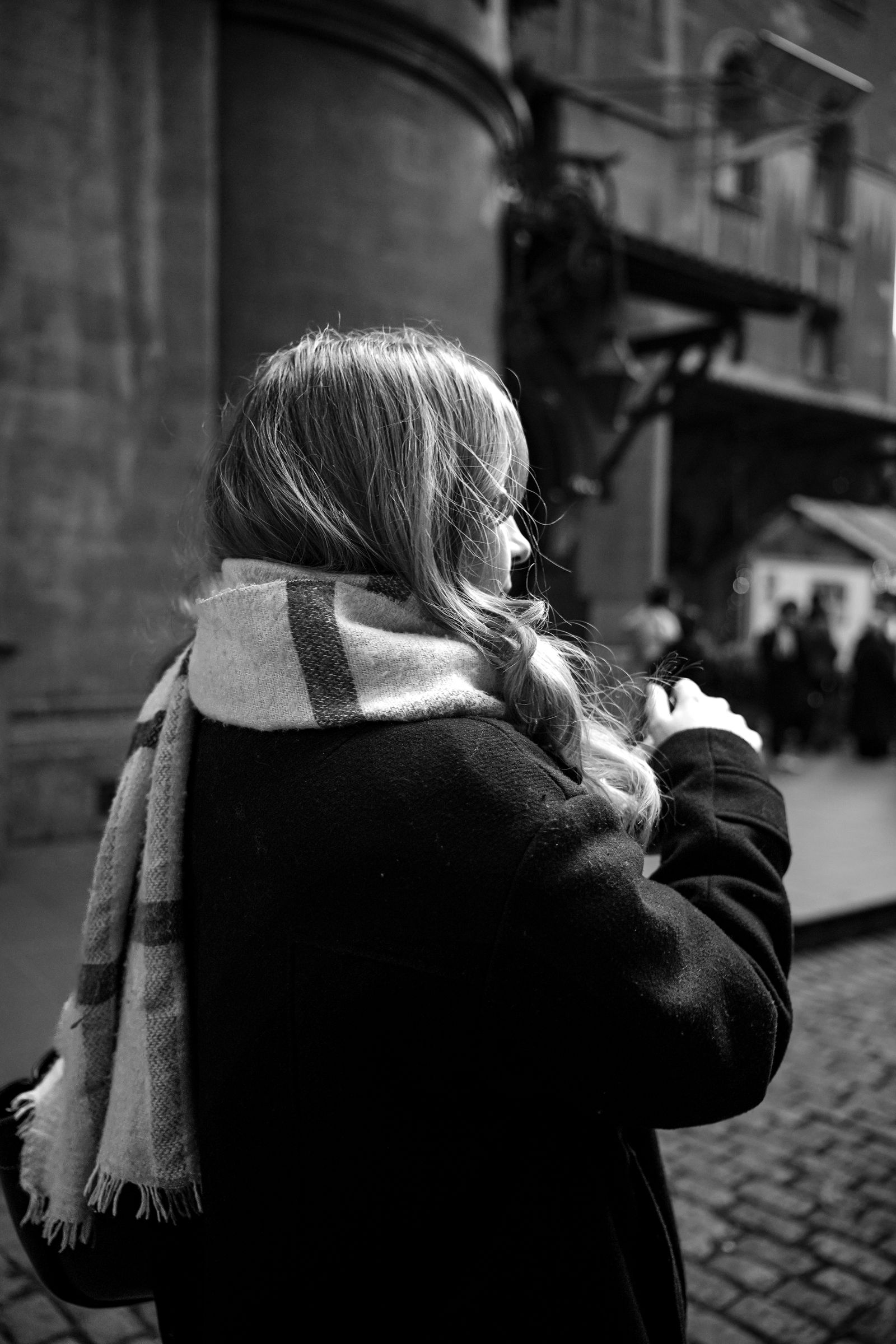
For a portrait, prioritize expression, light on the face and separation. Do not make every wrinkle dark to prove that the picture has texture. A strong portrait can use gentle transitions when they fit the person and the purpose.
For a street frame, watch clothing, signs and background tones. Conversion can simplify competing colors, but it can also merge the person into the scene. Compare both versions before deciding that monochrome makes the moment more truthful or meaningful.
For a landscape, look at large shapes and light direction. Color may distinguish vegetation, rock and water that become similar grey. A composition based on tone and structure will usually need less rescue in the edit than one based entirely on a vivid sunset.
In each case, make the subject relationship clear before applying a house style. Consistency is useful when it supports the work. It becomes a problem when every photograph gets the same contrast curve regardless of its light.
Review a sequence, not only individual files
Put the selected photographs next to each other. Check whether one frame is much darker, harder or more grainy for no useful reason. A sequence can feel inconsistent even when each individual edit looked good alone.
Vary the role of each image. One may establish a place, another a gesture and another a detail. Avoid repeating the same frame because you like the conversion. The viewer should not need to sort your near-duplicates.
Keep captions factual. Black and white can encourage dramatic storytelling, but you still should not invent a person’s emotion or the history of a scene. Explain what you know and distinguish interpretation from a claim about what happened.
Finish the sequence with a final output check. Inspect the crop, borders, text and image order on the medium where it will appear. A clean file is not the whole deliverable if the layout clips a face or makes the caption unreadable.
Learn faster with a plan. The ShutYourAperture Academy has 22 photography courses, from the fundamentals of aperture, shutter and ISO to genre courses like landscape, portrait and street.
Gear for a monochrome light comparison
Before pushing the contrast slider, try changing the light. The Impact R2522-51 22-inch 5-in-1 reflector is one option for a controlled portrait or tabletop exercise. Compare the white and black surfaces while keeping the camera and subject still, then look at the tonal separation in your conversion. Check the size and a safe way to hold it. It is a light-control tool, not a shortcut to a stronger composition. Compare the current retailer specifications; no hands-on test, price or stock promise is being made here.
Compare Impact R2522-51 22-inch 5-in-1 reflector on Amazon | Check Impact R2522-51 22-inch 5-in-1 reflector at B&H
Affiliate disclosure: We may earn a commission from qualifying purchases through these gear links at no extra cost to you. As an Amazon Associate, Shut Your Aperture earns from qualifying purchases.
Frequently asked questions
Should I shoot in black and white or convert later?
Either can be useful. A monochrome preview may help you see tones while composing, but confirm how your camera saves RAW and JPEG files. Keep a reversible original when the workflow allows it.
Does every image need deep blacks?
No. Choose contrast for the subject and light. A narrow tonal range can be appropriate. The presence of a black pixel is not proof of a stronger photograph.
Why did two different colors become the same grey?
The conversion maps color information into brightness. Different colors can land near the same value. Change the conversion carefully or solve separation at capture, and inspect all areas affected by the adjustment.
Can monochrome hide a bad exposure?
It may change how a file feels, but it does not restore clipped detail or correct severe blur. Start with a usable capture, then convert for a clear purpose.
What should I practise next?
Make a controlled two-color test, then apply the result to a scene where the subject initially merges with the background. Compare position changes against software changes. Learn which correction is simpler and more honest.
Take the color away only when the photograph gains something in return. More practical tips: Shut Your Aperture.
Some links on Shut Your Aperture are affiliate links. If you buy through one, we may earn a commission at no extra cost to you.