

By Edin Chavez | Updated October 2026
The best online photo storage for photographers is the service that protects the files you actually need, not the service with the loudest promise of unlimited space. A client gallery, a synced photo library and a backup can all put pictures online. They solve different problems. Confuse them and you can end up with beautiful previews of photographs whose originals no longer exist.
Start with the job. If you need to deliver finished photographs, evaluate a gallery service. If you need to recover a lost laptop, look at computer backup. If you edit across devices, consider a cloud photo library. If you maintain a large archive on a server or NAS, object storage can be useful, but it needs a backup application and a tested restore plan.
This guide compares those jobs using provider documentation. It is not a claim that I personally run or have stress-tested every service below. Prices, plan names and limits change, so check the current provider terms before paying. The useful question is not just how many photos fit. It is whether your RAW files, edits and client work will still be recoverable when something goes wrong.
Choose online photo storage by the job
For client delivery: a gallery service
A gallery service is built around presentation. You upload selected images, organize a gallery, set access rules and decide what visitors may download or buy. That is a different task from backing up the working folders on your computer. A gallery of 80 finished wedding JPEGs may be an excellent deliverable while leaving thousands of RAW files and the editing catalog completely unprotected.
SmugMug is one service to evaluate for this role. Check the plan’s privacy options, download controls, print ordering and file limits against your actual client workflow. Do not assume that a gallery subscription includes RAW archiving. SmugMug documents Source as a separate paid RAW-file service, with its own supported formats and behavior.
Test a gallery as a visitor, not only as the owner. Open a private browser window and confirm that the password works, the intended files download and an uninvited visitor cannot see another client’s photographs. Review watermarks and download resolution. A delivery system is useful only if its permissions match the promise you made to the client.
For a lost computer: computer backup
Computer backup is aimed at recovering files from a machine and supported attached drives. Backblaze Computer Backup belongs in this category. It is not the same product as Backblaze B2 object storage. Before starting, review the operating-system requirements, excluded files, external-drive rules and restore methods.
Backblaze’s external-drive documentation makes retention particularly important. A disconnected drive’s backed-up files are retained according to the account’s version-history setting. The documented 30-day setting and one-year setting have different reconnection windows. Check the setting in your own account. A drive that lives in a drawer is not automatically protected forever simply because it uploaded once.
For a photographer with one editing computer and attached photo drives, an automatic backup service can be less demanding than building a server-based system. Still inspect its status. An installed application is not proof of a completed backup, and a green icon does not prove that the folder containing this week’s shoot was included.
For editing across devices: a cloud photo library
Cloud libraries make photographs available where you work. That can be useful for selecting images on a tablet, sharing personal photographs or editing away from the studio. The convenience is real, but the word sync needs attention. A synchronized deletion can be a correct feature of the service rather than a backup failure.
Apple documents that iCloud Photos keeps edits and deletions consistent across devices. Deleted items remain recoverable in Recently Deleted for 30 days, then are permanently deleted. Optimize Storage can leave smaller local versions on a device while the originals remain in iCloud. Plan your independent backup around where the originals actually live, not around what the thumbnail appears to show.
Google Photos offers different upload-quality settings, and account storage is shared with other Google services. If the online copy must preserve your capture quality, inspect the setting and download a sample for comparison. A familiar photo appearing in the app does not establish that you stored the same original file, resolution and metadata you started with.
For a large archive or NAS: object storage
Backblaze B2 and other object-storage services provide storage rather than a finished photographer’s workflow. You normally need software that sends files, manages versions and retrieves them. That extra control can suit a large archive, but it also puts more responsibility on you or your technician.
Check the total workflow cost: stored data, applicable transfer or retrieval charges, software, local equipment and time to restore. Verify that the application preserves the file structure and versions you expect. Do not select a technical service solely because a per-terabyte number looks cheaper than a simpler backup subscription. Cheap storage with an unworkable restore process is poor protection.
What a photographer actually needs to save
Your photographs are more than exported JPEGs. Make a short inventory before comparing services. Include camera originals, the files used for editing, catalogs or databases, sidecars, layered documents, delivered exports and the business records needed to finish a job. You may not want all of them in one system, but each needs a clear home.
A RAW file without its editing information can be reprocessed, but it may not reproduce the delivered result. A catalog without its referenced photographs can remember ratings and edits without having the pixels available. A client gallery may contain final exports but no alternate crops or layered retouching files. Decide what you would need to rebuild the job, then protect that complete set.
Give folders stable, understandable names. A simple pattern such as year, date and project name is easier to restore than a pile of folders named Final, New Final and Final Two. Keep personal experiments separate from client deliverables. Write a short note explaining which folders are originals, working files and finished exports, especially if another person might have to recover them.
Lightroom storage: know which Lightroom you use
The distinction between Lightroom’s cloud workflow and Lightroom Classic matters. A statement about one does not automatically apply to the other. Before buying cloud capacity, identify where your originals are stored, which application imported them and what your backup includes.
Adobe’s Lightroom Classic catalog FAQ says Classic can sync Smart Previews to the Lightroom ecosystem; that is not a backup of the original image files. Its catalog also references photographs stored separately. Protect both the catalog and those photographs. Do not count a phone’s ability to display a synced image as proof that the camera original is recoverable from the cloud.
Adobe also advises against keeping the working Classic catalog in folders managed by third-party online syncing services. Follow the documented workflow for your version rather than improvising a live catalog-sharing setup. Make a clean backup when the catalog is safely closed and test that copy separately. For a new editing setup, the camera buyer guide helps connect capture needs with the file volume your workflow will create.
Build independent copies, not just more icons
A practical starting point is three copies: the working library, a separate local backup and an off-site backup. That is a structure, not a guarantee. Two folders on the same drive are not independent copies. Two drives sitting in the same bag can be lost together. A cloud sync folder that mirrors accidental deletion needs additional versioning or another recoverable copy.
Use a working drive for active projects, a separate backup destination and an off-site service or securely stored off-site copy. Add a disconnected or otherwise protected copy where the risk justifies it. The exact arrangement depends on your shoot volume and delivery promises. A weekend landscape photographer and a studio handling paid daily sessions do not need identical systems.
RAID can help a storage system continue operating through some drive failures. It does not replace backup. It does not by itself protect against deleting the wrong folder, theft, fire or every controller failure. If a drive or array is failing, avoid experimentation that writes to it. Stop and get qualified recovery help when the only surviving copy is at risk.
 Save
SaveEstimate capacity before comparing plans
Measure a real project rather than guessing from your camera’s megapixels. Check the folder size after importing originals, adding edits and exporting deliverables. Multiply by the number of similar projects you expect to keep, then allow space for growth and versions. Video, burst-heavy events and layered retouching files can change the estimate dramatically.
For example, a hypothetical 100GB project repeated twice a month produces 2.4TB of new project data in a year before extra versions. That is an example calculation, not a claim about your files. Your own sample may be much smaller or larger. If you keep several years of originals, include the existing archive as well as the coming year’s work.
Upload time matters too. Large initial backups can take a long time on a slow upstream connection. Check your connection’s actual upload performance and the service’s completed-byte count. Keep the local backup until the first upload is complete and verified. Do not erase a camera card because an upload has merely started.
Compare costs using the same assumptions. Include storage capacity, users or computers covered, RAW support, version history, client delivery features and restoring a large library. Do not mix a gallery’s display-image allowance with a backup service’s protected file volume. They are not measuring the same job.
Run a restore test before you trust the service
Choose a small but representative project: several RAW files, a finished JPEG, an editing file and the relevant catalog or sidecars. Restore them into a new temporary folder, leaving the originals untouched. Open the files in the software you use and check dimensions, filenames, dates and edits. The test should answer whether you can work from the restored copy, not merely whether a download link exists.
If your tools support checksum verification, use it to compare recovered originals with the originals you uploaded. Otherwise, at minimum inspect file sizes, open the images and check the expected metadata. Test a previous version as well as the newest file where version history matters. An old mistake that has already synced everywhere is exactly when retained versions earn their keep.
Write down the restore steps, account recovery route and where the backups live. Keep recovery codes and credentials in a secure password manager, not a publicly shared project document. Set up multi-factor authentication and check who can access client galleries. A backup account that you cannot regain access to is an unfinished plan.
 Save
SaveA travel workflow that does not gamble with the shoot
On a trip, separate the capture copies from the travel risk. Import photographs to your working device, make another copy to a separate drive and verify both before reusing a card. If connectivity is poor, acknowledge that the off-site copy may still be incomplete. Do not confuse a hotel upload queue with a completed backup.
Keep the copies in different places where practical. A laptop and backup drive packed together are convenient but share the same theft risk. Upload important originals when a reliable connection becomes available. Keep a simple record of which folders have completed local and off-site backup so you do not have to reconstruct the answer from memory at the airport.
Travel planning and file planning belong together. The film-camera landscape guide covers deliberate shooting and composition; digital trips need the same care after capture. When using a destination photography PDF, keep an offline copy of the route and access notes alongside your trip plan, but keep the photo archive separate from a client-facing delivery folder.
 Save
SaveLearn faster with a plan. The ShutYourAperture Academy has 22 photography courses, from the fundamentals of aperture, shutter and ISO to genre courses like landscape, portrait and street.
Questions about online photo storage
What is the best online photo storage for photographers?
Choose by the job. A gallery suits delivery, computer backup suits recovering supported local files, and a cloud library suits access across devices. A large managed archive may suit object storage. Start with the files you need to recover and test the whole workflow before committing your library.
Is unlimited photo storage enough for RAW files?
Not necessarily. Read the supported-format, file-size and plan rules. Unlimited display-photo storage does not automatically cover RAW originals, catalogs or sidecars. SmugMug Source, for example, is documented separately from the gallery workflow. Verify the current service terms for every file type in your inventory.
Can I use iCloud Photos as my only backup?
It keeps originals online and makes the library convenient across Apple devices, but deletions also propagate. Keep an independent recoverable copy of important photographs. Check whether your local device contains originals or optimized versions before deciding which files a local backup protects.
Does Lightroom Classic sync back up my RAW files?
Classic’s documented sync uses Smart Previews, not a replacement archive of original files. Back up the original photo folders and the catalog separately. Confirm which Lightroom application imported the images and where the actual originals live before relying on any cloud copy.
How often should I check a backup?
Check completion after importing an important shoot and before erasing cards or deleting a working copy. Run restore tests periodically and after changing computers, storage locations or backup software. The right frequency follows the amount of work you could lose between checks, not a universal calendar rule.
Should I delete old work to reduce storage costs?
Decide from contracts, client expectations and your archive policy, not an unexpected full-disk warning. Confirm what can be removed, what must remain and whether other copies are complete. Deletion may also reach synced services or start a backup-retention clock. Export anything needed before canceling a service.
Storage gear worth considering
Affiliate disclosure: links below may earn Shut Your Aperture a commission at no additional cost to you. Choose the capacity and workflow you need; a product purchase does not replace a backup plan.
 Save
SaveA storage plan is finished when you can recover the originals and the work around them. Buy for that outcome, verify the copies, and keep photographing.
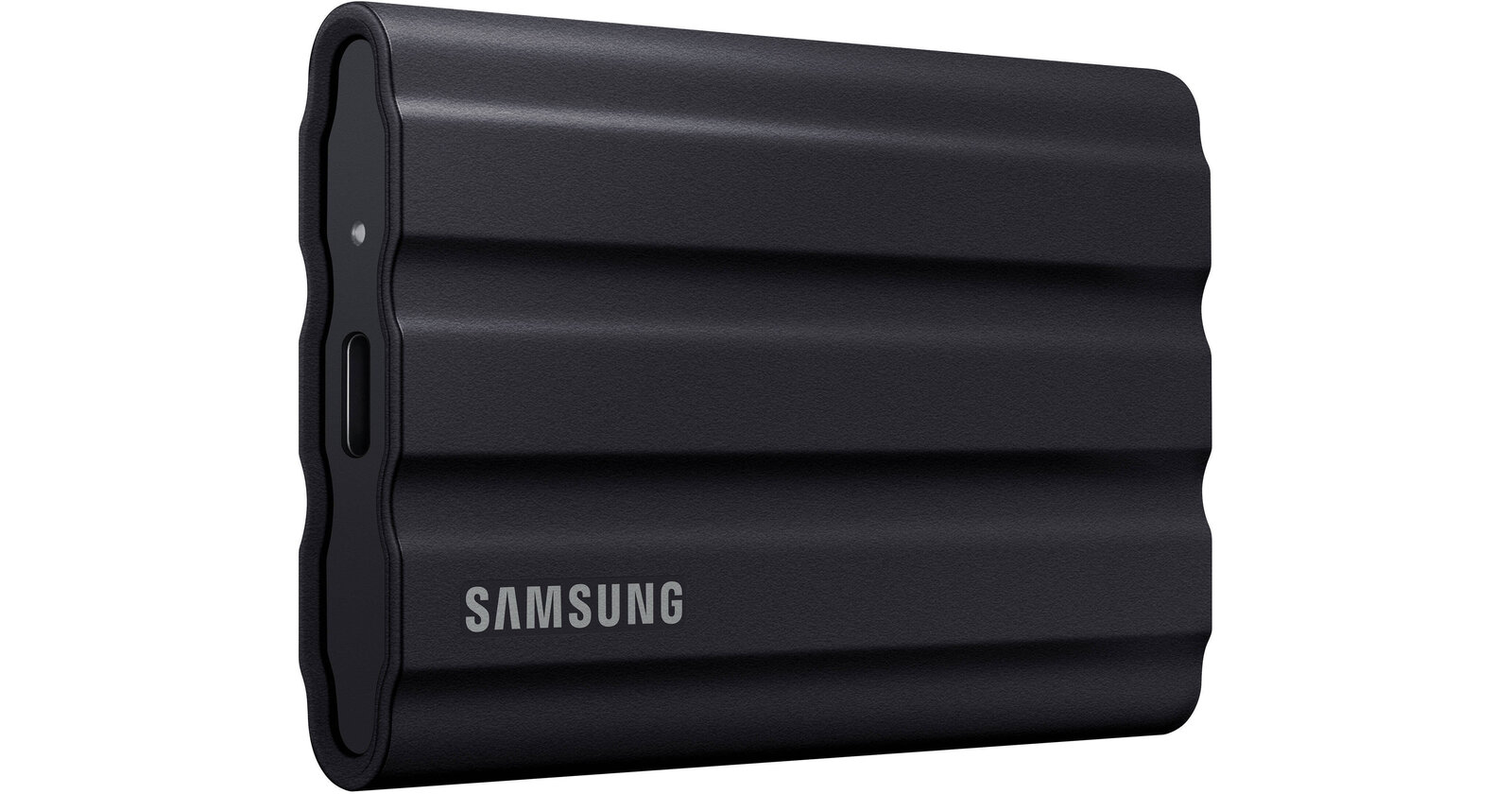
Portable working copy: Samsung T7 Shield 2TB
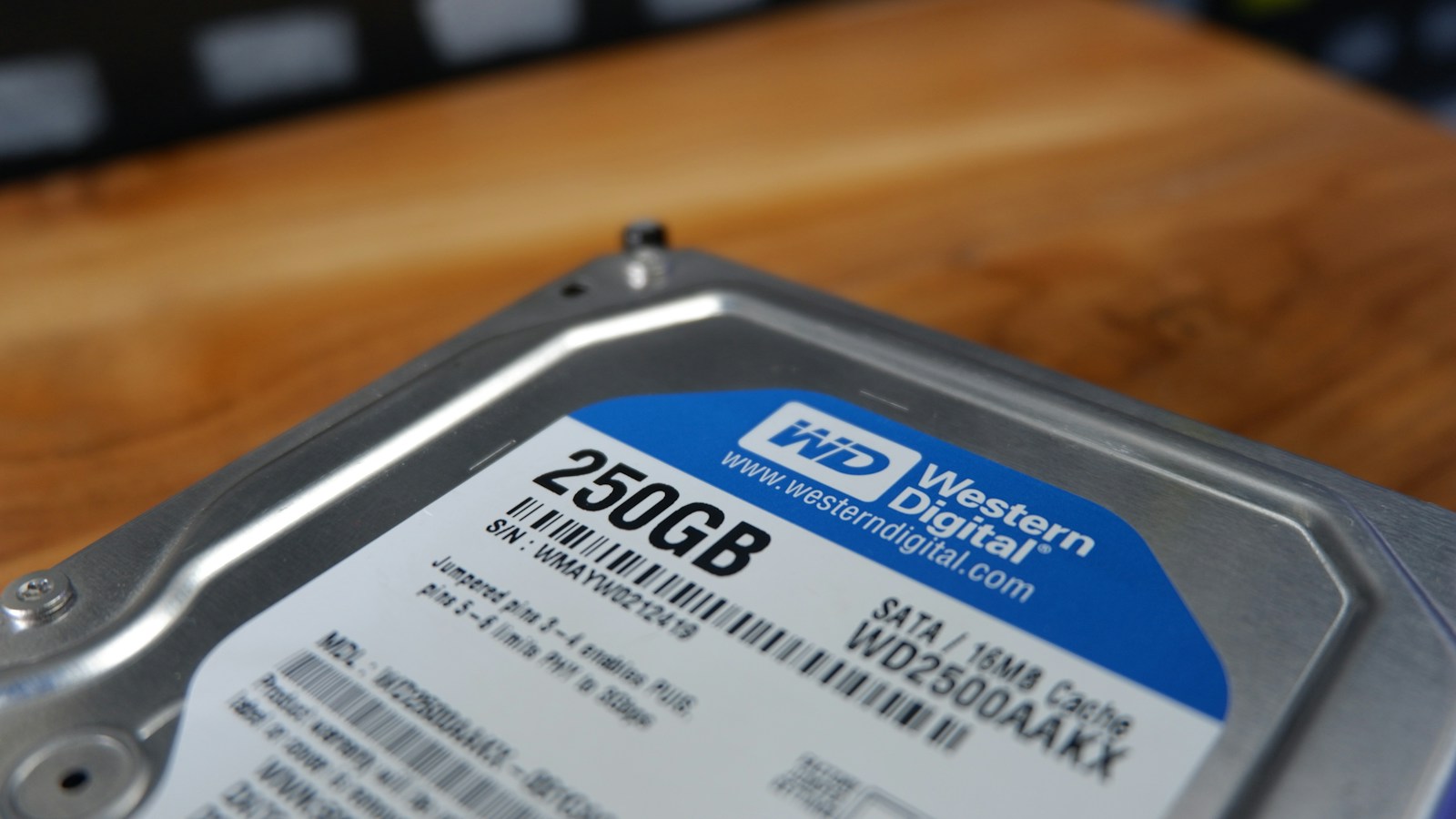
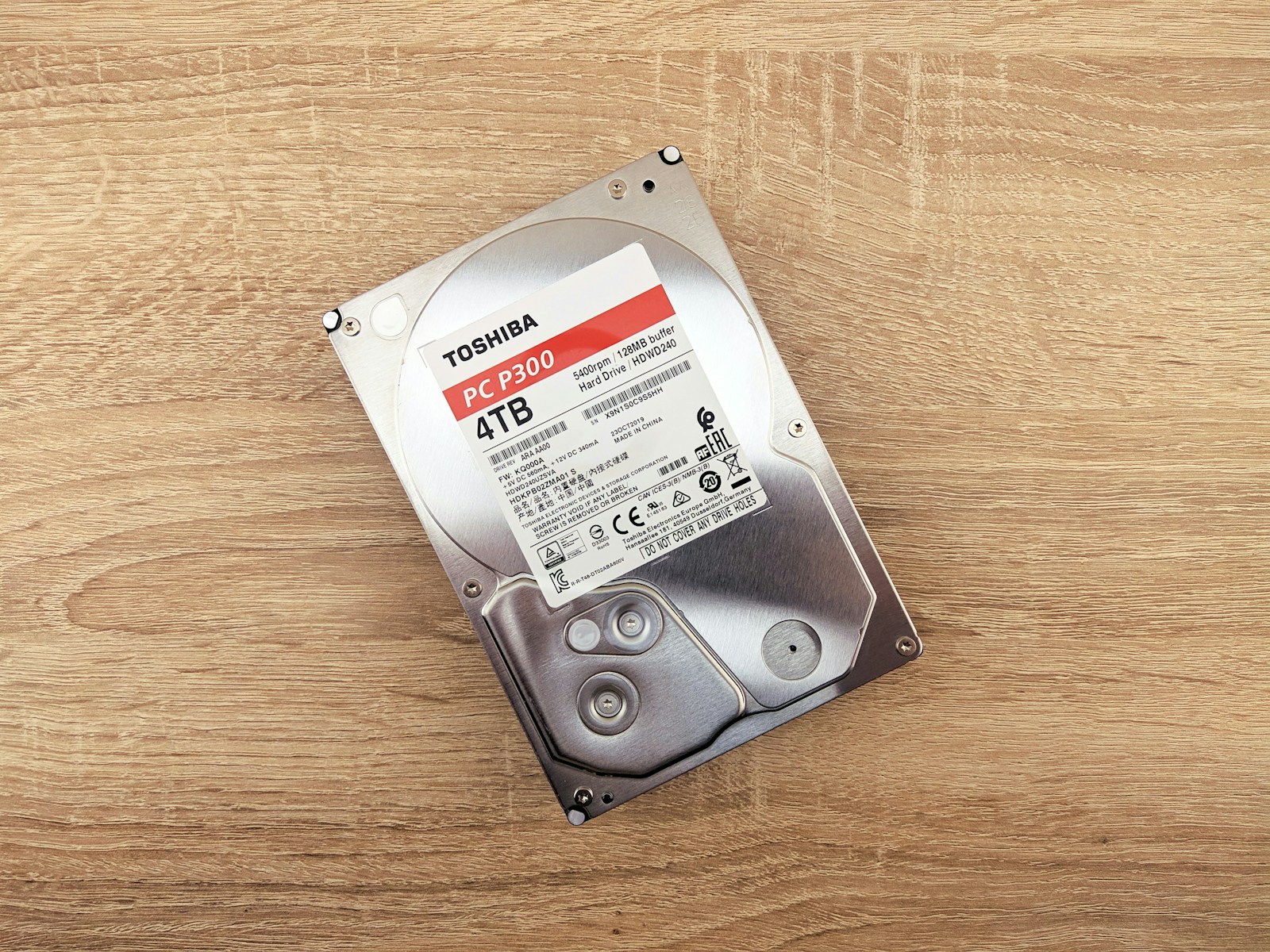
A portable SSD can hold active projects or a separate travel copy. The T7 Shield 2TB has a USB 3.2 Gen 2 interface; actual transfer speed depends on your computer, cable and workload. Treat it as one component of the system, not permanent insurance against losing photographs. The hero shows a Samsung portable SSD in blue keyboard light, not a verified T7 Shield. The inline photographs show other physical disks. None is presented as a product photo of this recommended model.
Check Samsung T7 Shield 2TB on Amazon | Check the same black 2TB model at B&H
Check current price, seller, warranty and available capacity on the retailer page. Budget for a separate backup destination and off-site protection before spending everything on one faster drive.