A moment does not wait while you work out three settings. Someone laughs, a child turns toward the light, or a patch of sun reaches the subject for a few seconds. Auto mode can help you make the photograph before the moment disappears. There is nothing wrong with using it.
Shooting in auto mode does not mean you have no decisions left. You still choose the subject, the angle, the background, and the timing. You also need to notice when the camera’s guess does not match the picture you want. That is where a few simple checks make a big difference.
Use this guide to get more from automatic exposure without pretending that every camera offers the same controls. You will learn how to help focus, protect sharpness, find better light, check flash behavior, and recognize when a different mode would make the job easier.
Updated October 2026.
What auto mode does, and what it cannot know
Auto mode lets the camera choose exposure settings according to its design. Depending on the model, it may also control ISO, flash, white balance, and other features. A full-auto setting, a scene mode, program mode, and a phone camera’s default mode are not identical systems.
The camera can measure the scene and recognize some patterns, but it cannot fully know your intent. It may make a bright window look acceptable while leaving a face too dark. It may use a slow shutter for a still scene just as your subject starts moving. The result can be technically consistent with its choices and still fail your photograph.
Check your manual for the options available in your chosen mode. Some cameras let you select a focus point or disable flash; others restrict those controls in full auto. If a setting is unavailable, do not spend the moment fighting the menu. Move to a suitable mode when you need that control.
Start with better light instead of a better menu
Look at the subject before lifting the camera. Is the face lit clearly? Is the background much brighter? Is a hard shadow crossing the important detail? A small change in position can make the scene easier for both you and the automatic exposure system.
Near a window, turn the subject or move yourself until the light reveals the face without an awkward bright patch. Outdoors, shade can provide a more even starting point for some portraits. Direct sunlight can also work when its contrast and direction fit the picture. There is no single type of light that wins every time.
Do not assume the brightest location is the best. Look for comfortable light, useful direction, and a background that does not overwhelm the subject. A camera mode cannot repair every lighting problem.
Help the camera focus on the right thing
On cameras with half-press autofocus, press the shutter partway and check the focus indication before taking the picture. On a phone, tapping the intended subject may guide focus and exposure. The exact behavior varies, so make a test with your device.
If the camera chooses the background, use a focus point, touch control, or subject-detection option if available. Otherwise, simplify the frame or change your distance so the intended subject becomes clearer. Keep an eye on the actual sharp area instead of assuming a box around something means the final picture will be perfect.
For moving subjects, continuous autofocus may be more suitable than locking focus once, but full auto may decide this for you. Learn how your model behaves with people walking toward the camera. A small practice session is better than discovering its limits at an important event.
Recomposing after focus lock can cause problems at close distances or shallow depth of field. Use an appropriate focus point where possible and inspect the important feature. The technique that works for a distant scene may not be reliable for a close portrait.
 Save
SaveHold the camera steadily, then check the subject’s movement
Use both hands, brace your arms comfortably, and press the shutter without a sudden jab. A stable stance can reduce your own movement. It is a starting habit, not a promise that every frame will be sharp.
In dim light, the camera may choose a longer exposure time. A table, tripod, or other safe support can help with camera shake when the subject is still. It will not freeze a person moving through the exposure.
Stabilization has the same distinction. It can help with camera movement but does not stop a child’s hands, a runner’s feet, or leaves in wind. If the subject is blurred while the background is sharp, support alone may not solve it.
For static scenes on a tripod, a short self-timer can reduce movement from pressing the shutter. Follow the camera and stabilization manufacturer’s guidance for tripod use. Check that the support is stable and that the timer does not cause you to miss the moment.
Recognize when the shutter is too slow
If your camera displays the selected shutter speed, get into the habit of noticing it. A slower time may suit a still building but fail a lively conversation. If the display is hidden in full auto, review the file information after a test photograph.
Magnify the result enough to judge the part that matters. Is a face sharp? Are moving hands blurred in a useful way or just unclear? The answer should guide your next decision. Do not judge solely from a tiny preview that makes every frame seem sharp.
If auto consistently chooses a shutter that is too slow, try a suitable action scene mode, shutter priority, or another mode that provides the needed control. Our shutter priority guide explains how to make motion the first decision.
Watch what automatic flash changes
Some cameras fire a built-in flash automatically in low light or certain scenes. Others do not have one, or let you choose a no-flash mode. Learn the behavior before taking photographs at a performance, ceremony, or place where flash is restricted.
Flash can add light to a nearby subject, but it is not a universal cure. It can change the mood, create reflections, or leave a distant background dark. An on-camera flash cannot light every part of a large landscape.
If turning flash off makes the camera choose a slower shutter, you may trade one problem for another. Compare results when it is safe and appropriate. Moving to better available light or choosing a different exposure mode may be a better solution than forcing flash off in a dim scene.
Ask before directing bright light at people when the situation calls for it, and respect no-flash rules. A natural-looking photograph is not a reason to conceal what you are doing or disregard someone’s comfort.
Keep the background from taking over
Automatic exposure does not automatically compose the picture. Scan behind the subject for poles, branches, signs, and bright windows. Move a little left or right if that separates the face from a distraction.
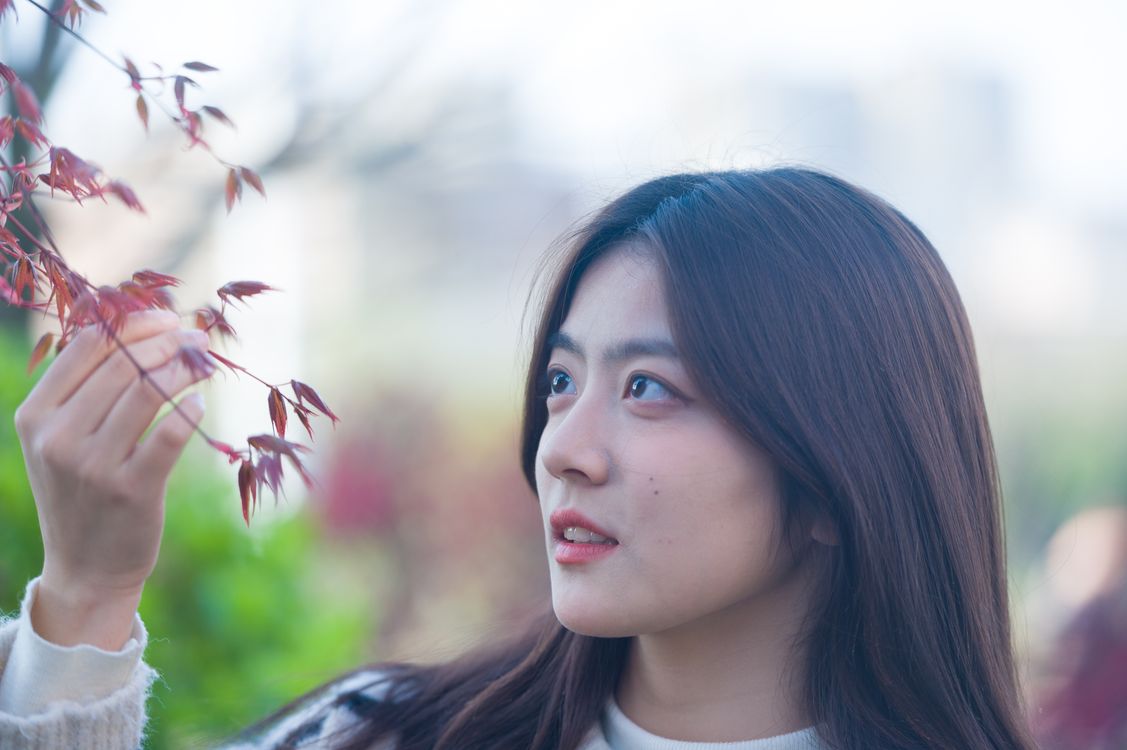
Decide whether the surroundings belong in the photograph. An environmental portrait may need the room or landscape. A tight expression may need less context. Get closer or reframe because the picture benefits, not because every portrait needs an empty background.
Try a centered and an off-center version when time allows. Our rule of thirds guide shows how to compare them without treating the grid as a guarantee of quality.
 Save
SaveReview brightness without trusting the screen alone
A display can look different in sunlight and a dark room. If your camera offers a histogram or highlight warning, use it alongside the preview. There is no perfect histogram shape; the aim is to keep important detail and make the scene feel intentional.
If a face is too dark against a bright window, change position or light before assuming you need a new camera. Exposure compensation may help in a mode that allows it, but full auto can limit that option. Check what is actually available.
Keep the scene’s contrast in mind. One exposure may not hold every bright and dark area. Choose what matters, change the light, or use another appropriate technique. Do not assume an editing slider can restore fully lost highlights.
Our exposure guide explains how aperture, shutter time, and ISO relate. Learning that relationship helps you understand the camera’s decisions even when you let it make them.
Use scene modes with a reason
A portrait, sports, landscape, or night mode may encourage a different set of automatic choices. The names describe intended uses, but the exact behavior belongs to your camera. Read the manual and test the mode with a subject similar to the one you care about.
A scene mode cannot know every detail. A portrait mode may choose a wide aperture that leaves one person sharp and another soft. A night mode may expect a supported camera and a still subject. Notice the assumption before using the mode for a different situation.
Phone computational modes can combine frames or simulate blur. Moving subjects, fine hair, reflections, and edges may need a close check. Inspect the actual result rather than accepting a mode label as proof that it worked.
Choose a next mode only when you notice a limit
If depth of field keeps failing your picture, try aperture priority. You select aperture while the camera handles shutter within the available settings. Check the resulting shutter speed so the new freedom does not introduce accidental blur.
If movement keeps failing, try shutter priority. If you need shutter and aperture to stay fixed in steady light, manual may be useful. You do not need to jump straight to M simply because you have been using auto.
Our aperture priority guide and manual-mode workflow offer practical next steps. Change modes to solve a problem, not to prove you have graduated from a beginner label.
A short auto-mode exercise
Photograph a steady subject in even light. Make one frame from your first position, then move to clean up the background and make another. Next, change the direction of the light by moving yourself or the subject where appropriate. Compare what improved without touching exposure controls.
Then photograph a safely moving subject, such as a willing person walking. Review sharpness and look at the selected settings if available. Try an appropriate action mode or shutter priority if auto fails to keep the important movement clear.
Write down one thing the camera handled well and one thing it could not know. That observation is more useful than declaring auto good or bad. Take it into the next session and keep practicing with the Shut Your Aperture Academy.
 Save
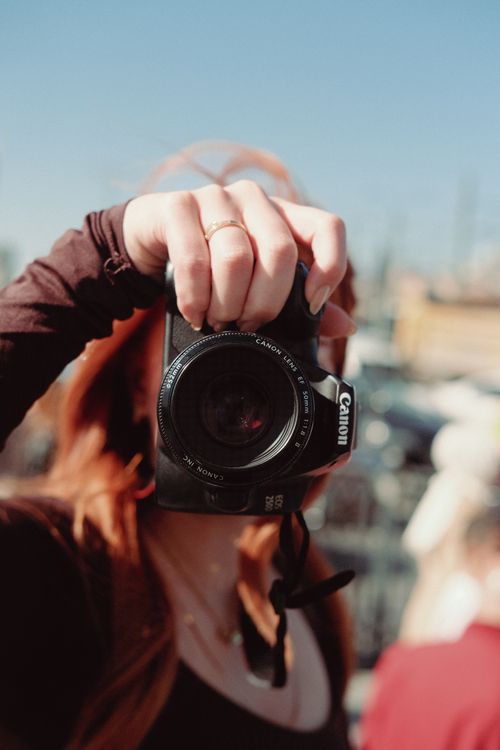
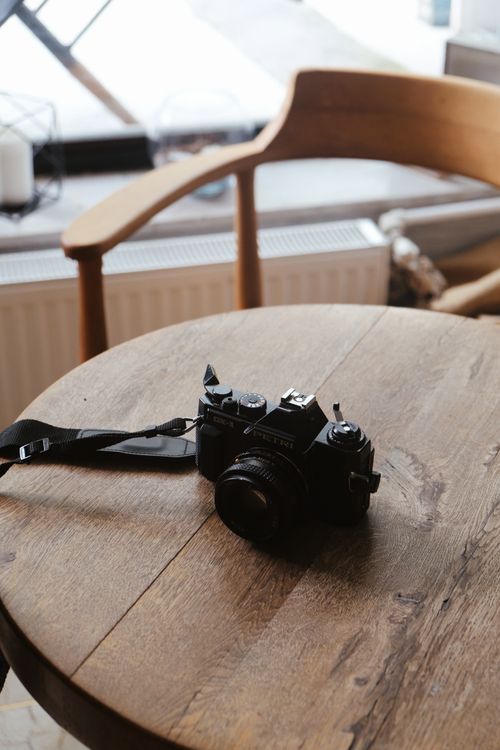
SaveThe camera photographs illustrate general handling and subjects; they do not establish the mode or automatic features of the pictured equipment.
Auto mode questions
Is auto mode only for beginners?
No. It can be useful when speed matters and its choices fit the photograph. Use a different mode when you need control the automatic system does not provide.
Does a tripod prevent all blur?
No. It can reduce camera movement, but a moving subject can still blur during the exposure.
Can I choose a focus point in auto mode?
That depends on the camera and mode. Check the manual and the available controls rather than assuming every auto setting allows it.
Should I always turn automatic flash off?
No. Compare the light and mood when flash is allowed and appropriate. Turning it off can result in a slower shutter, so review sharpness too.
Which mode should I learn after auto?
Choose based on the limit you notice. Aperture priority helps with depth of field, shutter priority with movement, and manual with holding settings deliberately.
References: Nikon exposure-mode documentation and composition guidelines. Available automatic features vary by model.
Learn faster with a plan. The ShutYourAperture Academy has 22 photography courses, from the fundamentals of aperture, shutter and ISO to genre courses like landscape, portrait and street.
Useful gear for steadier auto-mode photos
You can practice automatic exposure with the camera you already own. Buy only to solve a real problem, not to make auto mode more professional.
Tripod and head: useful for refining static landscapes and keeping the frame steady. Check load capacity, plate fit, and whether a suitable head is included.
Compare on Amazon | Compare at B&H
Camera strap: choose a comfortable carry option for walking between angles. Check attachment points, weight rating, and compatibility with your camera.
Compare on Amazon | Compare at B&H
Affiliate disclosure: we may earn a commission from qualifying purchases through these links, at no extra cost to you. These are gear-search links, not promises that every listed item fits your setup.